Can You Downgrade iOS Updates? A Practical 2026 Guide
Learn whether you can revert to a previous iOS version, how signing windows affect downgrades, and safe backup steps. This guide from Update Bay covers risks, alternatives, and practical steps for 2026.


Generally you cannot downgrade to a prior iOS version once Apple has stopped signing the update. Downgrades are only possible when Apple is still signing the target version, and you have the correct IPSW and a compatible device. This guide explains how to verify signing status, the risks involved, and practical alternatives if downgrading isn't possible.
Downgrading iOS: basics and misconceptions
For many users, the question 'can you go back in iOS update' is about returning to a stable build after a troublesome update. According to Update Bay, downgrading is not about reversing the entire history of iOS versions; it’s about restoring to a signed, older build within a limited window. Apple signs specific iOS versions for a finite period after release to encourage adoption of the latest security fixes. Once Apple stops signing, official downgrade paths close. If your device runs a version that Apple actively signs, you may have a window to revert using Finder (on macOS), iTunes (on Windows), or Apple’s own server tools. The feasibility depends on the device model, whether it has SHSH blobs or equivalent, and the availability of the target IPSW. In practice, you must determine whether the older version is still signed and whether you can legitimately obtain the firmware file. If signing has ended for the target version, the official path is to stay on the current update and explore non-downgrade remedies such as optimizing settings, removing problematic apps, or performing a clean install of the same iOS version with a fresh backup.
How iOS signing works and why it matters
Digital signing is the mechanism Apple uses to validate firmware. An IPSW file is only installable on a device if Apple’s servers authorize that specific build for that device. This authorization is called signing. The window during which a version is signed is finite and varies by update cycle. If you attempt to install an unsigned build, the device will reject the installation, and you may face data loss or bricking if you force it. Understanding signing status is essential because it defines whether a downgrade is technically feasible at all. Tools like Finder on macOS (or iTunes on Windows) can restore a device to the signed version if the IPSW is present and the firmware is authorized. However, even when signing is active, you must meet device compatibility requirements and have a backup plan in case something goes wrong. The Update Bay team notes that never assume a downgrade is guaranteed; always verify current signing status before taking action, and avoid using untrusted IPSW sources, which can introduce malware or modified firmware.
Is downgrading possible for your device right now?
The short answer is: it depends. If Apple is still signing the iOS version you want to return to and you have an officially obtained IPSW file, you may be able to downgrade. If not, there is no official downgrade path that maintains device integrity. Based on Update Bay analysis, signing windows are typically short after a new release and vary by device type. Older devices may have different constraints, and some models may not support a downgrade path at all due to hardware limitations. Before you decide, check your current iOS version in Settings > General > About and compare it with Apple’s signing status pages (these pages indicate which versions are still signed for iPhones of your model). You should also confirm you can legally download the target IPSW from a reputable source. If the target version is signed and you are comfortable proceeding, you can plan a restore process that will erase content, so you must have a valid backup and a plan to restore data afterward.
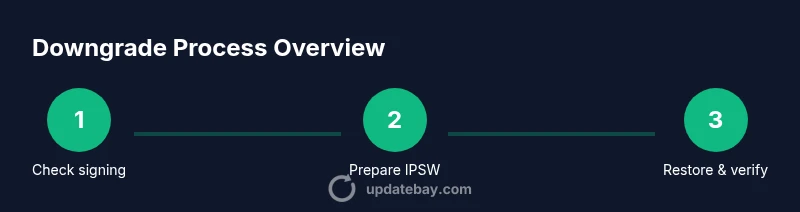
Step-by-step decision tree: check signing status, prepare
- Check signing status for the target version on an official Apple signing status page or via industry trackers to determine if downgrade is technically possible.
- Confirm device compatibility: model, storage, and current iOS version must meet prerequisites.
- Back up your data securely before any downgrade attempt; encryption is recommended.
- Acquire the correct IPSW from a trusted source; verify the hash if provided.
- Ensure your computer has the latest version of Finder/ iTunes and a reliable USB cable.
- Prepare your device: charge to at least 80% and disable Find My iPhone temporarily during the restore.
- If you proceed, follow instructions to install the IPSW; note that this will erase all data on the device.
Tip: Always perform these steps on a computer you trust; avoid public Wi‑Fi during download.
Safe downgrade workflow (if signed)
If you find that the target version is signed and your device qualifies, the safe workflow involves a controlled restore: connect your iPhone to a trusted computer, put the device into Recovery or DFU mode, select the IPSW for the target version, and let the restore complete. After the installation finishes, your device will boot to the chosen iOS version. Important: this will erase data, so have a verified backup ready to restore your apps and settings. Do not interrupt the process once it begins, and monitor the progress status on your computer screen. If anything goes wrong, stop and seek support rather than retrying multiple times in quick succession.
Alternatives to downgrading: features, data safety
If downgrading isn’t feasible, you can improve stability by adjusting settings, updating problematic apps, freeing storage, and ensuring you’re on the latest security patch for your current version. Consider doing a clean install of the current iOS to resolve lingering software glitches, then gradually reintroduce apps. You can also explore feature toggles introduced in newer updates, which may address the issues you experienced without rolling back the OS. In some cases, temporary workarounds—such as using a beta profile for testing or enabling developer options in limited contexts—may help, but proceed with caution. Always prioritize data security and device reliability over short‑term fixes.
Data backup strategies and device health before attempting
Before you begin any downgrade journey, ensure you have a robust backup plan. Encrypt backups to preserve app data and login credentials, and verify the backup integrity by restoring to a secondary device or a test environment if possible. Check your battery health and charge level; downgrades can take longer than typical updates, and an interrupted process can corrupt the device. Keep your computer and cable connections stable, and avoid running other large downloads during the downgrade. Finally, review warranty implications and support coverage with your carrier or Apple Support if you rely on hardware warranties.
Tools & Materials
- iPhone or iPad to be downgraded(Ensure it's charged and within compatibility range for the target iOS)
- Computer with Finder or iTunes(macOS Catalina or later for Finder; Windows or older macOS uses iTunes)
- USB-C or USB-A to Lightning cable(Use a reliable cable for stable connections)
- Official IPSW for target iOS version(Download only from reputable sources; verify signature where possible)
- Encrypted backup (iCloud or local)(Back up before proceeding; encrypted backups preserve passwords and data)
- Stable power and network(Keep device charged and connected to a reliable network during download)
Steps
Estimated time: 45-90 minutes
- 1
Back up your data
Create a current, encrypted backup of your iPhone. This protects your photos, messages, app data, and settings in case the downgrade process prompts data loss. Store a copy securely in iCloud or on a trusted computer.
Tip: Encrypted backups preserve account keys and app data. - 2
Check signing status for the target iOS version
Confirm whether Apple is still signing the version you want to revert to. If it is not signed, downgrading via official channels is not possible and attempting it may brick the device.
Tip: Use Apple’s signing status pages or trusted trackers for accuracy. - 3
Download the correct IPSW file
Obtain the IPSW for your exact device model and target iOS version from a trusted source. Mismatched files will fail verification during the restore.
Tip: Verify file integrity with a hash if provided by the source. - 4
Prepare your computer and cable
Update Finder/iTunes to the latest version and ensure your USB cable is working. Close other apps to reduce the risk of interruptions during the restore.
Tip: Use a direct USB port; avoid hubs during restore. - 5
Connect and enter DFU/Recovery mode
Connect your device to the computer and enter DFU or Recovery mode according to the device model. DFU mode is generally more reliable for downgrades.
Tip: If you’re unsure, consult official Apple support instructions for your model. - 6
Install the IPSW and restore
Select the targeted IPSW in Finder/iTunes and allow the system to restore. This will erase all content, so ensure the backup is complete before proceeding.
Tip: Do not disconnect the device until the restore completes. - 7
Verify boot to target iOS and restore data
After the install completes, confirm the device boots on the target version. Restore your apps and data from the backup, and reconfigure settings as needed.
Tip: Test essential apps first to ensure data integrity.
Frequently Asked Questions
Can you downgrade iOS to any version?
No. Downgrades work only for iOS versions that Apple is currently signing for your device. If signing has ended, the downgrade path is not officially supported.
Downgrading only works if Apple is still signing the target version for your device.
Will downgrading erase my data?
Yes. A downgrade typically requires a full device restore, which erases data. A prior backup is essential to restore apps and settings afterward.
Downgrading usually erases all data, so you must back up first.
Is downgrading safe for my device?
Downgrading carries hardware and software risks, including bricking the device if done incorrectly. Proceed only with verified sources and official guidance.
Downgrading can be risky; follow official guidance and verify sources.
What if Apple stops signing the version I want?
If signing has ended, there is no official downgrade path. In this case, focus on stabilizing your current version and awaiting future updates.
If signing ends, there’s no official downgrade path; consider alternatives.
Are there official alternatives to downgrade?
Yes. You can optimize settings, update problematic apps, perform a fresh install of the current iOS, or wait for later updates that fix issues without rolling back the OS.
There are safer alternatives than downgrading, like optimizing and updating software.
Watch Video
What to Remember
- Downgrading depends on signing; not always possible.
- Check signing status before investing time and risk.
- Back up and encrypt before downgrading to protect data.
- If downgrade isn't feasible, explore stability fixes and data-safe alternatives.
- Only trust official or verified IPSW sources; avoid untrusted files.