Can you un update your iPhone? A practical downgrade guide
Learn whether you can un update your iPhone, when downgrades are possible, and how to do it safely. Get practical steps, risks, backups, and alternatives from Update Bay.


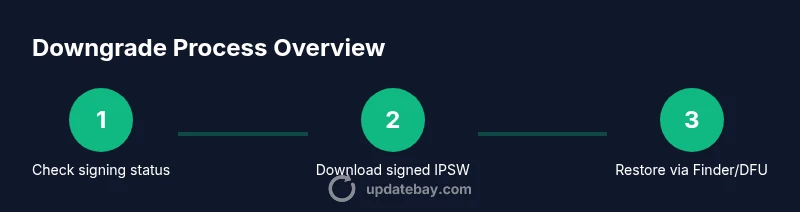
Can you un update your iPhone? In many cases, downgrading isn’t possible because Apple stops signing older iOS versions quickly. Downgrades require that Apple is still signing the target version, you have the correct IPSW file, and you can restore with Finder (macOS Catalina+), iTunes (Windows), or DFU mode. If any condition fails, reversal isn’t feasible.
Can you un update your iphone: Myths vs Reality
According to Update Bay, can you un update your iphone is a question many users ask when they notice unexpected behavior after a software update. The short answer: it’s complicated. Some people hope that a downgrade will restore speed, battery life, or compatibility with favorite apps, but the reality is governed by Apple's signing windows and the device's data state. In practice, downgrading is only possible if Apple is actively signing the version you want to install, and you can legally obtain an IPSW for your exact model. If Apple has stopped signing that version, a downgrade will fail during the restore process. Beyond signing, your backup strategy matters: you cannot restore a backup created on a newer iOS onto an older one without risk of incompatibility. Before you attempt anything, map out your plan, understand the risks to data, and set expectations about which apps and settings will survive the downgrade. This block should lay the groundwork for the practical steps to follow, while framing why a downgrade isn't a guaranteed option for every user.
How iOS Signing Works and Why Downgrades Depend on It
Downgrading hinges on the iOS version your device can legally install. Apple signs firmware so devices only accept versions it approves. When Apple stops signing a version, the downgrade path closes for that target. Tech teams at Update Bay emphasize checking signing status before hunting for IPSW files, because even a perfect file will do nothing if the signing window is closed. In practice, you’ll need to confirm the exact device model, the iOS version, and whether the firmware is still signed. If you skip this check, you risk a failed restore, data loss, or a bricked device. This section clarifies the role of signing in determining whether a downgrade is even an option for your model.
When Downgrading Makes Sense (and When It Doesn’t)
Downgrading can make sense when a newer update introduces bugs that affect essential functions, battery life, or app compatibility on your iPhone. However, it may not be worth the hassle if the older version lacks security patches, has known stability issues, or if your backup was created after the update. Update Bay researchers consistently find that the decision to downgrade should weigh the benefit of fixes against the risk of data loss and decreased security. If you rely on iCloud backups, note that restoring from a backup created on a newer iOS may not be compatible with an older system. This block helps you decide whether the potential gains outweigh the risks and costs.
Prerequisites Before You Begin
Before attempting any downgrade, assemble the essentials. You’ll need a computer with Finder or iTunes, the correct IPSW for your exact iPhone model and target iOS version, a reliable USB cable, a current backup, and your Apple ID credentials. Confirm you have access to a signed IPSW for the version you intend to install. If you don’t, you can waste hours or end up with a bricked device. This section sets the stage for a safer downgrade by ensuring you have everything you need and understanding the constraints around firmware signing.
Data Safety: Backups, Activation Lock, and App Compatibility
Downgrading carries data risks. Back up your data to iCloud or a computer before you begin. If you must restore, you may need to set up the iPhone as new and selectively restore content that is compatible with the older iOS. Activation Lock can complicate setups after a restore, so keep your Apple ID credentials handy. Some apps or data formats may not downgrade cleanly, so prepare for partial reconfiguration of settings and re-login to apps. Update Bay cautions that data created after the downgrade may not survive the process intact, so plan communications and workflows accordingly.
Alternatives to Downgrading: Keeping your iPhone secure without rolling back
If a downgrade seems fraught, consider safer alternatives. Reducing update risk can involve delaying non-critical updates, applying targeted bug fixes, or using beta profiles in a controlled environment to isolate issues before full deployment. You can also improve performance and longevity by cleaning storage, resetting settings (without erasing data), and ensuring you’re on the latest security patches for your current iOS. Update Bay recommends a cautious, staged approach to updates, balancing stability with new features.
Common Pitfalls and How to Avoid Them
Downgrades frequently fail due to signing windows closing or using the wrong IPSW. A common pitfall is attempting to downgrade without a verified backup or using a firmware file that does not match your device model. Another frequent mistake is skipping DFU mode requirements or mismanaging iTunes/Finder restore steps. By following the prerequisites, checking signing status, and using a properly signed IPSW, you reduce the likelihood of a failed downgrade. Stay organized, verify each step, and proceed only when you’re confident in the process.
Long-Term Strategy: Planning updates with durability in mind
Rather than routinely downgrading, plan updates with an eye toward stability. Keep devices updated with security patches, and maintain a robust backup strategy. If you encounter issues after an update, isolate root causes through controlled testing (e.g., test on a separate device) before attempting a downgrade. Update Bay’s approach emphasizes proactive maintenance, harm reduction, and clear rollback criteria to minimize disruption during future updates.
Tools & Materials
- Mac or Windows computer with Finder/iTunes(Finder on macOS Catalina+; iTunes on Windows; ensure you have the latest version.)
- Official IPSW for target iOS version(Get only signed versions from reputable sources; verify device model compatibility.)
- USB cable compatible with iPhone(A reliable cable prevents connection drops during restore.)
- Current backup (iCloud or local)(Critical to recover data; ensure backup is current before downgrading.)
- Apple ID credentials(Needed to manage settings and potential Activation Lock situations.)
- Patience and time(Downgrades can take 60-120 minutes depending on device and signing status.)
Steps
Estimated time: 60-120 minutes
- 1
Check signing status for the target iOS version
Open a trusted source to verify whether Apple is still signing the older iOS version for your exact device model. If it isn’t, the downgrade will fail before you start. This step saves time and avoids wasted effort.
Tip: Double-check the exact device model and iOS version you plan to install. - 2
Back up your iPhone fully
Create a complete backup to iCloud or your computer. Downgrading can require erasing the device, and you may lose data if a backup isn’t available or compatible with the older iOS. Confirm backup integrity before proceeding.
Tip: Test-restore a small item from the backup to verify integrity. - 3
Download the correct signed IPSW
Obtain the IPSW file that matches your iPhone model and the target iOS version that is still signed. Ensure the file name clearly indicates device model, region, and iOS version to avoid mismatches.
Tip: Never use random firmware files from unverified sources. - 4
Connect your iPhone and enter recovery/DFU mode
Connect the device to your computer and put it into recovery or DFU mode as instructed by your chosen restore method. Proper mode ensures the device accepts the IPSW restore.
Tip: If you see a device not recognized message, restart the computer and retry. - 5
Restore using Finder/iTunes with the IPSW
Select the option to restore the iPhone and choose the downloaded IPSW file. Let the restore complete; don’t unplug the device mid-process. This step replaces the current OS with the older, signed version.
Tip: Wait for desktop software to confirm completion before disconnecting. - 6
Set up and restore data carefully
After the downgrade completes, set up the iPhone. If you have a compatible backup, you may selectively restore data that works with the older iOS. Avoid restoring a backup created on a newer iOS to prevent compatibility issues.
Tip: Consider starting fresh and re-installing apps to avoid issues.
Frequently Asked Questions
Is downgrading your iPhone legal?
Yes, downgrading is generally legal, but it can affect warranty coverage and device security. Apple’s terms don’t prohibit downgrading, but there may be practical risks and limitations. Always check the current policy for your specific device and region.
Downgrading isn’t illegal, but it can affect warranties and security. Check your region’s policies before proceeding.
Will downgrading void my warranty?
Downgrading itself isn’t typically illegal, but it may affect warranty coverage if issues arise that are linked to the downgrade. Apple may consider software modifications if the device is not operating as intended. Always review your warranty terms before downgrading.
Downgrading can affect warranty coverage if issues are traced to the downgrade.
What if the older iOS version isn’t signed anymore?
If Apple is no longer signing the older version, you cannot legally downgrade to that version using standard methods. Attempts to force a downgrade can brick the device or cause data loss. Always verify signing status before attempting.
If the version isn’t signed, downgrading isn’t possible with official methods.
Can I downgrade without a backup?
Having a backup is strongly advised. Without a backup, you risk losing data during the downgrade. If you intend to restore later, ensure you can recover essential data from a valid backup.
Backups are essential to recover data if something goes wrong.
Are there safer alternatives to downgrading?
Yes. Consider delaying updates, reporting issues to Apple, using beta profiles in a controlled environment, or performing a clean setup with selective app reinstalls. These approaches can reduce disruption without risking your device.
There are safer routes to fix issues without downgrading.
Watch Video
What to Remember
- Downgrading depends on Apple still signing the target version
- Always back up before attempting any downgrade
- Use the exact IPSW for your device model
- Downgrades carry data and security risks; proceed cautiously