How to Remove iOS Update: Safe, Practical Guide
Learn how to remove ios update by deleting the downloaded installer, pausing future updates, and understanding downgrade eligibility. Practical steps, safety tips, and trade-offs for iPhone users in 2026.


According to Update Bay, removing an iOS update focuses on the downloaded installer rather than uninstalling the installed system. You cannot revert an installed update on-device in most cases, but you can delete the downloaded update file to reclaim space and pause future installs. Downgrades are only possible if Apple is signing the older version and you have a valid IPSW; otherwise, stay on the current release.
What removing an iOS update means
According to Update Bay, if you're asking how to remove ios update, know that removing a downloaded update is a practical way to reclaim storage and control when updates appear. It does not erase apps, photos, or settings. Once an update has been installed, the system treats it as part of iOS, and there is no supported way to fully roll it back on the device itself. The primary goal of removal is to reclaim space and reduce automatic re-downloads, not to undo an installation you already completed. Understanding this distinction helps you plan your next steps, whether you just freed up space or you’re preparing for a future downgrade. This section lays out what you can and cannot do, and how to approach the task in a safe, predictable way.
Can you downgrade iOS after updating?
Downgrading an iOS version after update is possible only under very specific circumstances. Apple signs a limited window for older iOS builds, and you must have a compatible IPSW file and a valid backup before attempting any downgrade. If the older version is no longer signed, downgrading is not feasible through official channels. Even when signing is active, downgrades carry risks such as data compatibility issues, app incompatibilities, and potential loss of features introduced in the newer release. Consider whether the downgrade aligns with your device’s needs and whether you have a reliable recovery plan before proceeding.
Step-by-step: Delete the downloaded update file
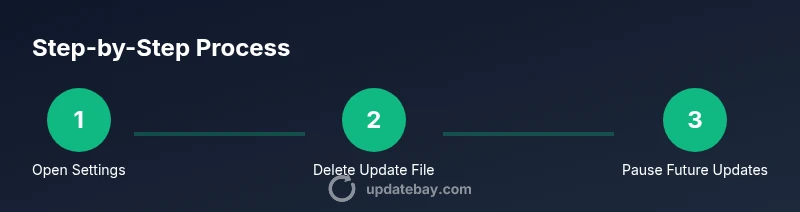
To reclaim space and remove the installer from your device, follow these steps. Open Settings, go to General, then select iPhone Storage. In the list of apps and system files, locate the downloaded iOS update entry (often named by version). Tap the entry, review the size, and choose Delete Update. Confirm the action if prompted. After deletion, return to the storage list to verify the file is gone. This action does not affect your apps, data, or settings; it simply removes the installer file and prevents automatic re-download until you manually check for updates again.
Step-by-step: Hide or postpone future updates
If you want to delay future iOS updates, adjust update settings. Go to Settings > General > Software Update. Turn off Automatic Updates to stop automatic background downloads and installs. If available, disable the option to Install Updates automatically when connected to power. These changes reduce surprise updates, but remember to re-enable them when you’re ready to upgrade. Consider setting a monthly reminder to review available updates so you stay secure without rushing into a new release.
Step-by-step: Freeing space and managing backups
Space management and data protection go hand-in-hand. Before making changes, back up your iPhone via iCloud or a computer. This ensures you can recover photos, messages, and app data if you decide to downgrade later or run into issues. Then re-check free space using Settings > General > iPhone Storage and remove any obsolete apps or media you no longer need. A cleaner device also reduces the chance of failed updates due to low storage during future installations.
Troubleshooting common issues after removing update file
If you notice the update re-downloading, verify that Automatic Updates are fully disabled and that your device has adequate storage. Sometimes a restart is enough to clear stuck processes. If the update continues to reappear, revisit Settings and ensure there are no residual update caches. Re-check iPhone Storage to confirm the absence of the installer. If problems persist, contact Apple Support for guidance tailored to your model and iOS version.
Safety considerations and risks
Downgrading or removing updates entails potential risks. A failed downgrade can render the device unstable or inoperable if the older version is not properly signed or compatible with your apps. Always back up before attempting significant changes, and only download IPSW files from trusted sources if you pursue a downgrade. If you are unsure, prioritize staying on the current stable release and focus on managing updates more predictably.
Alternatives to removing the update
If your goal is stability rather than space, consider pausing automatic updates and staying on your current version with regular security checks. Some users opt to enroll in a beta or developer program to test updates before full release, but that comes with its own risks and a different update cadence. For most everyday users, keeping a regular backup schedule and reviewing updates every few weeks offers a practical balance between security and control.
Real-world scenarios and best practices
A common scenario is someone who has limited storage on an older iPhone model. They delete the downloaded iOS update file to reclaim space, disable automatic updates, and set a reminder to review updates every month. Another scenario involves a user planning a downgrade; they back up first, verify signing status, download the appropriate IPSW from a trusted source, and carefully follow Apple’s downgrade steps only if the version remains signed. In both cases, a solid backup is your safety net.
Next steps: staying in control of iOS updates in 2026
Staying proactive about updates means balancing security with stability. Regular backups, careful monitoring of storage, and thoughtful update scheduling help you avoid surprises. Use official Apple resources for signing status and downgrade eligibility, and lean on Update Bay’s guidance to stay informed about changes in iOS update policies and best practices.
Tools & Materials
- iPhone with charge(Keep device charged during updates and deletion steps.)
- USB-C to Lightning cable(Useful if you connect to a computer for backup or troubleshooting.)
- Mac or Windows computer(Needed if you are downgrading using IPSW or performing a computer-based backup.)
- Backup method (iCloud or computer)(Backups protect data before any major changes.)
- Stable internet connection(Needed for backups, downloads, and updating guidance.)
- Appropriate IPSW file (optional)(Only if you plan a downgrade and Apple is still signing the older version.)
- Free storage space(Ensure enough space to avoid update download issues.)
Steps
Estimated time: 15-25 minutes
- 1
Open Settings and locate storage
Open Settings, then General, then iPhone Storage to view a list of apps and system files. Look for the downloaded iOS update installer by version name. This step sets the context for removing the file without impacting data.
Tip: If you don’t see the update, use the search in Settings to locate 'iOS update' in storage. - 2
Select the iOS update entry
Tap the update entry to view details such as size and actions. Ensure you select the installer, not a separate app entry.
Tip: Double-check the size to confirm you’re removing the installer, not a bug or cached data. - 3
Delete the downloaded update file
Tap Delete Update to remove the installer from your device. Confirm if prompted. This action reclaims space and stops auto-redownload for now.
Tip: Deletion does not affect installed iOS or your data. - 4
Verify removal in storage
Return to iPhone Storage and confirm the update file is no longer listed. If it’s still present, repeat deletion or reboot the device.
Tip: A quick restart can refresh storage indexing after deletion. - 5
Pause automatic updates
Navigate to Settings > General > Software Update and switch off Automatic Updates. This helps prevent unexpected re-downloads while you decide next steps.
Tip: Pausing updates reduces the risk of unwanted installs during busy periods. - 6
Review backup options
Create a fresh backup to secure data before any future downgrade attempt. Use iCloud or a computer backup, depending on your preference and storage availability.
Tip: Backups should include essential data like contacts, photos, and messages. - 7
Check downgrade readiness
If you’re considering downgrading later, verify Apple’s signing window and fetch the correct IPSW file from a trusted source. Ensure you have a backup ready.
Tip: Downgrading requires careful verification of signing status before proceeding. - 8
Proceed with caution if downgrading
Only attempt a downgrade if you confirm signing status and have validated IPSW compatibility. Follow official guidance step by step to minimize risk.
Tip: If unsure, avoid downgrading and stay on the current release with a stable backup plan.
Frequently Asked Questions
Can I remove an iOS update completely from my iPhone?
You cannot remove an installed update from the device. You can delete the downloaded installer and manage update settings to prevent automatic re-downloads. Downgrading is a separate process with its own risks.
You can’t remove a installed update, but you can delete the installer and pause future updates. Downgrading depends on signing status and backups.
Is downgrading iOS safe?
Downgrading is risky and not always possible. It requires Apple to sign the older version and a compatible IPSW. Always back up data before attempting a downgrade.
Downgrades are risky and not always possible; back up first.
Will removing the update affect my data?
Deleting the update file is safe for your data; it simply frees space and stops the installer from re-downloading the package.
Removing the update file won’t delete your data.
How do I know if Apple is still signing the older iOS version?
Apple’s signing window is time-limited; you can check Apple’s official support pages or trusted sources to confirm if the older version is still signed.
Check Apple's official pages or trusted tech sites for signing status.
What should I do if the update keeps re-downloading?
Disable Automatic Updates, ensure there’s enough storage, and consider removing the installer again after a device restart.
Turn off automatic updates and remove the installer again.
Is there a difference between removing the update on iPhone versus iPad?
The process is similar on iPadOS; delete the installer from iPad Storage and adjust update settings accordingly.
Steps are similar for iPad as well.
Watch Video
What to Remember
- Delete the update installer to reclaim space.
- Downgrading is conditional on signing and backups.
- Pause updates to control when updates occur.
- Always back up before major changes.
- Verify settings if updates re-download unexpectedly.