Update TV: Safe, reliable firmware and software updates for smart TVs
Learn how to safely update TV firmware and apps, verify compatibility, and avoid common pitfalls. This step-by-step guide covers OTA and USB updates, backups, troubleshooting, and best practices to keep your television current in 2026.


You will learn how to safely update TV firmware and apps, ensuring compatibility and minimizing downtime. This guide covers checking compatibility, backing up settings, connecting to a reliable network, and applying the latest official firmware from the manufacturer. Use a power source and avoid interrupting the update. The goal is a smooth, trouble-free TV that runs the latest features.
Understanding TV Update Basics
Updating a TV isn’t just about getting new features; it’s about keeping your device secure, stable, and compatible with newer apps and streaming services. According to Update Bay, firmware and software updates address security vulnerabilities, fix bugs, improve performance, and add compatibility with evolving streaming standards. When you hear about a new update, it generally includes a firmware patch and one or more software revisions for installed apps. The best practice is to view release notes from the manufacturer, scan for known issues, and ensure your model is explicitly listed as supported for the update. This upfront check helps prevent rollbacks or bricked devices and saves time if you encounter a problem later. Understanding the update cycle for your TV brand—whether it relies primarily on OTA (over-the-air) updates or requires a manual USB update—gives you a clearer plan and reduces downtime. The aim is not just to install the latest version, but to do so in a controlled, maintainable way that preserves your personalized settings and apps.
What You’ll Learn in This Guide
This guide walks through the decision points of updating your TV, including how to verify compatibility, choose OTA versus USB methods, and back up settings. You’ll see practical scenarios for popular brands and learn how to avoid common pitfalls like power interruptions or incompatible firmware. We’ll cover safety considerations, privacy implications after updates, and how to test the TV after the update to confirm new features are working. By following these steps, you’ll minimize downtime and maximize the benefits of the latest software improvements. Update Bay’s research confirms that user-friendly update processes reduce support requests and improve long-term satisfaction for tech enthusiasts and everyday users alike.
Why Keeping Your TV Updated Matters
Software and firmware updates are not cosmetic—they fix security flaws, improve reliability, and extend device life. Updates can close vulnerabilities that could expose smart TVs to malware or botnet activity, especially if you keep apps and browsers installed. They also optimize power management, streaming performance, and compatibility with new audio/video standards. A well-managed update routine reduces the risk of bricked devices and ensures you receive essential feature improvements, such as enhanced voice control, better app stability, or expanded streaming options. The Update Bay team emphasizes a careful, step-by-step approach rather than rushing through a firmware download, which helps prevent post-update issues.
Understanding OTA vs USB Updates
Most modern smart TVs push updates over the air, directly from the manufacturer’s servers. This OTA path is convenient and minimizes user error, as the TV downloads and installs the update automatically during a maintenance window. USB updates are useful when your TV cannot reach the internet reliably or when you need to install a specific firmware version to fix a known issue. USB updates require careful file placement and exact matching version numbers to avoid mismatches that could cause boot problems. Either path should start with verifying the update notes and ensuring you have a stable power supply and network connection. Update Bay’s guidance highlights the importance of sticking to official sources to avoid counterfeit firmware that could compromise safety and privacy.
Safety First: Power, Network, and Backups
A failed update can occur when power is interrupted, the network drops, or the wrong firmware file is used. Always plug the TV into a reliable power source and avoid using power strips that could trap surges. A stable internet connection reduces the chance of corrupted downloads. Backups aren’t always required for every TV, but saving your settings, network preferences, and installed app configurations can save a lot of time if you need to reconfigure after an update. Documenting your favorite picture modes, brightness, and accessibility settings can help you restore a personalized experience quickly. Update Bay’s recommendations emphasize planning ahead and creating a recovery plan in case something goes wrong.
Verifying the Update: What to Expect After Installation
After the update finishes, your TV may reboot automatically. You should see a brief indication of the successful installation, followed by new features appearing in menus or apps. It’s wise to run a quick check of major functions: streaming apps, HDMI inputs, sound settings, and any voice assistant features. If a feature you rely on isn’t working, consult release notes for troubleshooting steps and consider performing a secondary reboot. The goal is to confirm stability across typical usage scenarios—watching content, switching inputs, and updating apps—without encountering performance regressions. Update Bay’s approach is methodical: confirm enhancements, test functionality, and document any anomalies for future reference.
Troubleshooting Common Update Issues
Not every update goes smoothly. Common issues include failed downloads, corrupted files, or post-update app crashes. Start by rebooting the TV and retrying from the official source. If the problem persists, check your network stability and date/time settings, as some updates rely on accurate system clocks. For USB updates, ensure the file is intact and placed in the correct root directory with the right filename. If you still encounter trouble, consult the manufacturer’s support portal, which often provides step-by-step recovery options. Update Bay notes that many issues are due to using unofficial sources or incomplete downloads, both of which can be mitigated by careful preparation.
Privacy and Security Considerations After Updates
Updates can alter default privacy settings or permissions granted to apps. It’s prudent to review privacy controls after installation and adjust sharing, analytics, and voice data settings to your preference. Some updates also modify network permissions or auto-install settings for apps. Keeping your TV secure involves updating passwords for your home network, enabling two-factor authentication if available, and periodically reviewing connected devices. The Update Bay team recommends a quick after-update audit: confirm the new features, recheck screen privacy options, and prune unused apps to minimize potential attack surfaces.
Tools & Materials
- TV model and serial number(Needed to verify firmware compatibility and download the correct update.)
- Stable power source(Keep the TV plugged in during the entire update to prevent bricking.)
- Internet connection (Wi‑Fi or Ethernet)(A reliable connection reduces the risk of corrupted downloads.)
- Official firmware source (manufacturer app or website)(Only use official sources to avoid malware or counterfeit firmware.)
- USB drive (for offline update, optional)(Format to FAT32 and ensure the file matches the device model and version.)
- Backup of personalized settings(Record key settings (picture mode, saved apps, network preferences) to ease restoration.)
Steps
Estimated time: 45-60 minutes
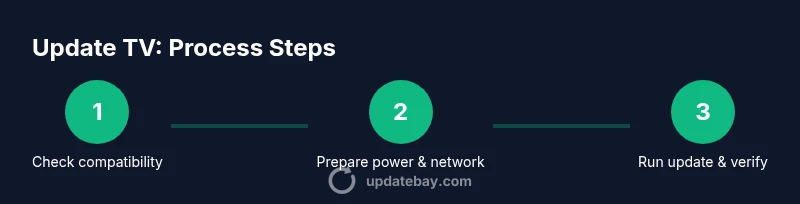
- 1
Check compatibility and read release notes
Locate the TV’s model number and review the official release notes for the latest firmware. Confirm that your model is listed as supported and note any known issues or prerequisites. This prevents attempting an unsupported update that could leave the TV inoperable.
Tip: Compare the update version with your current firmware to ensure you’re not downloading an older build. - 2
Prepare power and network
Plug the TV into a stable power outlet and connect to a dependable network, preferably wired Ethernet for large downloads. Disable power-saving features that could interrupt the update and verify the date/time is correct so the device can process time-sensitive checks during installation.
Tip: If using Wi‑Fi, ensure a strong signal and consider temporarily reducing other devices on the network to improve stability. - 3
Choose OTA or USB method
Decide whether to update over the air directly from the manufacturer’s servers or via a USB drive with the correct firmware file. OTA is simpler and safer for most users; USB is useful when the TV is offline or a specific version is required.
Tip: If you choose USB, verify the file name, size, and hash against the manufacturer’s checksum to avoid corrupted installations. - 4
Back up settings
Document key settings (picture mode, sound profiles, network configurations) and note any app configurations you rely on. Some TVs reset or alter defaults after a major update, so a quick backup makes re-entry faster.
Tip: Take photos of critical menus or write down custom settings you’ve configured over time. - 5
Initiate the update via official channels
Follow the on-screen prompts or the manufacturer’s app instructions to start the update. Do not interrupt the process once it begins, and avoid using other heavy network tasks on the same connection during the install.
Tip: If the update appears to stall, wait a bit longer rather than pulling power immediately. - 6
Allow the update to complete and reboot
Let the TV finish its installation and reboot automatically. If a reboot is required, allow it to complete without interference. Do not unplug the TV; a forced shutdown can brick the device.
Tip: Once rebooted, give the system a few minutes to settle before testing features. - 7
Verify new features and test basics
Open key apps, switch inputs, test audio, and review any new settings menus. Confirm that the TV recognizes connected devices and that streaming apps launch without errors. If something doesn’t work as expected, consult the release notes or support portal for guidance.
Tip: Run a quick video test across different apps to ensure codec support and performance improvements are present.
Frequently Asked Questions
What is the best method to update a smart TV?
For most users, OTA updates via the TV’s built-in menu are the safest and easiest path. USB updates are useful when OTA isn’t available or when a specific firmware version is required. Always use official sources and follow the manufacturer’s instructions.
OTA updates via the TV app are safest. If OTA isn’t possible, use an official USB update and follow the provider’s steps.
Can updating void my warranty?
Generally, updates performed through official channels do not void warranties. Problems can occur if you install unofficial firmware or tamper with the device. Always read the terms from the manufacturer and use supported update methods.
Using official update methods typically won’t void your warranty; avoid unofficial firmware.
What should I do if the update fails?
If an update fails, reboot the TV and retry with the official update source. If the problem persists, consult the manufacturer’s support portal for recovery steps and consider a factory reset as a last resort.
Restart the TV, retry with official sources, and contact support if issues persist.
Will I lose apps or settings after updating?
Most updates preserve apps and user settings, but some major firmware changes can reset preferences. Backing up settings beforehand helps speed restoration. After updating, re-check app logins and privacy settings.
Usually no loss, but back up settings just in case and re-check apps after update.
Is a USB offline update safe for all models?
USB offline updates are safe when the file is the exact firmware version for your model and downloaded from the official site. Inaccurate files can brick devices, so verify model numbers and checksums before proceeding.
USB updates are safe if you use the correct file from the official site and verify the model.
How long should the update take start to finish?
Most updates complete within 15–40 minutes depending on the file size and network conditions. Allow extra time for post-update setup and app re-authentication.
Most updates take about 15 to 40 minutes, plus time to reconfigure apps if needed.
Watch Video
What to Remember
- Verify compatibility before updating to avoid device issues.
- Back up important settings to simplify restoration.
- Use official sources and ensure a stable connection.
- Avoid power interruptions during the update process.
- Test core functions after installation to confirm success.