What to Do When You Update Your Phone: A Practical Guide
Learn what to do when you update your phone, from backing up data to securing settings, with actionable steps and practical tips for a smooth post-update experience.


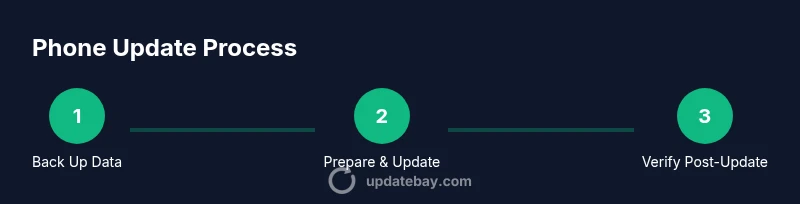
After a phone update, you’ll back up your data, verify storage and battery, review new permissions, and ensure essential apps work. Then you’ll reinstall or update apps, adjust settings for privacy and security, and run quick checks to confirm calls, messages, and connectivity function normally. This guide shows you how to do it safely and efficiently.
What to do when you update your phone
Updating a smartphone is a common task that keeps devices secure, stable, and capable. It can also reset some preferences or change how apps request access to features like location or camera. The goal is to minimize disruption while maximizing the benefits of the update. According to Update Bay, thoughtful preparation reduces friction and helps you regain productivity quickly after the update. By following a clear plan, you protect your data, maintain device performance, and avoid surprises when you next use essential apps.
Privacy and security considerations during updates
New OS versions often introduce additional permissions, new privacy toggles, and security hardening. When you see a permissions prompt, review each item carefully rather than granting access by default. Leave sensitive permissions off unless the app truly needs them, and consider revoking access after you finish a task. The Update Bay Team emphasizes that staying on top of permissions helps safeguard personal information and reduces post-update surprises in apps and services.
Preparing for the update: backups, battery, and space
Preparation is the backbone of a smooth update. Start by backing up your most important data to a trusted service or local storage. Check that you have enough free space for the update package, and connect your device to power or a reliable charger during the process. A stable Wi-Fi connection is preferable to avoid large cellular data usage and ensure a clean download. Adequate preparation minimizes the risk of mid-update interruptions and data loss.
Post-update: check settings, apps, and performance
Once the installation completes, walk through core settings first: display preferences, privacy controls, and notification management. Open essential apps to verify sign-in status and ensure features like camera, microphone, and sensors function correctly. If you notice changes in layout or behavior, adjust settings to your preference and re-authenticate where required. This proactive check helps you resume normal use with confidence.
Common issues and quick fixes after updating
Some devices experience slower performance, laggy animations, or compatibility prompts after an update. Common fixes include rebooting, clearing cache for malfunctioning apps, and ensuring apps are up to date with the latest versions. If you encounter storage warnings, offload or delete unused files or move data to cloud storage. If problems persist, restoring from backup or performing a factory reset (as a last resort) should be considered with caution.
Best practices for ongoing smartphone updates
To stay ahead, enable critical OS updates and review app permissions periodically. Schedule regular backups and create a simple post-update checklist to verify core functions after each update cycle. Maintaining a habit of quick post-update checks reduces risk and keeps your device secure and reliable over time.
Quick reference checklist for what to do when you update your phone
Use this crisp checklist to stay on track: back up, verify battery and storage, review permissions, update apps, test essential functions, and keep a record of any post-update changes for future reference.
Tools & Materials
- Phone with sufficient battery(Charge to at least 50% before starting and keep plugged in during update if possible)
- Charger and power source(Reliable power to avoid shutdowns mid-update)
- Stable Wi‑Fi connection(Prefer a strong, secure network (not public guest networks))
- Cloud backup account (iCloud/Google Drive)(Ensure the last backup completed successfully before updating)
- Optional local backup(Extra safety: back up to a computer or external drive if available)
- List of important apps and login notes(Some apps may require re-authentication after an update)
Steps
Estimated time: 60-90 minutes
- 1
Back up your data completely
Initiate a full backup to your chosen method (cloud or local). Verify that the backup completed successfully and contains essential items like contacts, photos, and documents. This protects you from data loss if something goes wrong during the update.
Tip: Double-check the backup date and size to confirm completeness. - 2
Charge device and connect to stable Wi‑Fi
Plug your phone into power and connect to a reliable Wi‑Fi network before starting the update. Avoid updates over metered connections to prevent data overage and potential interruptions.
Tip: Prefer a 5 GHz network for faster, more stable downloads. - 3
Review new permissions before installing
During the update, OS prompts may introduce new permissions. Read each item carefully and grant only what you truly need. You can adjust permissions after installation if needed.
Tip: Make a quick note of any unusual requests and revisit them after the update. - 4
Install the update and monitor progress
Start the update and let the device complete the process without interruption. If the device reboots, allow it to finish and avoid powering off mid-install.
Tip: If the update stalls, pause and retry after a short wait rather than forcing a restart. - 5
Verify apps and re-authenticate where needed
Open key apps to ensure you’re signed in and notifications are working. Some apps may require re-authentication after an OS update for security reasons.
Tip: Have your login credentials handy in case a re-login is required. - 6
Run a quick post-update health check
Test essential functions: calls, messaging, camera, Bluetooth, Wi‑Fi, and location services. Check battery life and system performance to confirm the update is stable.
Tip: Keep an eye on app behavior for the next few days and update as needed.
Frequently Asked Questions
Is it safe to update your phone over cellular data?
Updates can be large and may use significant data. If you must use cellular, monitor usage and ensure your carrier plan supports the data amount. Whenever possible, use a trusted Wi‑Fi connection.
Updates should ideally use Wi‑Fi to avoid data overages. If you must use cellular, monitor your data usage and ensure you have enough data for the download.
Will updates erase my data?
Official OS updates do not typically erase user data. Still, backing up beforehand is the safest precaution, since updates can occasionally encounter issues.
Updates usually don’t erase data, but backups are a wise precaution in case something goes wrong.
Why do updates ask for new permissions?
New OS versions often introduce features that require fresh permissions. You should review these prompts and grant only what is necessary for the feature to work.
New permissions reflect new features. Review and grant only what you need.
What should I do if the update blocks my phone?
If an update stalls, let the device rest, then try again. If it remains stuck, seek official support or perform a safe recovery, such as reattempting installation from a trusted source.
If it’s stuck, wait a bit and retry. If it continues, contact support.
How long does a typical update take?
Update duration varies by device and the size of the update. Expect a window that depends on download speed, device model, and server load.
Timing depends on device and update size; plan for only moderate disruption.
Watch Video
What to Remember
- Back up before updating to protect data.
- Review and manage app permissions post-update.
- Verify essential functions after the install.
- Adopt a regular update and backup routine for better security.