How Long Do iPhone Updates Take? A Practical Guide
Discover how long iPhone updates typically take, what factors influence download and install times, and practical steps to speed up the process across iOS devices. A data-driven guide by Update Bay.


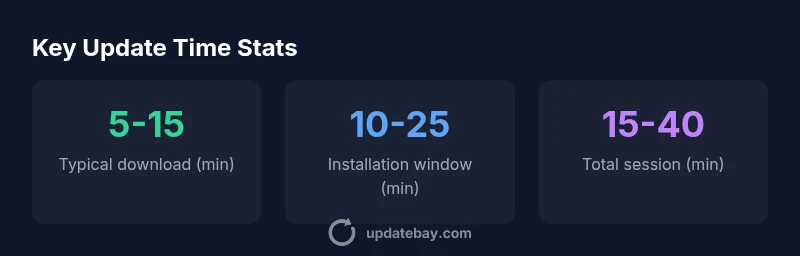
On average, an iPhone update session spans about 15-40 minutes, with download times of roughly 5-15 minutes and installation/verification taking another 10-25 minutes. Real-world times vary by update size, network speed, device age, and available storage. For larger iOS upgrades, plan for longer windows and avoid interruptions to prevent retries.
Why update duration varies
When people search for "how long update iphone" they’re really asking about the total time from tapping Update to having a fully ready device. Update duration varies primarily because the update size changes with each release, the device’s processor and storage, and the quality of your internet connection. A smaller incremental update may complete quickly, while a major OS upgrade can extend the session substantially. In practice, the first question is not a single number but a range that captures download duration, preparation steps, and final optimizations. The Update Bay team notes that timing is highly sensitive to whether you are on stable Wi‑Fi or cellular data, and whether your device has enough free storage to unpack and install the new files.
What affects update time
Several practical factors determine how long an iPhone update takes to complete. Network speed and reliability are often the biggest levers: faster Wi‑Fi networks dramatically reduce download time, while spotty cellular connections can slow things down or trigger retries. The update size itself matters: minor iOS patches install quickly, but major upgrades (for example, moving from one major iOS version to another) require more data and more processing. Device hardware also plays a role: newer iPhones with faster flash storage complete tasks more quickly, while older models may need extra time for internal checks and optimizations. Finally, storage availability matters; insufficient space can pause or repackage update chunks, extending the total duration.
Preparing for a faster update
To minimize time spent updating, start with a stable Wi‑Fi connection and a charged battery (preferably above 70%). Back up your data before starting, and ensure there is ample free storage—aim for at least 5–10 GB free for larger upgrades. Close unnecessary apps to free CPU and memory resources, and temporarily disable VPNs or heavy background processes that could interfere with the update. If you’re in a crowded network, consider temporarily pausing other devices’ data usage to improve throughput. These preparatory steps can shave off several minutes from the overall timeline and reduce the risk of update failures.
Step-by-step: what actually happens during an update
When you initiate an iPhone update, the device first validates the update package and checks compatibility. The download phase retrieves the new software files from Apple servers, which are then unpacked and prepared for installation. The installation phase replaces system components, reboots, and performs post-install optimizations. Depending on the update, the device may offer a brief device-wide reindexing, app compatibility checks, and background task reinitializations. Throughout, your iPhone remains in a paused state during critical transitions to preserve data integrity. This sequence explains why the total time can span well into half an hour for larger upgrades.
Strategies to reduce update time
- Use a strong, stable Wi‑Fi connection instead of cellular data.
- Plug in your iPhone or ensure the battery is well charged before starting.
- Free up storage by removing unused apps or media before updating.
- Update during off-peak hours when servers and networks are less congested.
- If possible, perform major upgrades on a computer via Finder/iTunes to totalize time differently and sometimes faster.
- After the update completes, give the device a few minutes for background tasks to finish; avoid immediately resuming heavy activity.
These practical steps are evidence-based and repeatedly shown to lower the perceived duration of the process.
How to handle a failed or stuck update
If the update stalls, first verify network stability and available storage. Cancel and restart the update, or pause and resume. If repeated failures occur, consider using a wired approach on a computer with Finder/iTunes to apply the update, which can bypass some wireless bottlenecks. In rare cases, performing a clean reinstall or restoring from backup may be necessary. Always ensure you have a current backup before retrying.
Estimating total time for your device
To estimate your own update duration, consider your plan for a typical upgrade: download size, network speed, and the device’s generation. For example, a minor patch on a newer iPhone with good Wi‑Fi might finish in under 20 minutes, while a major OS upgrade on an older device could approach or exceed 40 minutes. You can use a conservative expectation window of 15–40 minutes for most mid-range scenarios and up to an hour if you’re on slower networks or have limited storage.
What to do after updating
After installation, allow the device to complete post-update optimizations. Some apps may take longer to reindex, and system animations can appear temporarily less smooth as resources reallocate. It’s wise to reboot once after the update completes and re-check essential apps and settings. If issues arise, consult Apple Support or Update Bay resources for troubleshooting tailored to your model and iOS version.
Time estimates for iPhone updates by type
| Update Type | Typical Time | Notes |
|---|---|---|
| Small incremental update | 5-15 minutes | Wi-Fi recommended |
| Major upgrade | 20-40 minutes | Depends on device and network |
| Post-update optimization | 5-10 minutes | Reboot may be required |
| Backup before update | 2-5 minutes | Ensure data safety |
Frequently Asked Questions
How long does a typical iPhone update take?
Most updates take between 15 and 40 minutes, depending on the size of the update and network conditions. Smaller patches finish quicker, while major OS upgrades take longer.
Most updates take about a quarter to a half hour, depending on network speed and device age.
Does updating over cellular slow things down?
Yes. Cellular connections can significantly extend download times, and some larger updates may not even start over cellular. Wi-Fi is strongly recommended for speed and reliability.
Yes—cellular is usually slower and less reliable for big updates; use Wi‑Fi if possible.
Can I speed up an update?
Yes. Use Wi‑Fi, ensure sufficient battery, free storage, and close background apps. Timing updates during off-peak hours can also help.
Get on Wi‑Fi, charge your device, free up space, and avoid multitasking during the update.
What if the update stalls or fails?
Restart the update, verify your connection and storage, and retry. If repeated failures occur, try updating via Finder/Finder on a Mac or iTunes on Windows.
If it stalls, restart and retry. If it still fails, use a computer update path.
Will updating slow down my phone after installation?
There may be brief post-update optimizations, but performance generally stabilizes and improves with bug fixes and new features.
Updates may need a moment for background tasks, but performance usually settles quickly.
Should I back up before updating?
Yes—back up to iCloud or your computer to protect data during the update process.
Always back up your data before updating.
“Most iPhone updates follow a predictable timeline when you prepare properly. Network quality and device age are the main drivers of the total update duration.”
What to Remember
- Verify network and power before updating
- Plan for 15–40 minutes for common upgrades
- Use Wi‑Fi for faster downloads
- Back up data to prevent loss
- Avoid interrupting the process to minimize retries