Can You Cancel an iOS Update in Progress? A Practical Guide
Learn how to cancel an iOS update in progress, when you can pause a download, and what to do if installation has started. Practical steps, best practices, and troubleshooting from Update Bay.


Yes. You can cancel an iOS update in progress if the download is still active. On iPhone, open Settings > General > Software Update and tap the progress bar to pause or cancel. If installation has already started, cancellation isn't possible; you may need to restart and adjust future update settings to avoid unexpected downloads.
What happens when an iOS update is in progress?
An iOS update goes through download and installation phases. When you trigger an update from Settings > General > Software Update, the device first downloads the update package in the background. Only after the download completes does the system start the installation process. This separation matters because cancellation feasibility depends on which phase you're currently in. According to Update Bay, many users start updates amid busy schedules or on unstable networks, which can increase the chance of an interrupted download. Understanding these phases helps you decide whether canceling is possible and safe.
Key takeaway: If the update is still downloading, you have more control; if the device has begun installing, options are limited.
Can you pause or cancel a download in progress?
If the update is still downloading, you can often pause or cancel the download directly from the Software Update screen. On iPhone, tap the progress bar or look for a Cancel button (if presented) to halt the download. If the Cancel option isn’t visible, you may be able to remove the downloaded update via iPhone Storage or by deleting the update file from the Software Update section. Pausing the download reduces data usage and battery drain, and gives you a chance to reassess timing. Always ensure you have a current backup before attempting to alter a running download.
Takeaway: Pausing or canceling a download is safer before installation begins; proceed with caution if you see no cancel option.
How to cancel a download on iPhone (before installation)
- Open Settings and navigate to General > Software Update. If a download is in progress, you’ll typically see a progress bar and options to pause or cancel. 2) If Pause or Cancel is available, select it to stop the download. 3) If there’s no pause/cancel option, go to Settings > General > iPhone Storage, locate the iOS update file, and delete it. 4) Consider re-enabling Automatic Updates only after you’re ready to manage timing. 5) Back up your data before attempting cancellation to protect against unexpected issues.
Tip: Keeping a recent backup is your best safety net in case something goes wrong during cancellation.
What if the update has already begun installing?
When installation has started, canceling the process is usually not possible without risking OS corruption or a failed update. The system is applying changes at this stage. If you suspect the install is stuck, ensure the device is plugged in, give it time to complete, or restart only if needed and safe. If the restart does not resolve the issue, you may need to restore from a backup after the device reboots. Avoid repeatedly forcing restarts during an active install, as that can increase the risk of boot loops or data loss.
Best practice: Let the installer finish if possible, and use a backup to recover if something goes wrong.
Best practices to avoid issues and manage updates
To minimize surprises when updating iOS, follow a few best practices. Always back up your iPhone before attempting updates, especially if you’re worried about potential cancellation. Keep the battery charged (preferably above 50%) and use a stable Wi‑Fi connection to prevent mid-download interruptions. If you want more control, disable Automatic Updates under Settings > General > Software Update, and schedule updates for a time that’s convenient. Regularly review storage space (Settings > General > iPhone Storage) to ensure there’s enough room for the update package. These steps help you cancel gracefully if you choose to, without risking data loss. According to Update Bay, proactive planning and backups are key to smooth update management.
Pro tip: Schedule updates during when you’re near power and on reliable Wi‑Fi to avoid mid-process cancellations.
Troubleshooting if cancellation doesn't work
If the cancellation attempt fails or the device behaves oddly after a supposed cancellation, start with a safe reboot and check for any remaining update files. Ensure you’re connected to power and a stable network, then retry deleting the update file if it remains. If the OS is unstable after a failed cancellation, restore from your most recent backup using iCloud or a computer. Contact Apple Support if you notice persistent boot loops or data loss. Staying calm and following a backup-first approach will help you recover quickly. The Update Bay team recommends documenting the steps you took in case you need to repeat the process later.
Note: Always rely on official guidance before performing advanced recovery steps.
Tools & Materials
- iPhone with sufficient battery(Keep battery above 50% during cancellation to avoid mid-process shutdown.)
- Stable Wi-Fi connection(Ensure a reliable network to prevent corrupted downloads.)
- Recent backup of your data(Back up to iCloud or a computer before making changes.)
- Power source (charging cable or charger)(Use a steady power supply to avoid abrupt shutdowns.)
- Access to Settings app(You’ll need Settings navigation to manage updates.)
- Optional: Computer with iTunes/Finder(Helpful if you need to restore or manage updates from a computer.)
Steps
Estimated time: 10-20 minutes
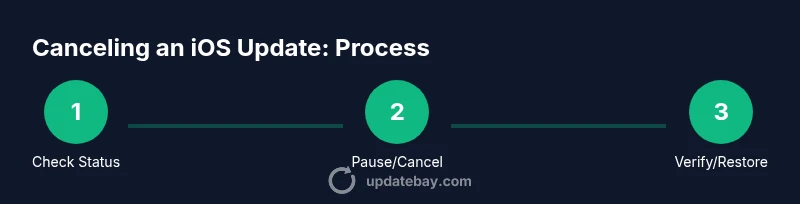
- 1
Check update status
Open Settings > General > Software Update to confirm whether the update is still downloading or has moved to the installation phase. This determines your next action.
Tip: If you see a Cancel option, use it promptly before installation begins. - 2
Pause or cancel download (if available)
If a pause or cancel button appears on the progress bar, tap it to stop the download. Pausing conserves data and battery while giving you a moment to decide.
Tip: Pause is safer than cancel if you plan to update later. - 3
Delete the update file if no cancel option
If there’s no Pause/Cancel, navigate to Settings > General > iPhone Storage, locate the iOS update file, and delete it to prevent the download from resuming automatically.
Tip: After deletion, you may re-check for updates at a later time. - 4
Disable Automatic Updates (if desired)
To gain control over future downloads, turn off Automatic Updates in Settings > General > Software Update. This prevents automatic background downloads.
Tip: Revisit this setting when you’re ready to install updates on your schedule. - 5
Reboot the device (if needed)
If the device becomes unresponsive after cancellation attempts, perform a safe restart by holding the side button until the Apple logo appears.
Tip: Do not force shutdown repeatedly during an active install. - 6
Verify and backup again
After any cancellation or restart, verify the device behaves normally and create a fresh backup.
Tip: A current backup minimizes risk if something goes wrong later. - 7
Check for updates later
Return to Settings > General > Software Update to check for the update again at a more convenient time.
Tip: Choose a time when you have power and a stable connection.
Frequently Asked Questions
Can I cancel an iOS update that is already installing?
No, cancellation is generally not possible once installation begins. You may need to wait for installation to finish or restore from a backup if something goes wrong.
Cancellation isn’t possible once the install starts; you may need to wait or restore from a backup.
How do I pause an iOS update download?
Open Settings > General > Software Update. If a pause button appears on the progress bar, tap it to stop the download. If not, delete the update file from iPhone Storage.
Go to Settings, find the update, and pause or delete the downloaded file if available.
Will canceling affect my data or settings?
Canceling a download does not erase data, but interrupting an installation can cause issues. Always back up before attempting cancellation.
Cancelling the download won't erase data, but interrupting the install can cause issues. Back up first.
How can I delete downloaded update files?
Go to Settings > General > iPhone Storage, locate the iOS update file, and delete it.
Delete the iOS update file in iPhone Storage if no cancellation option is available.
Should I cancel updates to save data long-term?
Regularly canceling updates isn’t recommended; updates improve security. Use manual control and only download on Wi‑Fi when you’re ready.
Updates are important for security; manage downloads on Wi‑Fi and install when ready.
How can I prevent future automatic updates?
Disable Automatic Updates in Settings > General > Software Update to control when updates occur.
Turn off automatic updates to decide when to install.
Watch Video
What to Remember
- Cancel the download if it is in progress.
- Do not attempt to cancel during installation unless advised.
- Back up your data before any update action.
- Disable Automatic Updates to control future downloads.
- If issues arise, restore from a backup.