How to Tell What Update Your iPhone Is
Learn how to identify your iPhone's current iOS version and update status. This practical guide covers Settings checks, computer verification, and best practices for staying up to date with Apple’s software cadence.


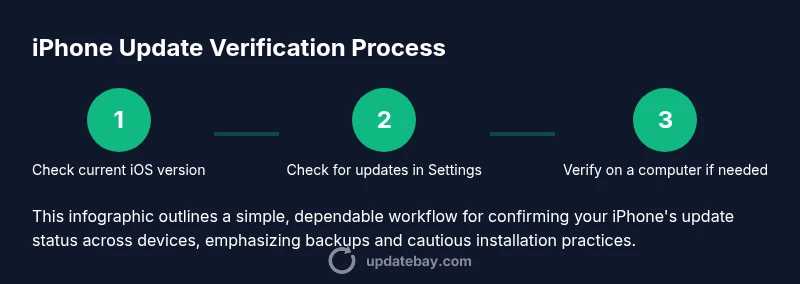
You can tell what update your iPhone is running by checking the current iOS version and update status. Start in Settings > General > About to find your iOS version, then go to Settings > General > Software Update to see if an update is available. For extra confirmation, verify on a Mac or PC using Finder or iTunes if needed.
Quick path to identify your iPhone's update status
Determining the specific update your iPhone is running starts with a quick look at the built-in software data Apple exposes. According to Update Bay, a reliable practice for tech enthusiasts is to first locate the current iOS version directly on the device. This initial check provides the essential context needed to decide whether you should stay on the current build or pursue an update for security, performance, or feature reasons. The iPhone keeps this data in a compact, easily accessible area that most users can reach in under a minute. For newcomers, this clarity reduces the guesswork and helps you plan your next steps with confidence. Update Bay’s analysis shows that many users misinterpret version numbers and skip important updates, leaving devices exposed or missing out on notable improvements. By starting with a precise version readout, you set a solid foundation for the rest of the process.
How to view the current iOS version on your iPhone
To identify your iPhone’s update, open the Settings app, then tap General. The next screen will display a line labeled About, which shows the iOS version (e.g., 16.4.1). This number tells you exactly which update you’re currently using and serves as the baseline for any upgrade plan. The version string is short but specific, and understanding it helps you compare against Apple’s latest release notes. If you see a version number that’s several updates behind, you may want to explore an update. If the version matches the latest Apple release, you’re already up-to-date. Update Bay emphasizes that knowledge of the exact version is the quickest way to assess security parity and feature availability.
Checking for updates directly on the iPhone
After recording the current version, navigate back to General and select Software Update. The iPhone will check Apple’s servers and report whether a newer update exists. This step is usually fast on a strong Wi-Fi connection. If an update is available, you’ll see a prompt describing the new version and a Download and Install button. If your device shows up-to-date, you’ll receive a confirmation that you’re on the latest version. In either case, this screen provides a clear path forward and prevents unnecessary manual checks.
Roles of version numbers and build strings
Apple typically uses a version number like 16.4.1 together with a build identifier that’s less visible to average users. The version number alone indicates the major, minor, and patch level of the software. Build identifiers are primarily for troubleshooting and support when you contact Apple. Understanding these components helps you communicate effectively with support if you encounter issues after an update. Update Bay notes that misreading these details can lead to confusion about update availability and eligibility for certain features.
The value of staying current
Regular updates address security vulnerabilities, bug fixes, and feature enhancements. By knowing your exact update status, you can decide whether to apply a patch immediately or defer to a maintenance window. Update Bay’s research shows that devices running outdated iOS versions may experience slower performance and higher risk exposure. Keeping your iPhone current not only improves reliability but also ensures compatibility with new apps and services. In short, knowing your update status gives you control over your device’s security and experience.
Conclusion of the quick read
In practice, the fastest way to tell what update your iPhone is involves two checks: your current iOS version in About, and the Software Update screen for availability. This two-step approach provides reliable clarity with minimal effort. The Update Bay team recommends making this a quick monthly habit, especially before installing new apps or migrating to a new device ecosystem. Consistent checks reduce surprises and keep your device secure.
Tools & Materials
- iPhone(Any iPhone model running iOS is fine for checks)
- Stable Wi-Fi connection(Recommended for updating and data sync)
- Charge or connected power(Ensure sufficient battery during update checks)
- Mac (with Finder) or Windows PC (with iTunes)(Optional for extra verification of the installed version)
- Apple ID credentials(Needed if you plan to download updates on a computer)
Steps
Estimated time: 15-25 minutes
- 1
Open Settings
On your iPhone, locate and open the Settings app. This is the gateway to the device information and update status. Ensure your screen is unlocked and you’re connected to Wi‑Fi if you plan to check for updates immediately.
Tip: If you have many apps, use the search bar at the top of Settings to jump directly to General. - 2
Navigate to General
In Settings, tap General to access system-level information. This section centralizes the critical data you need about device software and maintenance status. You’ll find the version details and update options here.
Tip: Take a moment to skim the General page for any other relevant settings you may want to review. - 3
Tap About to view the iOS version
In General, select About to reveal the exact iOS version currently installed on your device. Note the version number and the build if visible, as these details help you compare against Apple’s latest release notes.
Tip: If you can’t find the version number, ensure you’re on the main About screen and not a sub-menu. - 4
Check Software Update
Return to General and tap Software Update to see if an update is available. If a newer version exists, you’ll see a prompt with update details and a Download and Install option. If you’re up-to-date, you’ll receive a confirmation.
Tip: Prefer updating over Wi‑Fi to avoid using mobile data if you’re on a limited plan. - 5
Optional verification on a computer
If you want extra assurance, connect your iPhone to a Mac and open Finder (or iTunes on Windows) to check the version and updates. This method mirrors the on-device view but through a desktop interface and can be helpful for longer update processes.
Tip: Make sure you use the same Apple ID on the computer and device for a smooth check. - 6
Decide on updating and perform backup
If an update is available, review the release notes and decide whether to install now or later. Before installing, back up your iPhone to iCloud or a computer to protect your data in case anything goes wrong during the update.
Tip: Backups are essential before major updates to preserve photos, messages, and settings.
Frequently Asked Questions
What does the iOS version number tell me about updates?
The iOS version number indicates the major, minor, and patch level of the software currently on your device. It helps you compare what you have with the latest release notes and determine if an update is available. Build numbers are primarily for troubleshooting and support.
Your iOS version shows the exact software level on your phone, which helps you decide if you should update.
Can I check update status without a Wi‑Fi connection?
You can check the on-device Software Update page with any internet connection, but a stable Wi‑Fi connection is recommended for downloading updates. Some mobile data plans may support updates, but Wi‑Fi reduces risk and data usage.
Yes, you can check, but Wi‑Fi is preferred for downloading updates.
Is it safe to update if my iPhone is older?
Apple generally provides updates for older devices, but not all feature updates may be available on very old models. Check the release notes for performance notes and battery impact before updating.
Older iPhones can usually update, but read the notes to know what to expect.
What should I do if Software Update says it's unavailable?
If you see 'Update Unavailable' or similar messages, try restarting the device, ensuring a stable internet connection, and checking again. If problems persist, verify your device supports the update and consider contacting Apple Support.
If the update isn’t showing up, restart, check your internet, and try again; contact support if it continues.
Do I need to back up before every minor update?
Backing up before updates is a best practice for any update, big or small. It protects your data if something goes wrong during installation.
It's wise to back up before updates to prevent data loss.
What happens if the update fails during installation?
If an update fails, try the installation again after ensuring sufficient battery and storage. If repeated failures occur, you may need to update via a computer or restore from a backup with caution.
If the update fails, retry and ensure enough space and power; use a computer if needed.
Watch Video
What to Remember
- Identify your current iOS version quickly in About.
- Check for updates in Software Update to confirm availability.
- Verify on a computer if you want extra assurance.
- Back up before applying updates to protect data.
- Understanding version numbers helps with troubleshooting and support.