How to Update Node.js Version in VS Code
A practical, step-by-step guide to updating Node.js inside VS Code using installers and version managers, with cross-platform tips for Windows, macOS, and Linux. Learn how to choose between LTS and Current releases, verify updates, and maintain compatibility.


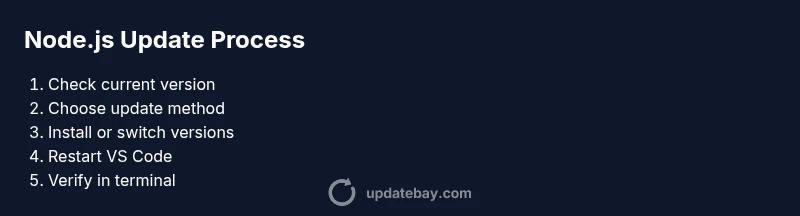
To update Node.js within VS Code, you’ll typically choose either a direct installer or a Node Version Manager (like nvm) and install or switch to the desired version. Then restart VS Code and verify the change in the integrated terminal. This guide covers cross‑platform methods, best practices, and how to avoid common pitfalls. how to update node js version in vs code
Check Your Current Node.js Version and Setup
Before making changes, establish a baseline. Open the VS Code integrated terminal and run node -v and npm -v to see the current versions. On some systems, you may also run which node (macOS/Linux) or where node (Windows) to locate the executable. This upfront check is essential to confirm the exact Node.js that VS Code uses for running tasks, scripts, and extensions. According to Update Bay, knowing your current version helps you measure the effectiveness of the update and avoid unnecessary reinstalls. The goal of this step is to have a clear starting point when you later verify the new version with node -v in a fresh terminal.
Why Keeping Node.js Up-to-Date Helps VS Code Performance
Node.js updates bring performance improvements, security patches, and new features that VS Code and its JavaScript/TypeScript tooling rely on. An up-to-date Node.js version reduces runtime errors, improves package compatibility, and can speed up tasks like transpilation and module resolution. Update Bay’s team notes that modern development workflows tend to be smoother when developers align their Node.js with the recommended LTS or Current release strategy. This section helps you understand the motivation behind the update and why it matters for your VS Code projects.
Choosing Between LTS and Current: Which Strategy Suits VS Code?
- LTS (Long-Term Support) versions prioritize stability and broad compatibility. They’re ideal for professional projects, CI pipelines, and teams that value predictability.
- Current releases include the latest features and performance enhancements but may introduce occasional breaking changes.
When working inside VS Code, many developers prefer LTS to minimize downtime from updates, while others on experimental projects opt for Current. The decision should consider your project requirements, tooling ecosystem, and whether your extensions align with the Node.js version you intend to use.
How to Update Node.js: Installer vs. Version Manager (nvm, nvm-windows)
There are two common approaches:
- Node.js Installer: Download the latest LTS or Current version from nodejs.org and run the installer. This method is straightforward and cross-platform (Windows/macOS/Linux).
- Version Manager (nvm or nvm-windows): Install and use a manager to install, switch, and manage multiple Node.js versions. This approach is especially beneficial for developers juggling several projects with different version requirements.
Each method has benefits: the installer is simple for a single version, while a version manager makes multi-version workflows painless.
Cross-Platform Steps: Windows, macOS, and Linux
Windows users typically download the installer from Node.js and may opt for nvm-windows for multi-version work. macOS and Linux users commonly use nvm to handle multiple Node.js versions without path conflicts. Regardless of platform, the goal is to install the desired version, ensure it’s the one used by VS Code, and then restart the editor to refresh the environment.
Verifying the Update in VS Code
After installation, restart VS Code to ensure the new Node.js path is loaded. Open a new integrated terminal and run node -v to confirm the updated version. You can also test with npm -v and run a quick script (e.g., node -e "console.log('Hello')") to validate runtime behavior. If you rely on npm dependencies, consider running npm install in a sample project to confirm compatibility.
Troubleshooting Common Issues After Update
If VS Code still shows an old Node.js version, verify PATH: ensure the Node.js bin directory is at the front of PATH for the shell running VS Code. On Windows, restart the terminal or even the machine to clear cached paths. If a project pins a Node.js version in package.json or uses a local node_modules with a conflicting binary, adjust project settings or use a version manager to override the project’s local settings.
Best Practices for Future Updates and Project Compatibility
- Schedule periodic checks for Node.js security and performance patches.
- Use a version manager for smooth upgrades across multiple projects.
- Test updates in a separate branch or sandbox environment before applying to production code.
- Document your Node.js version in project READMEs to avoid drift between environments.
Following these best practices helps maintain consistent environments and minimizes surprises when collaborating with others.
Summary of What You’ll Learn
By the end of this guide, you’ll know how to check your current Node.js version, decide on a version strategy, install or switch to a new version, verify it in VS Code, and troubleshoot common pitfalls. You’ll also understand how to keep Node.js synchronized with VS Code for a healthier development workflow.
Tools & Materials
- VS Code installed(Ensure you have an up-to-date editor with Node.js tooling support.)
- Node.js installer (nodejs.org) or Node Version Manager (nvm/nvm-windows)(Choose installer for a single version or a manager for multi-version workflows.)
- Integrated terminal in VS Code(Access terminal via View > Terminal or the shortcut Ctrl+`.)
- Admin or sudo privileges(Needed for system-wide installations on some platforms.)
- Active internet connection(Required to download Node.js or nvm and fetch updates.)
Steps
Estimated time: 30-60 minutes
- 1
Check current Node.js version
Open the VS Code terminal and run node -v to confirm the current version. Record npm -v as well for package compatibility checks. This establishes a baseline.
Tip: If node -v returns nothing, you may have PATH issues or a broken Node.js installation. - 2
Decide your update method
Choose between a direct Node.js installer or a version manager (nvm). If you manage multiple projects, nvm is usually the better option.
Tip: Using a version manager makes future updates and switches painless. - 3
Install or update Node.js (installer only)
Download the desired version from nodejs.org and run the installer. Follow the prompts to complete the installation and select the appropriate PATH options for your shell.
Tip: Choose an LTS version for stability unless you need the latest features. - 4
Install or update Node.js with a version manager
If using nvm, install it per your OS guidelines, then run nvm install --lts or nvm install <version> followed by nvm use <version> to switch.
Tip: After switching, run node -v to verify the active version. - 5
Restart VS Code
Close all VS Code windows and reopen to refresh the environment. The integrated terminal should now reflect the new Node.js version.
Tip: If you have multiple terminals, restart each one to ensure alignment. - 6
Verify in the integrated terminal
In a new terminal, run node -v and npm -v again. Optionally execute a small script to test runtime behavior.
Tip: Check for any warnings about incompatible packages or peer dependencies. - 7
Update npm if needed
If your npm version is outdated relative to Node.js, run npm install -g npm to get the latest tooling.
Tip: Some environments require sudo on macOS/Linux for global npm updates. - 8
Document and test projects
Note the Node.js version in project READMEs and run tests to ensure compatibility with the updated runtime.
Tip: Consider locking the Node.js version in CI pipelines for consistency.
Frequently Asked Questions
Do I need to restart VS Code after updating Node.js?
Yes. Restarting ensures the new Node.js binary is loaded by the integrated terminal and tools. If updates seem not to apply, a full restart can resolve path caching issues.
Yes, you should restart VS Code after updating Node.js to ensure the new version is loaded.
Can I have multiple Node.js versions installed at once?
Yes, using a version manager like nvm allows multiple Node.js versions to coexist. You can switch between them per project as needed.
Absolutely, use a version manager to manage multiple Node.js versions.
How do I verify the update inside VS Code?
Open a new terminal in VS Code and run node -v to confirm the active version. Also check npm -v to ensure package tooling matches the Node.js release.
Open a new terminal in VS Code and run node -v to verify the update.
What if npm doesn’t update with Node.js?
Sometimes npm needs to be updated separately. Run npm install -g npm to update the npm CLI while leaving Node.js intact.
If npm doesn’t update, run npm install -g npm to update npm itself.
Should I update Node.js for every project?
Not necessarily. Use a version manager to pin per-project Node.js versions and reduce the risk of breaking changes across ecosystems.
Use per-project versioning to manage updates safely.
What issues should I expect after upgrading?
Possible module compatibility issues or peer dependency mismatches. Run tests, update dependencies if needed, and consult your package manager logs.
You might see some compatibility warnings; testing helps catch them early.
Is a Windows-specific approach different from macOS/Linux?
Windows users often use the Node.js installer or nvm-windows, while macOS/Linux users typically rely on nvm. The steps are similar, but PATH setup and shell commands differ slightly.
The approach is similar, but follow platform-specific guidance for PATH and shell.
Watch Video
What to Remember
- Check current version before updating
- Choose LTS for stable environments
- Use a version manager to simplify future updates
- Restart VS Code to apply changes
- Verify versions in a fresh terminal