ps5 update: A practical guide to PlayStation 5 system software updates
Learn how to safely update your PS5 system software, verify version, troubleshoot common issues, and optimize performance after updates with clear, actionable steps.


This guide walks you through performing a ps 5 update, from verifying your current version to installing the latest system software and validating that your games run smoothly after. You’ll learn how to prepare, choose the update method, and troubleshoot common hiccups with practical tips from Update Bay.
Why PS5 Updates Matter
According to Update Bay, a PS5 update is more than a basic patch. System software updates strengthen security, improve compatibility with new games, and optimize performance across the console. Keeping the PS5 up to date helps protect your data and ensures access to the latest features. In practice, regular updates reduce the risk of compatibility issues and keep your library running smoothly. As you read on, you’ll see concrete steps to approach updates with confidence and minimize disruption to your gaming sessions.
How PS5 Update Versions Work
PlayStation releases updates in versions that reflect the scope of changes. Small patches typically address security fixes or minor enhancements, while larger updates bring new features, UI refinements, and expanded compatibility with upcoming titles. The PS5 uses a straightforward naming convention for system software updates, and understanding this can help you anticipate what changes to expect. When you see a newer version available, you’ll notice improvements in stability, performance, and sometimes load times for select titles.
Knowing how updates differ helps set expectations: not every update will feel dramatic, but every one contributes to a safer, smoother user experience.
How to Prepare for a PS5 Update
Preparation is key to a smooth ps 5 update. Start by powering down any active games and ensuring you have a reliable internet connection. If you prefer offline updates, you can use a USB drive to transfer the update file from Sony's official site, but this method requires an extra download on a separate device first. Back up important data or save progress in case of unexpected interruptions, and confirm you are logged into the correct PlayStation Network account. These steps minimize risk and prevent lost progress.
Step-by-Step: Install a PS5 System Software Update
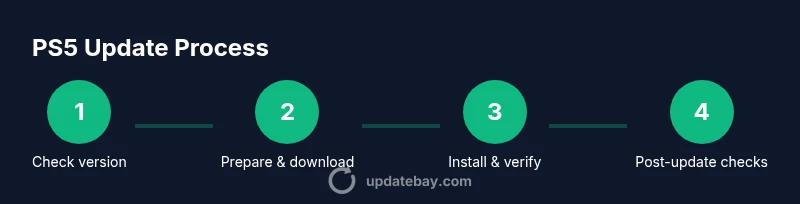
This section provides a clear progression from checking for updates to confirming the new version is active. It covers both automatic updates and manual installation via Settings, plus what to do if the update cannot complete. You’ll learn how to start the update, monitor progress, and verify the install with a quick test run of a game or app. Expect a short reboot, followed by a quick post-update check to ensure the system recognizes the new software.
Troubleshooting Common Update Issues
Even with careful preparation, updates can stall or fail. Common culprits include unstable network connections, power interruptions, or corrupted download data. If you encounter a problem, first confirm the console has a stable power source and reliable connectivity. Reattempt the update, or opt for an offline update if online installation continues to fail, using official Sony files and instructions. Clear error codes exist for specific issues, and the PlayStation support site offers guidance tailored to each scenario.
Safety, Security, and Best Practices
Security-minded users should ensure updates come from official Sony channels and that the download is not modified. Avoid third-party update files or unofficial sources. Maintain a routine of backing up saves and keeping your PSN account credentials secure. Enable automatic updates where possible to reduce manual steps, but still monitor update notifications to verify the content aligns with your expectations. These habits reduce risk and protect your library.
Post-Update Maintenance and Optimizing Performance
After installing a PS5 update, check core features like the home screen, library access, and network connectivity to confirm everything runs as expected. Run a quick test with a few games to ensure there are no compatibility hiccups and review any new settings that came with the update. If you notice any reduced performance or unusual behavior, a fresh reboot or safe mode option can help resolve minor glitches. Regular maintenance and staying informed about new patches helps you maximize your PS5 experience.
Tools & Materials
- PS5 console and controller(Ensure the controllers are connected and charged)
- Stable internet connection (Wi-Fi or Ethernet)(Prefer Ethernet for reliability)
- USB flash drive (optional for offline update)(At least 1 GB recommended)
- Power supply and a continuous power source(Avoid power interruptions during the update)
Steps
Estimated time: Estimated total time: 25-40 minutes
- 1
Check your current PS5 version
Power on the PS5 and navigate to Settings > System > System Software > System Software Update and Settings. Review the current version listed to determine if an update is available. This helps you decide whether to proceed with online or offline installation.
Tip: Note the version number for reference in case you need to confirm compatibility with games. - 2
Prepare your network and power
Ensure a stable internet connection and a reliable power source. If you’re using a wireless network, consider a temporary Ethernet connection for a faster, more reliable download. Avoid updating during a power outage or in a game-intensive session to prevent interruptions.
Tip: If you use a UPS, enable it to protect against outages during the update. - 3
Initiate the update
In Settings, select System Software Update. If an update is available, choose to download and install. During this step, the console may reboot once or twice as the new software is applied.
Tip: Do not turn off the console while the update is in progress. - 4
Verify the update was successful
After the reboot, revisit Settings > System > System Software to confirm the version changed. Run a quick test by launching a game or app to ensure normal operation.
Tip: Check for any new prompts or settings introduced by the update. - 5
If the update fails, retry or use an offline method
If the download or install fails, retry the process. If issues persist, consider updating via a USB drive with the official update file from Sony, following Sony’s official instructions.
Tip: Always use official sources for offline files to avoid security risks. - 6
Post-update checks
Clear any temporary data by restarting apps, re-syncing cloud saves if available, and testing network features like online play and streaming apps.
Tip: Note any new settings or features introduced in the update and adjust preferences accordingly.
Frequently Asked Questions
Do I need an internet connection to update my PS5?
Most PS5 updates download automatically via the console's online connection, but you can perform offline updates with official Sony files if you have the USB update package. Ensure you follow Sony's official guidance for offline installs.
Usually yes, but you can update offline with official files if you need to.
Will updating PS5 delete saved games?
System updates generally do not erase saved data. However, it’s prudent to back up saves to cloud or a USB drive as a precaution before starting.
No, updates don’t typically delete saves, but back up first just in case.
How long does a PS5 update take?
Update duration varies with the update size and your network speed. Plan for a window of time where the console remains powered and undisturbed.
It varies; expect a window of time and avoid interruptions.
Can I downgrade to a previous PS5 update?
Downgrading to older firmware is not supported through standard PS5 interfaces. If you need fewer changes, you must wait for official downgrade options from Sony or avoid installing the latest update until you’re ready.
Downgrading isn’t supported through normal PS5 options.
What should I do if the update fails?
If an update fails, retry with a stable connection, ensure the console has power, and consider using the offline update method via USB with official files if online installs fail.
Retry with a stable connection, or try offline update with official files.
Is it safe to update PS5 while gaming?
It’s safer to update when not actively gaming, to avoid interruptions and ensure the update completes without issues. Afterward, test your games to confirm stability.
Do not update while actively playing to prevent interruptions.
Watch Video
What to Remember
- Know your PS5 version before updating.
- Prepare power and network to prevent interruptions.
- Follow a safe, step-by-step update process.
- Use official sources for offline updates if needed.
- Verify the update with a quick test and adjust settings.