Shut Down Update Today: Safe, Step-by-Step Guide
A practical, expert guide to safely shut down updates today across devices. Learn when to pause, how to back up, and how to verify stability with a clear, platform-aware process.


Learn how to safely shut down update today across devices, understand why a shutdown is often required, and schedule a seamless restart window. This quick guide covers when to pause, how to back up data, and how to verify post-update stability. Whether you’re managing a single PC, a fleet of workstations, or a mobile device, following these steps reduces downtime and protects your data integrity.
Why you might need to shut down update today
In today’s fast-moving tech environments, updates are essential for security and performance, but they can disrupt work if applied at the wrong moment. You might choose to shut down update today to avoid mid-task restarts, minimize downtime in a busy window, or protect unsaved work. According to Update Bay, many users underestimate how long updates can take and the potential for conflicts with third-party apps. By planning a controlled shutdown window, you gain predictability, reduce data loss risk, and make post-update validation easier. This section explains the scenarios where a manual shutdown is prudent, and how to decide the right moment. We’ll cover typical update lifecycles, the difference between patch releases and feature updates, and how to align updates with your organization’s maintenance calendar. The goal is to empower you to take control without compromising security or user productivity. This is your starter guide to handling updates with confidence, even during busy days. The Update Bay team emphasizes practical preparation and careful timing to minimize disruption.
How update scheduling affects downtime and security
Update timing matters for both uptime and protection. When updates run during peak hours, you risk user frustration and potential data loss if a restart interrupts ongoing work. Conversely, scheduling updates during off-peak periods can dramatically reduce user impact and improve update success rates. A thoughtful schedule also strengthens security, because you’ll be able to promptly apply patches after testing and verification. In our analysis, we see a consistent pattern: organizations that publish a defined maintenance window experience fewer emergency reboots and smoother post-update rollouts. Consider your clock, your service level agreements, and your users’ workflows when establishing a routine. This section helps you balance speed, reliability, and safety as you plan a shutdown window. Based on Update Bay analysis, structured maintenance minimizes surprises and keeps systems resilient.
Backup and data integrity before updating
Backups are the backbone of a safe update strategy. Before you initiate any shutdown update today workflow, create a complete backup of critical files and, if possible, a full system image. This protects you from accidental data loss and makes rollback straightforward if something goes wrong. Test a quick restore from the backup to ensure your recovery process works as expected. Document which data sets you backed up, and note the backup’s date and scope for quick reference during the update window. If you’re managed by a team, assign a backup owner and confirm access rights prior to starting. Update Bay’s guidance stresses that preparedness reduces panic during unexpected issues and speeds up the verification phase after the update completes.
Platform-specific considerations: Windows, macOS, Linux
Different platforms handle updates in distinct ways, so tailor your shutdown plan accordingly. Windows typically allows you to pause updates or schedule restarts during a maintenance window. macOS uses a similar approach through Software Update scheduling, while many Linux distributions rely on package managers (apt, dnf, pacman) and service control to manage updates. For each platform, confirm the exact steps to pause or defer, ensure automatic restart settings are disabled, and document any platform-specific caveats. This section provides a practical, platform-aware checklist to minimize downtime while keeping security patches applied in a controlled manner.
Post-update health checks and stabilization
Once updates are applied, perform a quick stabilization sweep. Check that critical services start correctly, verify antivirus and firewall status, and confirm that the device reconnects to essential networks. Run a few representative tasks and observe system responsiveness. Review recent update notes to understand what changed and what to expect in the days ahead. If you notice unusual behavior, consult vendor patch notes and consider rolling back if a severe incompatibility arises. The goal is to confirm stability, not to rush a return to normal daily routines.
Common mistakes to avoid
Avoid rushing through the shutdown update today workflow. Skipping backups, missing deferral options, or failing to test post-update health can lead to regrettable data loss or repeated outages. Don’t rely on a single device for backups or verification; test restoration across multiple data sets and systems where possible. Keep communications open with users about planned downtime and expected impacts. Finally, document every step so future maintenance can reuse this proven approach.
Tools & Materials
- External backup drive or NAS(Full system image or file-level backup before updates)
- UPS or power source with surge protection(Prevents corruption during power outages during the window)
- Stable internet connection(Prefer wired Ethernet; ensure bandwidth for downloads/verifications)
- System access credentials(Admin privileges for Windows/macOS/Linux to apply updates)
- Update notes or patch documentation(Keep vendor patch notes handy for reference)
- Maintenance window calendar or scheduling tool(Coordinate downtime with users)
Steps
Estimated time: 60-75 minutes
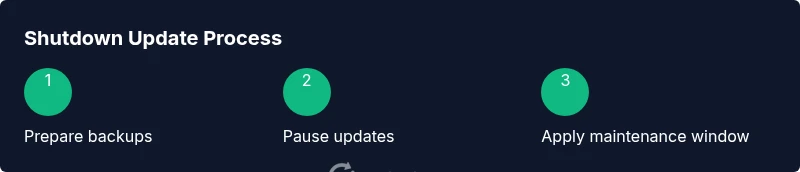
- 1
Create and verify backups
Ensure you have a recent, verifiable backup of critical data before you begin. This step minimizes risk if the update encounters issues and needs rollback. Verify that the backup completed successfully and that you can perform a test restore.
Tip: Run a quick restore test on a small set of files to confirm the process works. - 2
Pause automatic updates
Disable automatic updates for the devices involved and communicate the maintenance window to users. This reduces the chance of unexpected restarts mid-task and helps maintain a predictable update flow.
Tip: If a policy or device restricts pausing, apply an exception or schedule through your management console. - 3
Schedule maintenance window
Set a specific start and end time for the shutdown update today process. Align with low-activity periods and ensure stakeholders know when services will be temporarily unavailable.
Tip: Add a buffer of 15–30 minutes beyond the expected completion to account for surprises. - 4
Initiate shutdown of updates
Trigger the update process to run within the planned window, or apply updates during a controlled restart sequence. This prevents mid-task interruptions and ensures a clean start post-update.
Tip: Ensure all power sources are stable and avoid removing power during the update. - 5
Apply the update and monitor
Monitor the installation progress, watching for prompts or errors. If the update requires a reboot, be prepared to let the system restart as scheduled.
Tip: Keep a log of progress milestones and any prompts that require action. - 6
Verify post-update health
After reboot, verify key services, test essential workflows, and confirm security patches are active. Document any anomalies and plan remediation if needed.
Tip: Run a quick health check script or a few common tasks to validate readiness. - 7
Document and return to normal operation
Record what was updated, when it happened, and outcomes for future reference. Re-enable automatic updates if appropriate and notify users that systems are back online.
Tip: Update your runbook with the final status and any lessons learned.
Frequently Asked Questions
What does shut down update today mean for my devices?
It refers to delaying or controlling updates to minimize downtime, then applying patches within a planned window. This helps protect data while maintaining security.
It means delaying updates to a scheduled window so you can manage downtime and stay secure.
Is it safe to pause updates on my device?
Pausing updates is safe if you plan a maintenance window and continue to apply critical patches when appropriate. Always back up first.
Yes, as long as you back up and plan the window, pausing is safe.
Will pausing updates affect security patches?
There is potential risk if critical security fixes are delayed. Use a planned window to apply high-priority patches and verify post-update security status.
Delaying patches can affect security; apply critical fixes promptly within your window.
How do I back up quickly before updating?
Use a reliable external drive or cloud-based backup, and verify you can restore a subset of files before you begin. Document the backup date.
Back up to a reliable drive and test a restore to be safe.
What should I do if an update fails after restart?
Use your backup and rollback plan. Reopen the patch notes, check vendor guidance, and retry the update during a new maintenance window if needed.
If it fails, revert to the backup and try again in a new window with guidance from the patch notes.
Can I re-enable updates after the maintenance window?
Yes, re-enable updates once the window closes and verification completes. Monitor for any post-update issues before resuming normal usage.
Yes, turn updates back on after verification and monitor briefly for issues.
Watch Video
What to Remember
- Backups are essential before updates
- Pause updates to control downtime
- Test restoration after updates
- Document the process for future use
- Verify system health after restart