What to Do Before Updating Your Phone: A Practical Checklist
Learn the essential steps to safely prepare your phone for a software update. Back up data, clear space, verify compatibility, secure accounts, and ensure a smooth, trouble-free update with Update Bay guidance.


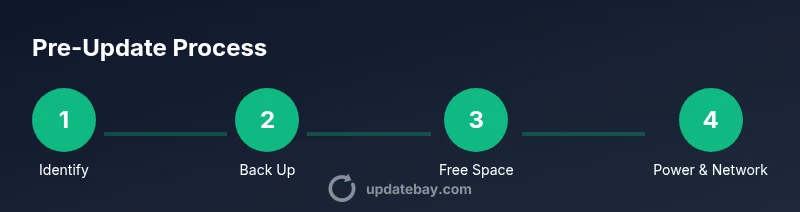
Before updating your phone, you will safely prepare by backing up data, charging to at least 50-60%, freeing storage, signing out of sensitive accounts, and reviewing app compatibility. This process applies to iOS and Android updates and assumes access to Wi-Fi and a momentary pause of nonessential apps.
Why pre-update preparation matters
According to Update Bay, taking time to prep before updating your phone dramatically reduces the risk of data loss, incomplete installations, and post-update issues. A well-planned update journey preserves personal information, keeps apps functioning, and minimizes downtime. When users start with a clear checklist, they’re less likely to encounter unexpected prompts, firmware compatibility conflicts, or battery-related interruptions. This section lays the foundation for a smooth transition from your current software version to the latest release, whether you’re updating an iPhone, a flag-ship Android device, or a budget model with limited storage. The core idea is to treat the update like a mini-project: define goals, gather supplies, and follow a repeatable sequence.
Key takeaway: preparation is the cheapest, fastest path to a clean update with fewer headaches.
Check device compatibility and update notes
A successful update begins with understanding what your device supports. Start by confirming your model and current OS version, then verify the official release notes for the target update. These notes outline new features, security patches, and any known issues that could affect your setup. Update Bay recommends checking for minimum requirements (RAM, storage, battery health) and any carrier-specific constraints if you’re on a carrier-locked device. If your device is older than the minimum supported version, you may choose to postpone or skip the update to avoid instability. Note any required steps (e.g., temporarily removing certain apps that are incompatible) and plan accordingly.
Practical tip: keep a small list of critical apps and services in mind in case you need to verify compatibility after update.
Back up your data securely
Backups are your safety net. Create a recent backup of photos, contacts, messages, app data, and documents before updating. Use multiple backup methods if possible (cloud backup plus a local copy on a computer). For iPhone users, iCloud or iTunes/Finder backups are standard; for Android users, Google Drive backups paired with a local USB transfer can reduce the risk of data loss. Ensure the backup completed successfully before proceeding. If your device supports encrypted backups, enable encryption to protect sensitive information in transit and at rest.
Update Bay notes that a verified backup reduces anxiety and makes it easier to recover in case something goes wrong during the update.
Free up storage space and optimize performance
Software updates often require additional storage during installation. Free up space by moving large videos, unused apps, and offline content to a cloud service or PC. Clear cache data for apps that grow quickly, including messaging apps and browsers. Consider temporarily disabling photo backups while updating to avoid extra network usage, then re-enable after installation. A device with ample free space tends to install updates faster and with fewer interruptions. If storage is extremely tight, use a microSD card (where supported) or delete non-essential data you can re-download later.
Tip: a quick before-update boot helps you confirm there is sufficient space on both internal storage and any external SD card.
Secure your accounts and sign out of sensitive apps
Before a major OS update, sign out of banking and payment apps to minimize risk if the session is interrupted during install. Temporarily disable two-factor authentication prompts that could impede sign-in after reboot. Ensure you know your passwords for critical services (email, cloud storage, messaging) and keep 2FA methods accessible. If you use password managers, ensure they’re up to date and accessible after the update. This step helps prevent lockouts and makes it easier to restore personal settings post-update.
According to Update Bay, properly securing accounts before updates improves post-install access and reduces friction.
Ensure a reliable network connection and power readiness
Connect to a stable Wi-Fi network to download the update without consuming mobile data. Plug the device into a charger or keep it fully charged (ideally above 50-60%) to prevent power loss during the installation. If you must perform the update on battery power, enable a low-power mode only after the update starts and ensure you can complete the process without interruption. For devices with battery health alerts, consider timing the update when battery health is adequate to complete a longer install.
Pro tip: turn off data-saver modes temporarily to ensure the update downloads without throttling.
Plan for potential rollback and post-update checks
Prepare a rollback plan in case the update causes issues. This includes knowing how to restore from the backup you created, and having enough time set aside to troubleshoot. After the update completes, verify critical functions: calls, messages, camera, biometric unlock, and key apps. Check app permissions, security settings, and notification preferences. Run a quick battery health check and monitor for overheating or unexpected reboots. If problems appear, use the backup to revert or contact support with details.
Having a post-update checklist helps ensure you didn’t miss anything and that everything works as intended.
Common pitfalls to avoid before you update
Rushing the backup, skipping compatibility notes, or updating over a weak Wi‑Fi connection are frequent mistakes. Don’t start the upgrade when your device is below 20% battery unless it’s on a charger. Avoid updating through a VPN unless required by your organization. If you depend on critical apps (banking, health data, travel), prioritize their availability and security post-update. Finally, don’t ignore security prompts after install; review each setting to keep your data safe.
Remind yourself that a small delay is preferable to a failed update.
How to verify the update after installation
Once the update is installed, perform a follow-up verification to confirm everything settled correctly. Check date and time settings, system language, and regional preferences. Review app updates and re-enable any paused features. Look for new features in the settings menu and customize them to your needs. If your device supports a post-update health check (battery, storage, and performance), run it to confirm optimal operation. This final sweep ensures you’re ready for normal use and reduces the chance of surprises in the days after the update.
Documentation and support options you should consider
Keep a copy of the official update notes and your backup locations in a known place. If you run into issues, use official support channels—device manufacturer support pages, carrier help desks, or reputable tech blogs. Having the update notes handy helps diagnose whether a problem is widespread or device-specific. Consider joining a user community or forum where others share solutions for the same update version.
Final thought: establish a routine for future updates
Create a repeatable process for future updates, so you’re not overwhelmed by new versions. Schedule a monthly or quarterly check for updates, back up data in advance, and keep your authentication methods ready. A small, established routine reduces update anxiety and ensures you’re always prepared for the next release.
Conclusion: Your pre-update checklist in one place
This comprehensive pre-update checklist covers compatibility, backups, storage optimization, account security, network and power readiness, rollback planning, and post-update checks. By following these steps, you’ll minimize risk and maximize the likelihood of a smooth, trouble-free update. The goal is to empower you with a reliable, repeatable process that you can reuse for every major update.
Tools & Materials
- Phone charger or power adapter(Keep the device plugged in during the update; avoid updates on battery-only power.)
- Original USB-C/Lightning cable(Use the cable that came with the device for reliable charging and data transfer.)
- Wi‑Fi network with stable speed(Prefer a private, password-protected network to avoid interruptions.)
- Backup medium (cloud + local copy)(Cloud backup plus a local copy on a computer provides redundancy.)
- Password manager/app access(Have access to passwords and 2FA methods for critical apps.)
- Sufficient storage(Clear space for the update package and temporary files.)
- Note-taking app or checklist(Record steps and post-update observations for future reference.)
Steps
Estimated time: 60-120 minutes
- 1
Identify update target and read notes
Confirm the device model and OS version you plan to update. Read the official release notes to understand new features, improvements, and any caveats that apply to your setup.
Tip: Capture a quick screenshot of the update page for reference. - 2
Back up your data
Create a full backup of essential data to a trusted cloud service and a local drive. Verify the backup completed successfully before proceeding.
Tip: Encrypt backups if the option is available to protect sensitive data. - 3
Free up storage
Delete or offload nonessential files and apps to ensure ample space for installation and temporary cache.
Tip: Move large media to cloud storage and clear app caches where safe. - 4
Secure accounts and sign out
Log out of sensitive apps and ensure you can re-authenticate after the update. Keep passwords accessible but secure.
Tip: Disable automatic sign-ins temporarily to avoid hiccups. - 5
Connect to power and stable network
Plug the device in and connect to a stable Wi-Fi network to download and install the update without interruptions.
Tip: If you must use mobile data, enable a data-friendly mode only during download. - 6
Download and initiate update
Begin the update from the Settings panel and follow on-screen prompts. Do not interrupt the process once it starts.
Tip: Avoid multitasking during the installation to prevent accidental taps. - 7
Monitor the installation
Wait for the installation to complete; devices may reboot multiple times and show progress indicators.
Tip: If updates stall, try a restart from recovery options after confirming it won't corrupt data. - 8
Verify post-install settings
Check date/time, language, and regional settings. Adjust privacy and security preferences if the update reset them.
Tip: Review app permissions and notification settings to match your preferences. - 9
Test core functions
Make calls, send messages, browse the web, and launch key apps to confirm basic functionality.
Tip: Test biometric unlock and payment apps for a smooth user experience. - 10
Restore from backup if needed
If issues arise, restore from the backup you created or contact support for guidance.
Tip: Document any error codes or unusual behavior to share with support. - 11
Document and plan for future updates
Note what went well and what could be improved for next time. Establish a routine for regular updates.
Tip: Set a calendar reminder to check for updates every few months.
Frequently Asked Questions
Is it safe to update my phone if the battery is low?
Typically, updates run best when the device is plugged in or has a healthy battery level. If updating on battery, ensure it won’t drop low during the process and avoid low-power warnings.
Update your phone when it’s plugged in or has a solid battery. Be sure the update won’t run out of power mid-install.
What should I back up before updating?
Back up photos, contacts, messages, app data, and documents. Use both cloud and local backups when possible for redundancy.
Back up your data to cloud and local storage to stay safe.
How long does a typical update take?
Most updates take 30–90 minutes depending on device, download speed, and installation complexity. Start with ample time and avoid interruptions.
Most updates take between half an hour and an hour and a half. Plan accordingly.
Can I revert a failed update?
If the update fails, restore from the backup you created before updating. Contact device support if the issue persists.
Yes, you can revert by restoring your backup and seeking support if needed.
Should I update apps before updating the OS?
Updating apps after the OS can ensure compatibility, but run essential apps first to confirm core functions work.
Update important apps after finishing the OS update to ensure compatibility.
What if my device is too old for the latest update?
If the device is not compatible with the latest update, consider staying on a supported version or planning a hardware upgrade.
If your device isn’t supported, stay with a compatible version or plan an upgrade.
Watch Video
What to Remember
- Prepare with a full backup before updating.
- Check compatibility and read official notes.
- Secure accounts and ensure power and network stability.
- Free up space to prevent installation failures.
- Verify device after update and plan for rollback if needed.