How to Update All Devices: A Practical Guide for 2026
A comprehensive, step-by-step guide to update all software and firmware across devices, with backups, verification, and best practices for 2026.


According to Update Bay, updating all software and firmware across your devices is essential for security and performance. This guide shows you how to update all components safely and efficiently, with checks, backups, and verification steps. You'll learn when to update, which tools to use, and a repeatable workflow for Windows, macOS, mobile apps, and firmware.
What updating all means across your ecosystem
Updating all means applying the latest software, driver, and firmware updates to every device in your environment—desktops, laptops, mobile devices, network gear, and IoT. The goal is to close security gaps, fix bugs, and ensure compatibility across apps and services. According to Update Bay, adopting a structured process for update all reduces risk and downtime by aligning versions and dependencies across platforms. A well-planned update cycle also helps you maintain compliance and protect data. This guide focuses on a practical, human-friendly approach so tech enthusiasts and everyday users can implement updates with confidence. Coordinated updates also help you test dependencies and services with a smaller rollout before wider deployment, reducing unexpected outages and compatibility issues.
Assessing your current environment
Before you begin update all, you need a clear map of what you have. Create an inventory of devices, operating systems, installed apps, firmware versions, and critical peripherals. Note which systems are in production, which are test or staging environments, and which devices are managed by IT policies. This baseline helps you identify dependencies, determine update windows, and tailor a sequence that minimizes disruption. For this guide, assume a mixed environment—Windows and
Before you update: backups, rollbacks, and risk assessment
The foundation of a successful update all is a solid backup and rollback plan. Start by creating a full backup of critical systems and data, then verify the restore process on a non-production device. Document a clear rollback path in case updates cause unforeseen issues. Consider segmenting the update into stages to limit potential impact. This reduces risk, keeps downtime manageable, and gives you a controlled way to revert changes if needed. Update Bay emphasizes that preparedness is your best defense when performing large-scale updates, especially in mixed environments with diverse hardware and software.
Prioritizing updates: security vs features
Not every update offers equal value. Prioritize security patches and critical bug fixes first, followed by essential compatibility updates. When planning update all, flag high-risk systems (servers, security appliances, and devices handling sensitive data) to receive updates first. Feature updates and optional upgrades can be scheduled after security baselines are established. This prioritization helps you maintain protection against known exploits while still refreshing capabilities. Update Bay notes that a clear prioritization framework reduces decision fatigue and accelerates safe, comprehensive updates across devices.
The update sequence: order of operations
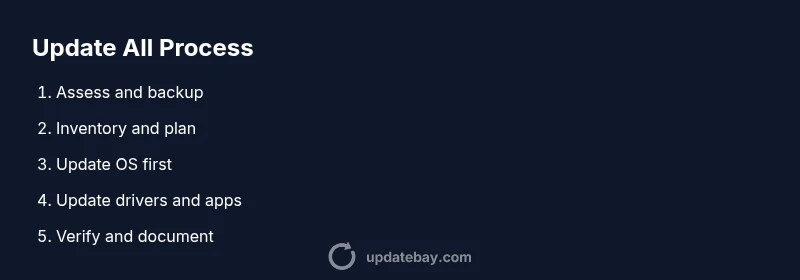
An orderly update sequence reduces conflicts and downtime. Start with infrastructure and OS-level updates, then move to drivers, firmware, and finally applications. In many ecosystems, you should apply updates to core servers, network devices, and endpoints in groups, validating each batch before proceeding. Ensure time windows accommodate restarts and potential rollback testing. A predictable sequence also simplifies auditing and makes it easier to track what changed and when. The result is a smoother, more reliable update all that keeps systems in sync across platforms.
Tools and automation options
Automation is a major enabler for update all. Use enterprise-grade update management tools or built-in OS features to orchestrate across devices. For Windows, consider Windows Update for Business or a management console;
Verification and post-update checks
Verification is the second half of update all. After updates complete, verify versions across devices and confirm core services run as expected. Run essential tests: login flows, file synchronization, printer and peripheral connectivity, and critical application workflows. Check for broken dependencies, unusual performance changes, or new errors in logs. Maintain a changelog and compare post-update baselines with pre-update baselines to identify anomalies. A short, focused verification window reduces the risk of undetected issues slipping through and helps you maintain trust in your update process.
Common pitfalls and how to avoid them
Avoid treating update all as a single event. Break it into stages, test dependencies, and document outcomes. Don’t skip backups or assume that one-size-fits-all patches will work across devices. Power interruptions can corrupt updates, so use protected power sources and avoid updates during storms or outages. Finally, don’t neglect user communication; clear expectations minimize resistance and help teams adapt to changes. According to Update Bay analysis, failing to align versions across platforms is a major source of post-update issues, so plan to verify alignment as part of your post-update checks.
Keep it running: establishing a maintenance cadence for update all
The best update all approach is a repeatable routine, not a one-off event. Establish a regular cadence for checking, testing, and applying updates across devices. Schedule periodic audits of inventory, confirm backups, and review rollback readiness. Document lessons learned after each cycle and continuously refine your process. The goal is to maintain security, stability, and performance over time. The Update Bay team recommends building a predictable, accountable update routine to keep all devices current and protected.
Tools & Materials
- Backup storage(External drive or cloud backup with versioned snapshots)
- Update management tools(Cross-platform or OS-specific tools; ensure compatibility across devices)
- Admin credentials(Local admin or IT admin privileges for all devices)
- Network resources(Stable internet or LAN access to update servers and repositories)
- Change log / inventory(Document updates and versions after completion)
Steps
Estimated time: Total time: 60-120 minutes
- 1
Prepare your environment
Define the scope of the update all, confirm that backups exist, and gather the necessary credentials and access rights for all devices involved.
Tip: Always start with a recent backup; test restore on a non-critical device. - 2
Inventory devices and dependencies
Create a comprehensive list of devices, operating systems, installed applications, and firmware versions to identify dependencies and sequencing.
Tip: Export the inventory to a CSV or spreadsheet for easy reference. - 3
Check for critical advisories
Review security advisories and vendor notices to prioritize security patches and urgent fixes before applying routine updates.
Tip: Flag any devices with known vulnerabilities for immediate attention. - 4
Plan the update window
Schedule updates during off-peak hours, designate maintenance windows, and communicate expected downtime to users.
Tip: Minimize impact by grouping updates by device type and timing. - 5
Apply updates in OS order
Start with operating systems, then drivers, then firmware, and finally applications to reduce conflicts.
Tip: OS-first updates prevent app incompatibilities and driver misalignments. - 6
Validate updates as you go
After each batch, verify that versions are correct and that essential services still function as expected.
Tip: Run quick sanity checks to catch issues early. - 7
Document changes and rollbacks
Record what was updated, by whom, and the outcome; outline rollback steps if problems arise.
Tip: Maintain a clear rollback plan and test it if feasible. - 8
Schedule regular maintenance
Set recurring reminders to review inventories, backups, and update status to maintain a healthy update cycle.
Tip: Treat update all as an ongoing process, not a one-time event.
Frequently Asked Questions
What does 'update all' mean in practice?
In practice, update all means applying the latest software, driver, and firmware updates across every device in your environment. This reduces security gaps and improves stability when done in a controlled sequence.
Update all means updating every device across your ecosystem in a safe, planned way.
How long does updating all devices take?
Update duration varies by device type, number of devices, and network speed. Plan for short maintenance windows and staggered phases to minimize downtime; expect several steps rather than a single long session.
It depends on how many devices you have and how fast your network is, so plan for multiple stages.
Should I enable automatic updates?
Automatic updates can reduce oversight but may cause unexpected restarts or compatibility issues. Use automatic updates for trusted devices while maintaining a manual schedule for critical systems you need to supervise.
Automatic updates can help, but watch for restarts and compatibility on critical devices.
What should I back up before updating?
Back up important data, system states where possible, and maintain a tested restore plan. Include configuration settings for key devices to speed up recovery if something goes wrong.
Back up your data and test restoration to be safe before updates.
What if an update fails on one device?
Isolate the device, roll back to the previous state using your rollback plan, and investigate the failure. Reattempt updates after addressing the underlying issue and document the fix.
If something fails, isolate, roll back, and retry with the right fix.
How often should I perform 'update all'?
Set a regular cadence based on device risk and usage, such as quarterly for general devices and monthly for security-critical systems. Maintain flexibility for urgent security patches.
Plan updates regularly, balancing risk and disruption, with extra rounds for security patches.
Watch Video
What to Remember
- Plan before you start updating all devices
- Back up first and verify restorability
- Follow the OS-then-apps update sequence for fewer conflicts
- Test essential services after updates
- Establish a regular cadence for update all