How to Update a Sony Bravia TV
Learn how to safely update your Sony Bravia TV’s firmware using OTA updates or USB, with step-by-step instructions, tips, and troubleshooting.


You can update a Sony Bravia TV by using the built-in internet update or by loading firmware from a USB drive. Start from Settings > System Update to check for available updates and install automatically. If your model lacks internet access, download the official firmware from Sony's support site and follow on-screen prompts to update via USB.
Why Updating Matters for Sony Bravia TVs
Keeping your Sony Bravia TV up to date is essential for stability, security, and access to the latest features. Firmware updates fix known bugs, improve compatibility with new apps, and often enhance performance. For Android-powered Bravias, updates can optimize the user interface, improve app reliability, and strengthen protections against emerging threats. According to Update Bay, customers who stay current on firmware report fewer crashes and smoother streaming experiences. The Update Bay team notes that timely updates are particularly important after major OS releases or when new streaming apps roll out. Regular updates also help with security, reducing exposure to vulnerabilities. If you rely on smart home devices or external soundbars, staying current ensures better interoperability. In short: routine firmware updates help you get the most from your device without surprises.
Check Your Model and Prerequisites
Before you begin, confirm your Sony Bravia TV model and assess your connection and power readiness. Note the firmware version shown in Settings > About to gauge whether you’re already up to date. If your TV is on battery or experiences frequent power interruptions, locate a reliable power source and avoid updates during storms or outages. Also verify you have a stable internet connection (Wi‑Fi or Ethernet). Some Bravia models support automatic updates, while older ones may require manual checks. If you’re using a shared network, ensure there are no firewall rules blocking Sony update servers. Finally, consider backing up your preferred settings and login information for apps in case the update process resets preferences. The goal is a smooth, uninterrupted update window without data loss.
Update Methods: Over‑the‑Air (OTA) vs USB
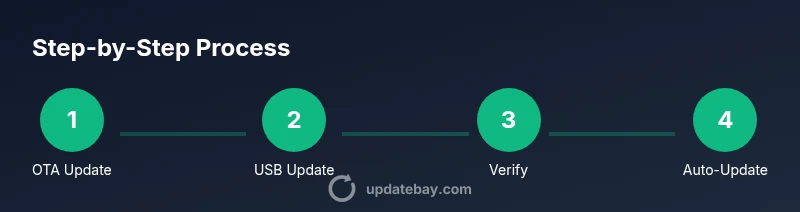
Sony Bravia TVs commonly support over‑the‑air (OTA) firmware updates via Settings and, for devices with limited internet access, a USB firmware update method. OTA updates are the quickest path and require a working internet connection; USB updates give you a safety net when network access is restricted or unavailable. OTA uses the TV’s built‑in update service to download and install the firmware automatically. USB updates require you to download the correct firmware package from Sony’s official support site on another device, copy it to a FAT32 USB drive, insert the drive into the Bravia, and follow on‑screen prompts. Always use official Sony firmware and avoid third‑party packages, which can harm the TV.
Step-by-Step: OTA Update (Internet Required)
To update over the air, start from the Home screen and open Settings. Navigate to System Update and choose Check for updates. If an update is available, review the release notes and select Install. The TV will download, install, and may reboot automatically. Do not unplug the TV during the process, and ensure the screen does not turn off. After the reboot, verify the firmware version in Settings > About. If the update was successful, your apps and settings should remain intact. If you encounter a stalled download, pause briefly, reconnect to the network, and retry. The OTA path is the simplest and most reliable when a solid internet connection is available.
Step-by-Step: USB Firmware Update (Offline)
If OTA is not possible, download the official firmware package from Sony’s support site using a computer and a USB drive. Copy the firmware file to the USB drive’s root directory (no subfolders). Turn off the Bravia, insert the USB drive, and power on while holding the appropriate button sequence or follow on-screen prompts to access the USB update option. Select updated firmware from USB and allow the TV to install. Do not remove the USB drive until the update completes and the TV restarts. After the update, re-check Settings > About to confirm the new version. If the USB method fails, revert to OTA when possible and contact Sony support for guidance.
Troubleshooting Common Update Issues
Update failures can occur for several reasons: an unstable internet connection, interruptions during the download, insufficient power, or using incompatible firmware. If an update fails, retry with a stable connection and ensure the TV remains powered during the process. For persistent problems, perform a USB recovery with official Sony firmware, as described above, or reset network settings and reattempt OTA. If the TV boots into recovery or shows an error code, consult Sony’s support resources for model‑specific guidance. Avoid third‑party firmware, which can brick the device and void warranties.
After Update: Verifying and Configuring
Post‑update steps are important to confirm success and restore your preferred settings. Go to Settings > About to verify the firmware version matches the latest release. Open key apps to ensure they run smoothly, and log back into streaming services if needed. Check HDMI‑CEC and any connected devices for compatibility, and reconfigure any custom picture or audio settings as some firmware updates may reset preferences. If you use a home theater setup, verify audio passthrough and ARC behavior after the update. Finally, consider enabling automatic updates to keep your Bravia current without manual checks.
Safety Best Practices and Auto‑Update Options
Always use official Sony firmware from Sony’s support portal and keep power connected during updates. If you have a strong, stable internet connection, enabling automatic updates is highly recommended, as it reduces the chance of missing important security fixes. Schedule updates during a time when you don’t rely on the TV for critical tasks to minimize disruption. If you own multiple Sony devices, consider aligning firmware update windows to minimize feature discrepancies across devices.
Tools & Materials
- Stable power source for TV(Keep TV plugged in during update; avoid power outages or unplugging.)
- Internet connection (Wi‑Fi or Ethernet)(A steady connection reduces download errors and failed installations.)
- USB flash drive (8GB or larger)(Needed only for USB firmware update; format to FAT32.)
- Computer or smartphone with internet access(Needed to download firmware from Sony's support site for USB updates.)
- Backup of TV apps and settings(Recommended before major firmware changes to prevent data loss.)
Steps
Estimated time: 30-60 minutes
- 1
Open Settings and access System Update
From the Home screen, open Settings and navigate to System Update. The TV will show whether an update is available and present details about the version and fixes.
Tip: If you can't locate System Update, use the Settings search feature. - 2
Check for updates
In System Update, select Check for updates. The TV will connect to Sony servers to determine if a newer firmware exists. If an update is found, review release notes before installing.
Tip: A stable internet connection helps avoid partial downloads. - 3
Install the update
Choose Install and let the TV download and apply the firmware. Do not power off the device during installation; allow the reboot to complete if prompted.
Tip: If prompted to restart, confirm and wait for automatic reboot. - 4
Wait for the update to finish
Updates may take several minutes. The screen may flash or show progress indicators. Do not press buttons unless instructed.
Tip: A momentary screen refresh is normal; avoid repeated actions that could interrupt the process. - 5
Verify the new firmware version
After reboot, go to Settings > About to confirm the firmware version matches the latest release. Open a couple of apps to ensure they load correctly.
Tip: Note the version for future reference if you need to report issues. - 6
USB fallback (if OTA fails)
If OTA fails, prepare a FAT32 USB drive with the official firmware file from Sony’s support site and use the USB update option in the TV’s settings.
Tip: Only use firmware from Sony; using third‑party packages can brick the TV.
Frequently Asked Questions
Do I need an internet connection to update a Sony Bravia TV?
Most updates are delivered over the internet via System Update. If your TV cannot access the internet, you can perform a USB update using firmware from Sony's official site.
Most updates use the internet, but you can update with USB if you can download the file elsewhere.
How long does a typical firmware update take?
OTA updates usually finish in 15 to 45 minutes depending on file size and network speed. USB updates may take longer due to file transfer and installation.
Most updates take about 15 to 45 minutes.
Will updating delete my apps or settings?
Firmware updates should preserve apps and settings, but it's wise to back up preferences before starting.
Typically your apps stay intact, but it's best to back up first.
What should I do if the update fails or the TV reboots in a loop?
If an update fails, retry after a fresh restart. If problems persist, perform USB update using official Sony firmware or contact Sony support.
If it fails, try again or use USB update from Sony.
Should I enable automatic updates?
Enabling automatic updates helps keep your Bravia secure with the latest features without manual checks.
Yes, auto-update helps you stay current.
Watch Video
What to Remember
- Update firmware to improve stability and security
- Use OTA updates via Settings for most users
- USB update is a reliable fallback when internet access is unavailable
- Interrupting an update risks firmware corruption
- Verify the firmware version after update