Why System Update Is Not Working: Troubleshooting Guide
Struggling with failed system updates? This urgent troubleshooting guide dives into common causes, fast checks, and step-by-step fixes to restore update functionality across Windows, macOS, and other operating systems.


The most likely reasons your system update is not working are connectivity issues, corrupted update components, and insufficient disk space. Start with a stable internet connection and admin rights, then verify storage availability and reboot. If problems persist, run the built-in troubleshooter and check for pending reboots or conflicts with security software.
Why System Update Fails: Urgent Overview
When a system update stalls or fails to install, the impact can range from minor feature delays to critical security gaps. According to Update Bay, many failures arise from simple, often overlooked causes like a flaky network, blocked permissions, or a clogged storage drive. Recognizing that updates are the backbone of device security and performance helps motivate a swift, methodical approach. This guide is written in an urgent, solutions-focused tone to help both power users and everyday consumers recover update capabilities quickly.
Common Causes of Update Failures
Updates can fail for a variety of reasons, and knowing the most frequent culprits helps you triage rapidly. The leading causes include unstable internet connections or VPNs that drop during download, corrupted update cache or components, insufficient disk space, and outdated drivers or firmware that block patch application. Other factors include conflicting security software, incorrect regional settings, and recent system changes that require a clean reboot to complete. Update Bay analysis shows that addressing these issues in the right order dramatically increases success rates.
Prepare for Troubleshooting: Prerequisites
Before diving into fixes, ensure you have a backup of important data and administrator access. Disconnect non-essential peripherals to avoid driver conflicts, and temporarily disable security scanners if they interfere with the update process (re-enable them after testing). Make sure your battery is charged or the system is connected to power, since updates paused by power concerns may fail mid-install. Having patience and a calm workflow speeds up resolution while reducing mistakes.
Diagnostic Checklist: Quick Tests You Can Run
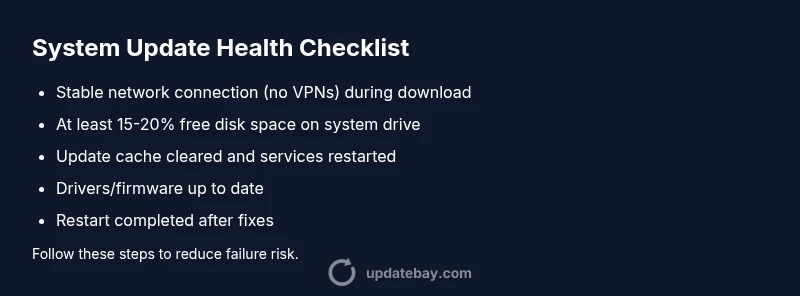
- Check internet stability by loading multiple sites and running a speed test; avoid connections with high latency.
- Verify available disk space using your system tools; aim for at least 15-20% free space on the system drive.
- Review update error codes and search official support pages for known fixes.
- Clear or refresh the update cache to remove corrupted components that stall installation.
- Temporarily disable auxiliary software that could block updates, then re-enable after testing.
- Ensure the device clock and regional settings are correct, as mismatches can disrupt update validation.
- Reboot the device fully to finish pending installation tasks and flush stalled processes.
Step-by-Step Fixes for the Most Common Causes
1) Stabilize the network
- Reconnect to a reliable network and pause VPNs or proxies during the update.
- Try a wired connection if possible to reduce packet loss.
- Reboot the router if you notice frequent drops.
2) Clear update cache and temporary files
- Open the update utility and clear cache, then retry the download.
- Manually delete temporary update files if the option exists, ensuring you don’t remove essential system data.
- Run the update again to see if the download resumes smoothly.
3) Free disk space
- Remove unused apps, large files, and temporary data.
- Move media to external storage if needed, then retry installation.
- Consider cleaning old restore points if your OS allows it.
4) Reset update components
- Use the built-in repair or reset function if available; if not, run the manual sequence recommended by official support.
- Restart services related to update processes and then retry.
- Avoid interrupting the reset once it begins, as partial resets can worsen issues.
5) Run the troubleshooter and logs review
- Run the system troubleshooter and follow on-screen guidance.
- Inspect log files for recurring error codes and search for official fixes tailored to those codes.
- Apply any vendor-recommended patches or driver updates that surface in the logs.
6) Check drivers and firmware
- Update device drivers and firmware from official sources, prioritizing chipset and storage controllers.
- Ensure you’re using compatible versions for your OS build.
- Reboot after installation and attempt the OS update again.
7) Consider a repair install or fresh install (as a last resort)
- If updates repeatedly fail, a repair or in-place upgrade can preserve data while refreshing system files.
- Backup remains crucial before proceeding, and follow vendor-specific steps carefully.
- After repair, verify updates install normally and monitor for reoccurrence of issues.
8) Reboot and verify a clean state
- Always complete a full reboot after applying fixes to ensure all changes take effect.
- Attempt the update again in a controlled, single-user session.
- Keep an eye on background tasks that might reintroduce conflicts during installation.
Advanced Fixes and Recovery Options
If standard fixes fail, consider more advanced steps like inspecting the event viewer for critical errors, performing a clean boot to isolate software conflicts, or using a system restore point to revert to a pre-update state. In enterprise environments, consult your IT admin for centralized update management and to verify that group policies aren’t restricting updates. Remember, advanced fixes carry greater risk; proceed only if you’re comfortable with system-level changes and always maintain current backups.
Prevention: Keeping Updates Healthy
Prevention focuses on routine maintenance and sane update practices. Schedule updates during low-use hours, keep drivers and firmware in sync with OS versions, and maintain ample disk space. Regularly restart devices to complete background tasks and avoid accumulation of partial downloads. Finally, enable automatic error reporting to catch issues early, so you can apply fixes before they impact productivity.
Steps
Estimated time: 45-60 minutes
- 1
Verify Network & Reboot
Check for a stable internet connection and disable VPNs temporarily. Reboot the device to clear stuck processes. Retry the update after the reboot.
Tip: Use a wired connection if possible for the most stable download. - 2
Clear Update Cache
Open the update utility or file explorer, locate the update cache folder, and delete its contents. Restart the update service and begin again.
Tip: Back up the cache location before deleting if you’re unsure. - 3
Ensure Disk Space
Check free space on the system drive. If space is low, remove large or unused files and consider moving media to external storage.
Tip: Aim for at least 15-20% free space for smooth installs. - 4
Run Troubleshooter
Run the built-in troubleshooter for updates and follow recommended steps. Review any codes shown and search official docs for fixes.
Tip: Document error codes to speed up future support if needed. - 5
Reset Update Components
Use the provided reset sequence or repair option to refresh core update services. Don’t interrupt the process once it starts.
Tip: Only reset if you’re comfortable with service management. - 6
Check Drivers & Firmware
Update essential drivers and firmware from the official site. Reboot and attempt the update again.
Tip: Install drivers in a clean boot environment if possible. - 7
Repair Install (Last Resort)
If updates keep failing, perform a repair or in-place upgrade to refresh system files while preserving personal data.
Tip: Backups are critical before performing repair operations. - 8
Test and Finalize
After fixes, run updates again and monitor for success. Schedule regular restarts to finish background tasks.
Tip: Document steps that worked for future reference.
Diagnosis: Device shows 'Update failed to install' or update progress stalls at a percentage
Possible Causes
- highUnstable or blocked network connection
- highCorrupted update cache or components
- mediumInsufficient disk space on the system drive
- mediumConflicting security software or firewall rules
- lowOutdated drivers or firmware blocking the update
Fixes
- easyStabilize network and retry update with VPN/proxy disabled
- easyClear update cache and reset update components, then re-run
- easyFree space on the system drive and remove unnecessary files
- easyRun the built-in troubleshooter and view logs for codes
- mediumUpdate drivers/firmware from official sources and reboot
- hardPerform a repair install if available as a last resort
Frequently Asked Questions
What should I do first when a system update fails?
Start by checking your internet connection, admin rights, and disk space. Then run the built-in troubleshooter and reboot the device to apply pending changes.
Check your network and space, run the troubleshooter, and reboot to apply pending updates.
Can antivirus software block system updates?
Yes, some security tools can interfere with updates. Temporarily disable non-essential security features and retry the update, then re-enable protection after testing.
Some security software can block updates; try disabling it briefly and retrying.
When is a repair install necessary?
A repair install is usually a last resort when standard fixes fail to complete updates. It refreshes system files without erasing user data, but backups are essential.
A repair install is a last resort to refresh system files without losing data.
Is there a risk with resetting update components?
Resetting can fix corrupted services but may require reconfiguring some settings afterward. Follow official instructions closely and back up before proceeding.
Resetting can fix things but may require reconfiguring settings afterward.
Should I postpone updates due to errors?
Postponing is not advised because updates often include security patches. If you must delay, apply fixes first and then reattempt updates soon after.
Don’t postpone essential security updates; fix and retry soon.
Watch Video
What to Remember
- Identify the most common causes and tackle them in order.
- Back up data before attempting repair installs.
- Use official channels for drivers and firmware updates.
- If updates fail repeatedly, escalating to repair options may be necessary.