Can You Un Update an App? A Practical Downgrade Guide
Learn how to downgrade app versions safely, when it's possible, and what risks to weigh. This Update Bay guide covers platform differences, backups, safer alternatives, and a step-by-step plan.


Can you un update an app? In many cases you can downgrade to a prior version if your platform and the app’s distribution policy allow it, but it can carry security and compatibility risks. This guide walks through platform differences, backups, and safer downgrade methods. Include OS-level restrictions and how to verify the version after downgrading.
What downgrading an app means and when you might consider it
Downgrading an app means installing an older version than the one currently on your device. This is different from simply reverting settings or clearing cache. You might want to downgrade to fix bugs introduced in a recent update, regain a feature you preferred, or resolve compatibility issues with another app or device peripheral. The question can you un update an app often depends on platform policies and the availability of the older version in legitimate sources. On Android, you may sideload an older APK from a trusted source or restore a previous backup, while on iOS downgrading is typically more restricted and often requires a backup or enterprise provisioning. The feasibility also hinges on how the app handles data migrations; some apps retain data across versions, others do not. In any case, downgrading bypasses the standard update channel, which can have security implications. Before attempting a downgrade, you should understand the risks, ensure you have a complete backup, and confirm that you can re-upgrade if the older version loses essential functionality. The Update Bay team emphasizes that this is a technical workaround, not a guaranteed solution, and it should be undertaken only when you have a clear reason and adequate safeguards. According to Update Bay, can you un update an app? The short answer is: it can be possible on some platforms, but not universally. You’ll want a solid backup plan and a clear rollback path before attempting any downgrade.
Platform differences: Android vs iOS
Android and iOS treat app versions very differently, which dramatically affects whether a downgrade is feasible. On Android, you can often sideload an older APK from a trusted source or a local backup, provided the source is reputable and the version is compatible with your device and OS. You may need to enable installation from unknown sources and grant the necessary permissions. However, Android updates are frequently delivered through the Google Play ecosystem, which can complicate downgrades if the publisher has disabled older builds. On iOS, Apple tightly controls app versions through the App Store and code signing. Downgrades usually require a previously saved IPSW or a device backup that contains the older app state, and even then, compatibility with current iOS can block the install. Update Bay analysis shows that platform flexibility varies, with Android offering more practical downgrade paths than iOS in typical consumer setups. Regardless of platform, data migrations, license checks, and feature flags can differ between versions, so testing after downgrading is essential. Always confirm the source’s legitimacy and understand that downgrades may bypass security patches and compliance requirements.
Risks and safety considerations
Downgrading carries several risks that can affect device stability, data integrity, and security. You may encounter data loss if the older version uses a different data schema or migration path, or if the app stores large amounts of data locally. Sideloaded APKs or IPSWs from third-party sources can include malware or tampered code, which could compromise your device. Warranties and terms of service can be affected if you use unofficial methods, and some apps may refuse re-authentication after a downgrade, causing you to lose access to premium features or cloud-synced data. Privacy implications also exist when downgrading, especially if older versions request additional permissions that were removed in newer releases. To minimize risk, back up everything before starting, verify the integrity of any files you install, and be prepared to revert to the latest version if you encounter critical issues.
Safer alternatives to downgrading
If your goal is to fix issues introduced by a recent update, there are safer, less invasive alternatives. On Android, you can disable automatic updates for a particular app, pause app updates entirely, or use the Play Store’s “update once” feature to stay on a preferred version temporarily. On iOS, you can turn off automatic updates and restrict background activity that might be affected by the latest release. Clearing cache and data can sometimes resolve bugs without downgrading, and often you can reach the root cause more quickly by studying release notes and known issues. Another option is using a beta or insider program if the publisher offers a stable previous build channel. If the app provides an official rollback option within the settings, prefer that route over sideloading. The safest path is to rely on official channels and documented rollback procedures rather than ad-hoc methods.
Step-by-step overview (high level)
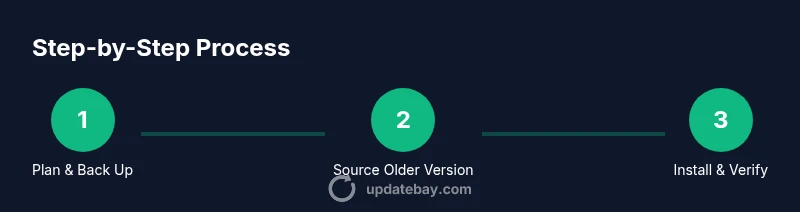
A downgrade, when possible, involves several deliberate actions: preparing backups, locating a legitimate older version, adjusting device settings to permit installation, performing the install, and verifying data and functionality. This section provides a high-level plan to guide you through the decision without exposing you to brittle, risky steps. Remember: every downgrade carries risk, and you should only proceed if you have a reliable recovery path and a need that justifies the potential downsides. The following steps are placeholders for the formal process outlined in the dedicated step-by-step section.
Quick verification after downgrading and long-term considerations
After downgrading, you should verify core functionality, re-authenticate where necessary, and confirm that data remains intact. Monitor for unusual crashes, permission prompts, or unexpected resets that could indicate compatibility issues or corrupted files. If you encounter recurring problems, compare the behavior with the latest release notes and consider reverting to the most recent official build. Maintain a current backup strategy so you can re-upgrade smoothly if the older version proves unstable. The Update Bay team recommends documenting every change, keeping a rollback plan handy, and staying prepared to reapply security updates when stable downgraded builds are available.
Tools & Materials
- Smartphone or tablet with internet access(Needed to access app stores and verify versions)
- Computer with USB cable (optional for some Android downgrades)(Useful for sideloading APKs or managing backups)
- Backup storage (cloud or external drive)(Always keep a full device backup before downgrading)
- Verified older version file (APK/IPA) or device backup(Only obtain from trusted sources; avoid pirated copies)
- Official app store access (Google Play, App Store)(Essential for checking compatibility and official channels)
- Backup/restore utility or plan(Optional tool to facilitate a rollback if needed)
Steps
Estimated time: 40-75 minutes
- 1
Back up your data
Create a full device backup and, if possible, export app data. Verify that the backup completed successfully and contains essential app data you rely on. This step protects you from data loss if the downgrade goes wrong.
Tip: Test the backup by attempting a small restore or data export to confirm integrity. - 2
Identify the exact target version
Locate the specific older version (APK/IPA) or a local backup that you want to install. Ensure the version is compatible with your current OS and hardware. Avoid sources that are not vetted or not signed.
Tip: If possible, obtain the version from an official vendor resource or a trusted enterprise program. - 3
Prepare the device for installation
Enable necessary permissions to install older builds: Android may require allowing unknown sources; iOS requires a valid provisioning or backup source. Disable automatic updates so the device doesn’t revert again during the process.
Tip: Review any security prompts carefully to avoid inadvertently granting risky permissions. - 4
Install the older version
Proceed with installing the older APK/IPA or restoring from the selected backup. If the OS blocks the install, reassess compatibility or revert to the latest official build. Do not proceed with unverified files.
Tip: Keep the installer file or backup accessible in case you need to re-run the install. - 5
Verify app data and permissions
Open the app and verify that data appears intact and that required permissions are granted. If cloud data is used, sign in to re-sync. Look for inconsistencies that signal migration issues.
Tip: Document any permission prompts and confirm they match the app’s documented needs. - 6
Test core functionality
Run common tasks to ensure the app behaves as expected. Monitor for crashes, UI glitches, or missing features. If issues arise, note exact steps to reproduce for troubleshooting.
Tip: Keep a log of issues with timestamps to simplify a potential rollback. - 7
Plan rollback if needed
If instability or data loss occurs, revert to the latest official build using your backup. Ensure you can re-authenticate and re-sync data after the reversion.
Tip: Always have the latest full backup ready before attempting any downgrade.
Frequently Asked Questions
Is downgrading safe for my device?
Downgrading can be safe if you thoroughly back up data, use trusted sources, and limit the downgrade to verifiably compatible versions. However, it always carries the risk of data loss, security gaps, and compatibility issues. Consider alternatives first.
Downgrading can be safe if you back up first and use trusted sources, but it has risks like data loss or security gaps. Consider safer alternatives first.
Can I downgrade on an iPhone without a backup?
Downgrading on iOS typically requires a backup or provisioning path. Without a backup, restoring a previous app state is usually not straightforward. Check for any publisher-provided rollback options before attempting risky methods.
On iOS, downgrading without a backup is generally not straightforward. Look for official rollback options or create a backup first.
Will downgrading affect my app data?
Yes. Older app versions may use different data schemas or storage formats, which can lead to data loss or corruption if not carefully handled. Always back up app data and test data integrity after downgrade.
Downgrading can affect data due to differences in data formats. Backup and test to minimize loss.
What about security updates if I downgrade?
Downgrading may bypass security patches included in newer releases, potentially leaving the app and device exposed. Weigh the security risk against the need for the older version and aim to re-upgrade when possible.
Downgrading can skip security updates, increasing risk. Consider re-upgrading when safe.
Are there legitimate ways to downgrade on Android?
In some cases, yes—using trusted sources and proper backup. Avoid pirated APKs and ensure the version is compatible with your OS. When publisher policies disallow downgrades, proceed with caution or seek official remedies.
Android may allow downgrades via trusted sources, but beware security risks and publisher policies.
Watch Video
What to Remember
- Back up before downgrading and verify the backup.
- Platform differences determine feasibility and risks.
- Prefer official rollback options or safe alternatives when possible.
- Downgrading can expose security and data migration risks.
- Have a clear rollback plan if the downgrade fails.