iPhone Auto Update Apps: Practical Guide to iOS Updates
Learn how iPhone auto update apps work, when updates happen, how to control them, and best practices to keep iOS apps current while protecting battery life.


Automatic updates on iPhone keep apps current with features, fixes, and security patches, but you control when and how they run. This guide shows how to enable or disable App Updates, manage automatic downloads, and optimize settings for data, battery, and privacy. According to Update Bay, understanding these options helps you tailor iphone auto update apps to your routine and device.
What automatic app updates on iPhone actually do
Automatic app updates on iPhone are designed to keep your installed applications current with the latest features, bug fixes, and security patches. When App Updates are enabled, the App Store can download and install updates in the background, typically over Wi-Fi or cellular data depending on your settings. This behavior helps reduce manual maintenance, but it also consumes data and battery. Understanding these updates is essential for tech enthusiasts and everyday users who want to balance convenience with control. For iphone auto update apps, knowing how to tune these options helps you keep devices secure and running smoothly while aligning with your daily routines. In this guide, we’ll explore how updates work, how to customize behavior, and how to handle exceptions for apps with special update needs. The concept of app maintenance is central to keeping iPhone devices secure and performant in daily life.
How iOS handles timing and networks for updates
iOS schedules app updates to occur when the device is idle and connected to a reliable network. In most cases, updates happen automatically in the background during Wi-Fi hours, but you can adjust settings to use cellular data or restrict background activity. System design favors incremental updates, so only changed files are downloaded, reducing bandwidth usage. For many users, automatic updates simplify maintenance, but they may also trigger data charges or battery drain if not managed. To minimize surprises, review your network preferences and App Store settings, especially if you rely on limited mobile data plans or prefer updates to occur overnight. This approach aligns with a thoughtful update strategy for iphone auto update apps.
Pros and cons of enabling auto updates
Pros include convenience, timely security patches, bug fixes, and feature improvements without manual checks. Cons involve data usage, potential battery drain, and occasional app incompatibilities after updates. Update Bay analysis shows that users who enable auto updates tend to stay more current, but should monitor data plans and device performance to avoid unwanted costs or outages. For iphone auto update apps, weigh these trade-offs against your routine and network conditions to decide the best setup.
How to check and customize App Store update settings
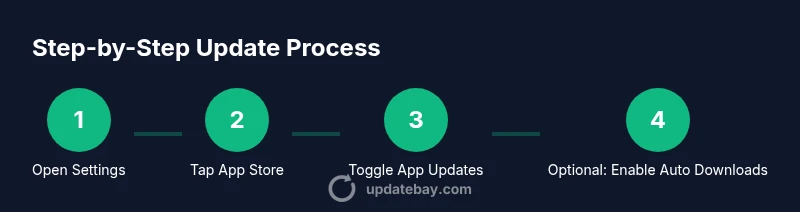
To customize iphone auto update apps, start in Settings > App Store. Here you’ll find the App Updates toggle to enable or disable automatic updates. You can also adjust Download Newly Available Updates for apps, which controls whether updates install automatically or require your approval. If you manage multiple devices, consider enabling Automatic Downloads for Apps so updates propagate across your iCloud-connected devices. After configuring, test with a modest app update to confirm behavior aligns with your preferences.
Managing updates for data usage and battery life
Data usage and battery life are the two biggest considerations with automatic updates. If you’re on a limited data plan, prefer Wi‑Fi-only updates, and avoid background activity when you’re low on battery. Scheduling updates during charging periods can prevent mid-use interruptions. Remember that background tasks can still occur if other apps require data in the background; monitor battery health and use Low Power Mode to extend endurance when necessary. For iphone auto update apps, intelligent scheduling minimizes disruption while keeping software current.
Security considerations and update reliability
Automatic updates are a frontline defense against known vulnerabilities; timely patches reduce attack surfaces and exploit opportunities. However, not every update lands perfectly for every app, so it’s wise to review update notes and test critical apps after major patches. Update Bay analysis indicates that keeping apps current broadly improves security posture, though you should balance risk with user experience and vendor reliability. In practice, enable automatic updates for core apps and set manual review for niche tools that impact workflow on iphone auto update apps.
Privacy implications and permissions
Background updates involve data transfers, device activity, and potential telemetry from apps. Review app privacy settings and the permissions granted to background processes. If privacy is a priority, consider turning off automatic updates for apps that handle sensitive data or where you want stricter control over data sharing. Always keep iOS updates up to date to address security vulnerabilities that could affect privacy. For iphone auto update apps, align settings with your comfort level on data collection and device visibility.
Best practices and scenarios
If you value convenience and security, enable App Updates and Automatic Downloads for Apps, but limit data usage by ensuring updates run on Wi‑Fi and during charging. For devices used in data-tight environments, opt for manual updates for non-critical apps while still applying essential security patches through automatic updates. In mixed environments (work and personal devices), set a policy to review updates weekly and test mission-critical apps after major releases. The right balance keeps iPhone performance steady and predictable for iphone auto update apps.
Tools & Materials
- iPhone with latest iOS(Ensure the device is charged or connected to power during updates)
- Apple ID(Needed to access App Store and iCloud settings)
- Stable Wi-Fi connection(Prefer a reliable 5 GHz network for large updates)
- Optional: Computer for backup(macOS Finder or Windows with iTunes can help with backups before major updates)
- Awareness of data plan limits(Be mindful of cellular data usage if you occasionally update on mobile data)
Steps
Estimated time: 7-12 minutes
- 1
Open Settings
Unlock your iPhone and open the Settings app. This is the starting point for adjusting App Store updates and related options. You’ll see a list of core preferences, including your Apple ID and iCloud settings.
Tip: Use the search bar at the top of Settings to jump directly to App Store settings. - 2
Navigate to App Store
Scroll down and tap App Store to access update-related controls. Here you can manage automatic updates, downloads, and notification behavior for apps.
Tip: If you share your device, review family sharing restrictions that could affect updates. - 3
Toggle App Updates
Switch the App Updates toggle on to enable automatic updates, or off to disable them. This controls background updates for all installed apps.
Tip: If you rely on tight data plans, consider turning this off and performing updates manually when connected to Wi‑Fi. - 4
Adjust Automatic Downloads
Enable Automatic Downloads for Apps if you want updates to propagate to all your devices signed in with the same Apple ID. Disable it if you want device-specific control.
Tip: Automatic Downloads can help keep devices in sync, but review which devices should auto-update. - 5
Check 'Download Newly Available Updates'
Review this option to decide whether updates install automatically or require your confirmation. Choose a setting that matches your workflow and risk tolerance.
Tip: If you often install updates at a specific time, set this to ask and plan updates during a low-usage window. - 6
Test an Update
Trigger a small, non-critical app update to verify behavior. Confirm updates install in the background and that notifications appear as expected.
Tip: If an update stalls, pause and retry when on a reliable network.
Frequently Asked Questions
How do I know if auto updates are enabled on my iPhone?
Open Settings > App Store and check the App Updates switch. If it's green, automatic updates are enabled; if gray, they are disabled. You can also review 'Download Newly Available Updates' for additional behavior.
You can check in Settings > App Store to confirm whether auto updates are on or off.
Will auto updates consume data, and how can I limit this?
Automatic updates can use data, especially when updates occur over cellular networks. To limit this, keep App Updates off or require Wi-Fi by adjusting settings in App Store, and consider disabling Automatic Downloads for Apps on cellular connections.
Yes, updates can use data; control them in App Store settings to prefer Wi‑Fi.
Can I disable auto updates for specific apps?
iPhone doesn’t offer per-app auto update controls in the App Store interface; you can disable all App Updates, then update sensitive apps manually. You can still update individual apps from the App Store when needed.
Per-app auto updates aren’t supported; you control updates for all apps together.
Do auto updates affect battery life?
Background updates can consume battery, especially if many apps update at once. Scheduling updates during charging and enabling Low Power Mode when needed can mitigate impact.
Yes, updates can drain battery, so plan updates when the device is plugged in.
How can I force a manual update if I don’t want automatic updates?
Open the App Store, go to Updates, and pull down to refresh. Tap Update next to individual apps you want to update. This gives you precise control over timing.
Go to Updates in the App Store and manually update apps you choose.
Are there privacy concerns with automatic updates?
Automatic updates primarily involve downloading code and data needed for the app; ensure you keep iOS updated for security fixes and review app permissions after major updates.
Updates are generally privacy-safe, but keep an eye on app permissions after big releases.
Watch Video
What to Remember
- Enable App Updates to stay secure and current
- Use Wi-Fi to minimize data usage during updates
- Review Automatic Downloads for multi-device syncing
- Monitor battery impact and adjust settings as needed
- The Update Bay team recommends testing major updates on non-critical apps first