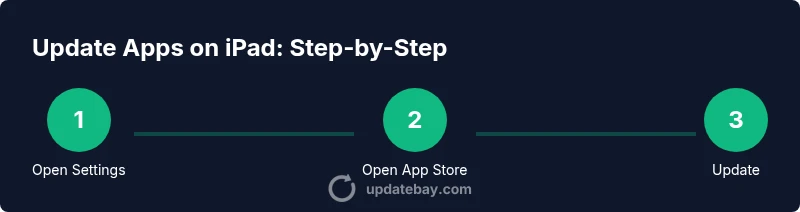
How to Update an App on iPad: A Complete Step-by-Step Guide
Learn how to update apps on iPad with automatic and manual methods. This expert guide covers App Store updates, storage tips, troubleshooting, and security considerations for 2026.


You will learn how to update apps on your iPad, including enabling automatic updates and performing manual updates from the App Store. You’ll need a connected iPad with an active Apple ID and an internet connection. This guide covers both automatic and manual methods, plus storage checks and basic troubleshooting.
Why updating apps on iPad matters
Keeping apps updated is essential for security, performance, and the best possible experience. According to Update Bay, staying current with app updates reduces exposure to security vulnerabilities and helps apps behave as intended with newer features. Regular updates also fix bugs, improve compatibility with iPadOS, and ensure access to important privacy protections. In this section, we’ll explore how updates affect reliability, battery life, and overall usability, and why skipping updates can create avoidable headaches. We’ll also note common myths, such as the idea that updates inherently slow devices, which are not always true when updates are managed well. By maintaining current apps, you reduce the risk of incompatibilities with websites and services you rely on daily, and you gain access to security patches that protect your data.
Quick check before updating
Before you start updating, do a quick check. Make sure you’re signed in with your Apple ID in the App Store and that your iPad has an active internet connection. Check storage space to ensure there is room for updates, and consider plugging into power or charging if you’re updating many apps. Review any notes from developers in the App Store about the updates to understand what changes you’ll get. If you’re wondering how to update an app on ipad, this quick preflight helps you avoid failed installs. If everything looks good, you’re ready to proceed with either automatic or manual updates.
Method 1: Automatic updates
Automatic updates let your iPad download and install apps in the background when connected to power and Wi‑Fi. To enable, open the Settings app, tap App Store, and toggle App Updates on. With automatic updates, you’ll receive new features and security patches without manual intervention, which is especially convenient for busy users. Note that some updates may still require a moment to install after you begin using the device, and large OS-level changes might prompt a restart. This method is ideal for keeping a broad set of apps current with minimal effort.
Tip: If you want updates to happen even when not connected to power, make sure you’re on a stable Wi‑Fi connection and review the App Store settings for download preferences.
Method 2: Manual updates via the App Store
Manual updates give you full control over which apps receive updates and when. Open the App Store, tap your profile image or account icon in the top-right corner, and you’ll see a list of available updates. You can choose Update All or tap individual apps to update them. If an update is large, consider initiating it when you have a strong Wi‑Fi connection. You’ll also see notes from developers describing what’s changed, which helps you decide if you want to update right away or wait for a quieter moment.
Pro tip: Enable update notifications so you’re alerted when new versions are released. This helps you stay on track without constantly checking the store.
Managing storage and compatibility considerations
Before updating, check that your iPad has enough free storage and that the update is compatible with your device. Some updates require newer iPadOS versions, so if your device is older you may not be eligible for the latest versions. In Settings > General > iPad Storage, you can review which apps are taking space and decide which to offload or delete. Offloading an app removes the app itself but keeps its documents and data, which makes reinstallation painless. Regularly review compatibility notes in the App Store so you don’t install updates that won’t run on your device.
Additionally, ensure your iPad has enough battery or is plugged in, as updates can pause or fail if power runs low. Keeping a little free space ensures smoother update downloads and installations.
Troubleshooting update issues
If an update stalls or fails, start with the basics: check your internet connection, retry the update, and ensure there’s enough storage. Sign out of your Apple ID and sign back in if updates refuse to start, then restart the iPad to refresh system state. If problems persist, try updating on a different network or reset network settings. Check Date & Time settings to ensure accuracy, as incorrect time can interfere with certificate validation during downloads.
If a critical app refuses to update, consider removing and reinstalling the app. This can fix corrupted data that blocks updates. Finally, visit the App Store notes or Apple’s support site for any known issues affecting the update server.
Tip: Keep a backup of important data before large updates, in case you need to restore settings or reconfigure apps afterward.
Privacy and security considerations for app updates
App updates often include security patches and privacy improvements. Review the update notes in the App Store to understand what changed and what permissions the app might request. Only update apps from trusted developers and avoid sideloading updates from unknown sources. Enable Two-Factor Authentication on your Apple ID to protect against unauthorized purchases or installations. Regular updates help ensure you’re protected against known vulnerabilities and that apps align with current privacy standards. Update Bay analysis shows the importance of applying patches promptly to maintain device security.
Keeping iPadOS and apps synced for best performance
Keeping both iPadOS and apps updated helps ensure they work well together and reduces the risk of compatibility gaps. OS updates often include security enhancements and performance optimizations that pair best with the latest app versions. If you enable automatic updates for both the OS and apps, you’ll maximize stability and avoid surprises. As a practical habit, schedule a monthly check-in to review new releases and backup data before any major update cycle. This approach minimizes disruption and keeps your device running smoothly.
Quick-start checklist for updating apps on iPad
- Verify Apple ID and internet connection
- Check available storage and battery/power source
- Decide between automatic updates or manual updates
- If manual, open App Store and update chosen apps
- Review update notes for changes and permissions
- Restart affected apps or the device if needed
- Verify updates are installed and functioning
- Maintain regular check-ins for OS and app updates
Tools & Materials
- iPad with internet connection(Wi‑Fi or cellular data connection)
- Apple ID credentials(Used to access App Store and updates)
- Available storage space(Space to download and install updates)
- Power source or charged battery(Keep device powered during updates)
- App Store access(Ensure you can view and install updates)
Steps
Estimated time: 20-35 minutes
- 1
Open Settings and locate App Store
Unlock update settings by opening the Settings app and finding the App Store section. This is where you configure automatic updates and review update behavior for apps on your iPad.
Tip: If App Store is not visible, update iPadOS to a supported version first. - 2
Enable Automatic Updates option
In App Store settings, toggle on App Updates so apps update in the background when connected to power and Wi‑Fi. This reduces manual checks and ensures you access new features faster.
Tip: Leave Wi‑Fi on for smoother background downloads; automatic updates may use data on cellular if allowed. - 3
Check for available updates in App Store
Open the App Store and tap your profile icon to view available updates. You can choose Update All or select individual apps to update.
Tip: Enable update notifications to stay informed of new versions without opening the store. - 4
Update all or select apps
Choose Update All to update every app with a single action, or tap individual apps for selective updates. Large updates may take longer on slower connections.
Tip: Prioritize critical apps first, such as security-related or banking apps. - 5
Manage storage before updating
Check iPad Storage under General to confirm free space. Free up space by offloading unused apps or deleting data you no longer need.
Tip: Offloading keeps app data intact if you reinstall later. - 6
Update the OS if required
Some app updates require a newer iPadOS version. If prompted, consider updating the OS to ensure compatibility and security.
Tip: Back up before major OS updates to prevent data loss. - 7
Restart affected apps after updates
Close and reopen apps that were updated to ensure changes take effect and any new permissions are applied.
Tip: A quick app restart can prevent minor glitches after updates. - 8
Troubleshoot failed updates
If an update stalls, verify network, retry, or sign out/in of your Apple ID. Restart the iPad if needed and ensure correct date/time.
Tip: If persistent, try updating on a different network to rule out connectivity issues. - 9
Verify updates and monitor performance
Open updated apps and review any new features or permissions. Check for any unusual behavior and compare with update notes.
Tip: Keep a log of updates you install to track changes over time.
Frequently Asked Questions
How can I tell if an update is available for an app on my iPad?
Open the App Store and check the Updates tab or your profile to see a list of available updates. You can update all apps at once or select individual apps. Keeping notifications enabled helps you stay informed.
Open the App Store and check for updates, either all at once or one by one. You’ll get notified when new versions are ready.
What should I do if an app update fails to install?
First, verify your internet connection and storage space. Retry the update, and if it still fails, sign out of your Apple ID and sign back in, then restart the iPad. Check for any known issues in the App Store notes.
Check your connection and storage, retry, and restart if needed. Sign in again if problems persist.
Can I update apps without Wi‑Fi?
You can update only when connected to a network. Cellular updates depend on your iPad plan and settings, but automatic updates commonly use Wi‑Fi to download in the background. For large updates, a stable network is recommended.
Updates usually require a network; use Wi‑Fi for reliability, or cellular if your plan allows it.
How do I disable automatic app updates?
Go to Settings > App Store and toggle off App Updates. This will require you to install updates manually from the App Store.
Turn off automatic updates in Settings > App Store to take control of every update.
Will updating apps affect my data usage?
Yes, app updates download data to install. The amount varies by update. Automatic updates can run in the background and consume data as updates occur.
Updates download data; plan your data usage accordingly and monitor background activity.
Do updates erase app data?
Most updates don’t erase app data, but some updates may reset certain settings or preferences. It’s rare, but backing up important data is prudent before major updates.
Updates usually keep app data, but back up just in case any settings are reset.
Watch Video
What to Remember
- Enable automatic updates to save time.
- Use the App Store for manual control when needed.
- Check storage before updates to avoid failures.
- Review update notes to understand changes.
- Keep OS and apps in sync for best performance.