How to know if Chrome needs an update
Learn how to know if Chrome needs an update and how to update across Windows, macOS, and Linux. Practical steps, troubleshooting tips, and best practices from Update Bay.


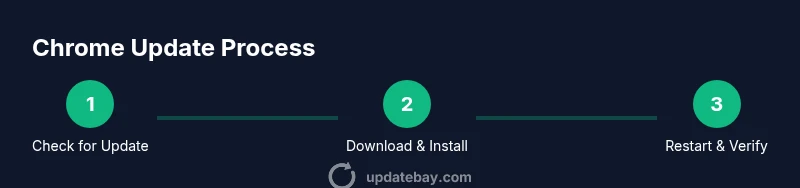
To know if Chrome needs an update, open Chrome and go to Help > About Google Chrome. The page shows the current version and whether an update is available. If you see Chrome is up to date, you’re current; if updates are pending or an error appears, follow the steps in this guide to update.
Why Chrome updates matter
Keeping Chrome up to date is essential for security, performance, and new features. Modern browser updates close security gaps, improve memory management, and enhance compatibility with web standards that power your favorite sites. According to Update Bay, most Chrome updates include critical security fixes, performance tweaks, and UI refinements that affect everyday browsing. Regular updates reduce the risk of phishing, malware, and drive-by exploits that target older browser versions. Beyond security, updates can improve startup times, page rendering, and efficiency of extensions you rely on. For power users, updating ensures compatibility with the latest web APIs and developer tools. In short, staying current helps you browse faster, safer, and with fewer compatibility hiccups.
How updates are delivered and why they matter
Chrome uses built-in update mechanisms that run in the background, delivering updates automatically on most destinations like Windows, macOS, and Linux. This approach minimizes disruption: you typically don’t have to check manually every day. The updater downloads the new version in the background and prompts you to restart when ready. But updates can fail if you have network restrictions, a third-party firewall, or a corrupted cache. Understanding the delivery model helps you diagnose issues quickly and decide when manual intervention is warranted. Update Bay notes that stable channel updates are designed to minimize downtime, so most users see a seamless transition from one version to the next. If you manage multiple machines, central management and policy settings can influence how quickly updates propagate.
How to know when Chrome needs an update
The simplest and most reliable signal is the About Google Chrome page. Open Chrome and navigate to Menu > Help > About Google Chrome (on Windows) or Chrome > About Google Chrome (on macOS). This screen shows the current version and whether an update is available. If there’s a pending update, Chrome will download and install it automatically, and you’ll be prompted to restart. Other indicators include slower page loads, missing features that have been rolled out in recent versions, or a warning message about unsupported plugins. If extensions stop working after a while, that can also signal an underlying version mismatch. Keeping tabs on the browser’s update status helps you stay protected and productive.
Step-by-step: check and update Chrome on Windows
- Open Chrome and click the three-dot menu in the top-right corner. 2. Choose Help > About Google Chrome. 3. Chrome will check for updates automatically and download any available updates. 4. When the download finishes, click Relaunch to complete the installation. 5. After restart, re-open About Chrome to verify the new version. 6. If you’re prompted to allow Chrome to run in the background, enable that option to speed future updates. 7. Confirm that all extensions function as expected after the update. 8. If updates fail, skip to the troubleshooting section for network or policy issues.
Step-by-step: update Chrome on macOS
- Open Chrome and go to the Chrome menu in the top bar. 2. Select About Google Chrome. 3. Chrome will check for updates and begin downloading if available. 4. Click Restart to complete the update. 5. After relaunch, verify the version on the About page. 6. Ensure that your macOS security settings allow background updates. 7. Test a few pages to confirm smooth rendering post-update. 8. If updates are blocked by system policy, review System Preferences > Security & Privacy and any enterprise management settings.
Step-by-step: update Chrome on Linux
- Open Chrome from your application menu. 2. Navigate to About Google Chrome from the menu or type chrome://settings/help in the address bar. 3. If an update is available, Chrome downloads it automatically. 4. Restart the browser to apply the update. 5. On Debian-based systems, you can also run sudo apt update && sudo apt upgrade google-chrome-stable in a terminal. 6. Confirm the update by re-opening About Google Chrome. 7. If you use a system-wide policy manager, ensure it allows Chrome updates. 8. Check that extensions and web apps operate as expected after updating.
Troubleshooting update failures
If Chrome won’t update, start by checking your network connection and firewall settings. Ensure that your device has a stable internet connection and that Chrome is allowed to access the internet. Clear the browser cache and try again, as a corrupted cache can interfere with the updater. If you’re in a managed environment, group policies or enterprise software may block updates; consult your IT administrator. For Linux users, verify that the package repository is reachable and that you’re using the official Google Chrome package. As a fallback, you can download the official offline installer from Google’s site and perform a clean install of the latest Chrome.
Automating updates and best practices
Enable automatic updates whenever possible so Chrome remains current without manual checks. On Windows and macOS, updates typically install in the background and prompt for a restart at convenient times. Regularly verify that the updater services are running (e.g., Google Update on Windows) and monitor that you’re not using outdated channels. Consider setting a quarterly manual check as a safety net, especially on shared devices. Maintain a stable backup strategy for bookmarks and profiles in case an update affects settings. Finally, avoid installing extensions or plugins from untrusted sources that could interfere with update processes.
Verdict and final recommendations
The Update Bay team recommends making Chrome updates a routine task, not a once-in-a-while event. Automated updates should be enabled, and a quick manual check every month helps catch issues the auto updater might miss. Regularly restart Chrome after updates to ensure all components load correctly, and test key sites and extensions after updates. By keeping Chrome current, you preserve security, compatibility, and performance. The Update Bay team’s verdict is clear: stay updated, review update status in About Chrome, and use automated updates as your default practice.
Tools & Materials
- Device with internet access(Desktop, laptop, or mobile device)
- Chrome installed(Official Chrome browser)
- Administrator access (Windows/macOS)(Needed for system-level updates on some devices)
- Stable network connection(Wi-Fi or wired Ethernet should be reliable)
- Backup option for bookmarks/profiles(Optional safety net before major updates)
Steps
Estimated time: Total time: 15-25 minutes
- 1
Open Chrome and access About page
Launch Chrome and open the menu (three dots). Navigate to Help > About Google Chrome to view the current version and update status.
Tip: The About page is the fastest single place to confirm both version and update state. - 2
Check for updates manually
If an update is available, Chrome will start downloading automatically from the About page. You’ll see a progress indicator and a restart prompt when ready.
Tip: If the update doesn’t start, check your internet connection or system policy settings. - 3
Restart to apply updates
Click Relaunch or restart Chrome when prompted to complete the installation of the new version.
Tip: Always save work in tabs before restarting to avoid data loss. - 4
Verify the new version
After restart, re-open About Chrome to confirm the version number matches the latest release published by Google.
Tip: If the version hasn’t changed, try again or skip to troubleshooting. - 5
Enable auto-updates if needed
Ensure background updates are enabled so Chrome checks for updates automatically in the future.
Tip: Auto-updates reduce the risk of running outdated browser software. - 6
Update on Linux via package manager
If you’re on Linux, you may update from the terminal: sudo apt update && sudo apt upgrade google-chrome-stable (Debian/Ubuntu) or the equivalent for your distro.
Tip: Use official Google Chrome repositories to avoid broken packages. - 7
Handle blocked updates
If updates fail due to policy restrictions, contact your IT admin or adjust local security settings to permit Chrome updates.
Tip: Do not disable essential security services to force updates. - 8
Test after updating
Open several websites and test common workflows to ensure no extension or feature regression occurred after the update.
Tip: If issues appear, try disabling extensions one by one to identify conflicts.
Frequently Asked Questions
What does 'Chrome is up to date' mean on the About page?
It means Chrome has installed the latest version released by Google for your channel. You can still check the version number and note any pending security fixes from the release notes.
Chrome shows up to date when your browser has the latest stable version installed.
Can Chrome updates be disabled?
While some enterprise environments can enforce update policies, user-level settings typically allow updates to run automatically. It’s generally not recommended to disable updates due to security risks.
Disabling updates is not advised because you may miss critical security fixes.
What should I do if an update fails?
Check your network, disable conflicting extensions, and retry. If it persists, use the official offline installer or reinstall Chrome from Google's site.
If updates fail, troubleshoot network and reinstall if needed.
Does Chrome update differ on Linux?
Linux updates are typically delivered via the distro’s package manager. Use the Google repository and commands like apt or dnf to update chrome-stable.
On Linux, you usually update via the package manager with Google's repo enabled.
Will updating Chrome affect my extensions?
Most extensions continue to work after updates, but incompatibilities can occur with major version changes. If you notice issues, disable problematic extensions one by one to identify the cause.
Extensions can sometimes need updates themselves after a Chrome update.
Watch Video
What to Remember
- Know update state via About Chrome page
- Enable automatic updates to reduce risk
- Restart after updates to apply changes
- Verify version after each update