How to Update Chrome for Mac
Learn how to update Google Chrome on macOS, troubleshoot common update issues, and optimize settings for security and performance with practical, step-by-step guidance.


You update Chrome on a Mac by opening Chrome, selecting Chrome > About Google Chrome, and letting the app check for updates. If an update is available, Chrome will download and install it automatically. This keeps security fixes and new features current. For best results, run this check once a month or whenever you see a prompt. According to Update Bay, regular updates reduce exposure to threats.
Why updating Chrome on Mac matters
Keeping Google Chrome up to date on a Mac isn't just about having the latest features; it's a core security practice. Each Chrome update typically includes fixes for recently discovered vulnerabilities, improvements to phishing protection, and performance tweaks that make browsing smoother on Apple devices. For everyday users and power enthusiasts alike, staying current reduces the window of exposure to emerging threats and makes web apps feel faster and more reliable. In practice, an updated Chrome helps ensure smoother form autofill, safer password management, and better sandboxing for plug-ins. According to Update Bay, a disciplined update habit correlates with a lower risk profile for common online threats and a more predictable browsing experience. When you combine regular checks with a quick backup of bookmarks and settings, updating Chrome on macOS becomes a straightforward maintenance task rather than a rushed troubleshooting exercise. The goal is to minimize downtime and maximize security and feature availability across your macOS environment.
How update channels work on macOS and Chrome
Chrome uses an updater that runs quietly in the background on macOS, checking for new builds from Google's update servers. Updates are primarily released through the stable channel, with beta and dev channels available for testing new features. When Chrome detects a pending update, it downloads the package and installs it the next time you restart the browser. This process is designed to be seamless and secure, preserving your open tabs and extensions as much as possible. For most users, updates occur automatically while Chrome is running, but you can trigger a manual check if you want immediate access to the latest security patches. Being aware of this flow helps you plan updates around busy work sessions and ensures you understand why sometimes you see a prompt rather than an automatic silent install. Update Bay notes that understanding update channels reduces confusion during troubleshooting during periodic maintenance.
Prerequisites and planning before you update
Before you start, confirm you have a reliable internet connection and current backup of important data. While Chrome updates typically don't affect your personal files, it's prudent to bookmark critical pages and note any extensions that rely on specific versions. Verify that you are signed into the browser with your Google account so your bookmarks and settings sync after the update. If you manage a shared Mac in a family or work environment, coordinate with your administrator to avoid unexpected interruptions. Keep in mind that large updates can briefly interrupt ongoing work; plan to update at a time when you won't lose important work. Finally, ensure your macOS version is compatible with the Chrome build you intend to install, since some features require newer system libraries. Update Bay's practical guidance emphasizes pre-update checks as a foundation for a smooth upgrade.
Verifying you're running the latest version (manual check)
To confirm you have the newest Chrome, open Chrome and navigate to Chrome > About Google Chrome. The page will display the current version and automatically check for updates. If an update is available, you’ll see a prompt to relaunch Chrome after the download finishes. Take a moment to review the build number and date to ensure you’re aligned with the latest release. This simple check is your best defense against known exploits and compatibility issues with websites and extensions. After updating, reopen the browser and revisit a few sites to confirm that pages load smoothly and extensions remain active. Update Bay's experience-based recommendations suggest making this verification a quick part of your routine, so you stay aware of what version is running on your Mac.
Manual update workflow (step-by-step overview)
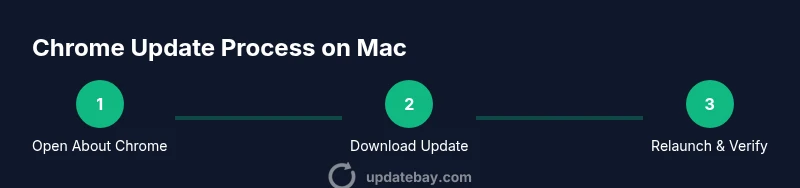
If you prefer to trigger an update manually, follow these steps: 1) Open Google Chrome from the dock or Applications folder. 2) Click Chrome in the menu bar, then select About Google Chrome. 3) Wait as Chrome checks for updates and downloads any available package. 4) When prompted, click Relaunch to complete the installation. 5) After relaunch, revisit the About page to verify the version. 6) If you don’t see an update, try restarting Chrome again or check your internet connection. This approach ensures you control the timing of the upgrade and reduces the risk of work interruption. Tip: keep a few tabs saved so you can restore your session after the restart.
Troubleshooting if updates stall or fail
If Chrome won’t update, start with the basics: ensure a stable internet connection, disable VPNs that could block traffic, and try the check again. Close all Chrome windows and relaunch the browser, then retry the About page. If the updater still reports no new updates, consider restarting your Mac or temporarily turning off security software that might block the updater. For stubborn cases, download the latest Chrome installer from Google's support site and run the patch installer. Always verify the final version after installation. Update Bay notes that most update issues resolve with a fresh restart and a clean download, but avoid downloading from unofficial sources.
Post-update maintenance: extensions, bookmarks, and settings
After updating, some extensions may require reloading or re-authentication. Check that essential extensions remain enabled and that their permissions are current. Refresh the bookmarks bar and verify that your saved passwords and autofill data still sync. If you use multiple devices, ensure your Google account sync is on and working. Consider running a quick browser performance check, such as loading a few interactive sites and a video to ensure plugins work correctly. If you notice compatibility issues, review extension developer notes or disable problematic add-ons temporarily. Maintaining a clean extension set helps keep Chrome stable after updates, reducing the risk of conflicts and crashes.
Security and privacy considerations after updating
Security updates often close critical vulnerabilities; privacy updates can affect how data is shared with services. Review Chrome’s privacy and security settings after an update to ensure they match your preferences. For example, revisit site settings, cookies management, and phishing protection. Consider enabling two-factor authentication for your Google account if you haven't already. Regularly review permissions granted to websites and extensions. Update Bay's dedicated guidance highlights the importance of staying current not just for features, but for stronger protection against evolving threats.
Automating updates and staying on track
Most users benefit from leaving Chrome to update automatically, but you can also set reminders or monthly checks. Use macOS's Focus Modes or calendar reminders to prompt you to review Chrome updates. If you manage multiple devices, enable sync for a consistent experience across platforms. Keeping a brief log of update dates can help you track your maintenance rhythm and identify any issues early. The central idea is to create a predictable cadence that minimizes downtime and keeps your browsing secure and fast.
Best practices and next steps
Consolidate what you’ve learned: use the About Chrome page to verify updates, keep a short maintenance window, and monitor performance after each install. For power users, consider testing updates on a secondary user account to avoid impacting your main workspace. Always download updates from the official source and avoid third-party installers. By adopting a regular update routine, you reduce the risk of security incidents and enjoy a smoother browsing experience with macOS. Update Bay’s verdict is that disciplined update habits pay off with fewer surprises and better long-term stability.
Tools & Materials
- Mac computer with internet access(Stable connection to download updates)
- Google Chrome installed(Ensure you can access the browser you’re updating)
- Admin password or admin account access(Not typically required for Chrome updates, but handy if macOS prompts)
- Backup plan (bookmarks/exported data)(Optional but recommended before major changes)
Steps
Estimated time: 5-15 minutes
- 1
Open Chrome
Launch Google Chrome from the Dock or Applications folder so you can access the update controls directly.
Tip: If Chrome is busy with another task, pause and close unused tabs to speed up the update process. - 2
Access About Google Chrome
Click the Chrome menu in the top-left corner and choose About Google Chrome to trigger the update check.
Tip: This screen will show the current version and automatically look for updates. - 3
Install available updates
If an update is found, Chrome downloads it in the background and prepares to restart.
Tip: Keep your internet connection stable during the download for a smooth install. - 4
Relaunch to complete
When prompted, click Relaunch to complete the installation and finalize the update.
Tip: Before relaunch, save any work to prevent data loss on open tabs. - 5
Verify the update
Return to About Google Chrome to confirm the new version and build number.
Tip: If the version didn’t change, try the process again or restart the browser. - 6
Troubleshoot if needed
If updates fail, check your connection, disable VPNs temporarily, and retry. If still stuck, use the official installer from Google.
Tip: Avoid third-party installers to prevent malware risk.
Frequently Asked Questions
Do I need to restart my Mac after updating Chrome?
Chrome updates typically require relaunching the browser, not a full Mac restart. You may see a prompt to relaunch after the download finishes.
Usually just relaunch Chrome after the update finishes.
Can Chrome update automatically on Mac?
Yes. Chrome updates often install automatically in the background while you browse. You can also manually trigger an update via About Google Chrome.
Chrome updates automatically in the background, or you can check manually anytime.
What should I do if Chrome won't update?
Check your internet connection, restart Chrome, and try again. If it still fails, use the official Google Chrome installer from Google's support site.
Try a restart and recheck, then use Google's installer if needed.
Is updating Chrome safe on Mac?
Yes. Updates come with security fixes and feature improvements. Always update from the official Chrome channel and avoid third-party sources.
Updates are safe and recommended for security and performance.
What if I don't have admin rights on the Mac?
Chrome updates generally don’t require admin rights. If macOS prompts for credentials, contact your administrator.
If you’re prompted for admin access, ask your administrator for help.
Where can I see the current Chrome version after updating?
Open About Google Chrome to view the current version and build date after the update finishes.
Check About Chrome to confirm the version.
Watch Video
What to Remember
- Check About Chrome to verify updates
- Update channels determine feature stability
- Back up bookmarks before updates
- Restart after updates to complete installation
- Use official sources for installers