How to Update Vizio TV: Step-by-Step Firmware Guide
Learn how to safely update your Vizio TV firmware, check for updates, use USB for offline installs, and troubleshoot common issues with clear, step-by-step instructions from Update Bay.


You’ll learn how to update a Vizio TV by checking for firmware updates in the TV settings, and, if needed, using a USB drive for offline installation. The guide covers OTA updates, app-based checks, and troubleshooting. Before you start, ensure the TV is connected to reliable power and a stable internet connection. Safe updates preserve apps and settings.
Why updating your Vizio TV matters
Firmware updates are more than just cosmetic fixes; they’re the frontline defense against security vulnerabilities, especially as smart TVs connect to home networks and streaming services. A recent update can patch known exploits and close gaps that could let attackers access your network or sensitive data. Beyond security, updates bring stability improvements that reduce freezes, improve app compatibility, and sometimes unlock new features like enhanced picture modes or smarter power management. For Vizio TVs, these updates are delivered through the TV’s built-in maintenance systems, and installing them promptly helps ensure that your device plays well with the latest apps and streaming standards. If you’re wondering how to update vizio tv, you’ll find that most models support OTA firmware checks directly from the Settings menu, with alternative USB-based paths for offline installations. As you follow this guide, note that updates also optimize performance, which can reduce lag when navigating menus or casting content. Update Bay’s approach emphasizes using official channels to protect your device and data.
Firmware delivery on Vizio TVs: OTA vs USB
Vizio typically delivers firmware updates over-the-air (OTA) through the TV’s Settings menu or via the mobile app ecosystem when applicable. OTA updates arrive when the TV detects a new version on the vendor server; the TV will prompt you to install after downloading. For models with older hardware or specific regional builds, Vizio also supports USB-based offline updates. In practice, OTA is the easiest path, but USB updates provide a safe fallback when network conditions are unreliable or a particular update fails to install over the air. Regardless of the path, it’s important to ensure you’re applying updates that match your TV model and region. Using the official support pages reduces the risk of corrupted firmware or counterfeit files.
Prerequisites before starting the update
Before you begin updating your Vizio TV, gather a few essentials to minimize interruptions. Confirm you have a stable power source and an uninterrupted network connection (Wi‑Fi or Ethernet). Take note of your TV’s exact model and current firmware version; this helps you verify the update compatibility and track changes after installation. If you rely on external devices, prepare a USB drive formatted to FAT32 and ensure you can access the official firmware file from Vizio’s support site. Create a backup of your preferred picture modes and app settings if your model offers export options. Finally, ensure the remote control is functioning and that you have access to the Settings menu using the standard control layout. These preparations save time and reduce the chance of mid-update interruptions. The Update Bay team recommends verifying model-specific requirements before proceeding.
Step-by-step path 1: Update via TV Settings (OTA)
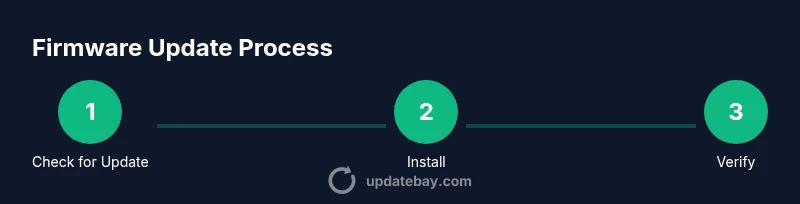
This path covers checking for updates, initiating an OTA install, and validating the result from the TV’s built-in interface. Start by powering on the TV and ensuring it’s connected to a reliable network. Navigate to Settings, then System (or Support, depending on your model). Select Check for Updates. If a new version is found, select Install. Do not unplug the TV during the install. After the process completes, the TV will typically reboot automatically. Finally, re-enter Settings to confirm the firmware version matches the latest release. If you see a message that the TV is up to date, you’re on the current build. If not, revisit the network connection and retry once more. This flow minimizes risk and helps confirm a successful update.
Step-by-step path 2: OTA troubleshooting and retry logic
If the update stalls or fails, first restart the TV and router to refresh the network session. Then attempt Check for Updates again. If the problem persists, move to an offline USB method as a backup. On some models, you may also need to toggle the Internet connection type (Wi‑Fi vs Ethernet) to force a fresh update check. Record any error codes shown and consult the official Vizio support site for model-specific guidance. In many cases, a clean retry after a power cycle resolves transient issues. If you still cannot update, gather the model number, firmware version, and error messages to contact support. Update Bay suggests collecting this diagnostic data for faster resolution.
Step-by-step path 3: Offline USB update (for advanced users)
Offline USB updates require downloading the firmware file from Vizio’s official support page onto a FAT32-formatted USB drive. Safely eject and insert the drive into the TV’s USB port. Reboot the TV and navigate to Settings → Support → USB Update (or similar). Select the firmware file and initiate the installation. Do not remove the USB drive during the process. After installation, the TV will restart. Confirm the new firmware version in Settings. This method is a reliable fallback when OTA is blocked by network policies or regional restrictions.
Step-by-step path 4: Post-update verification
After updating, verify that the firmware version reflects the latest release. Re-open key apps to ensure compatibility and check that the home screen widgets and inputs respond smoothly. If you use smart home integrations or casting features, re-test to confirm they reconnect correctly. Some updates also reset certain display options; you may need to re-adjust picture or sound settings to your preferences. Keeping a quick note of the new version helps you track future updates and compare against release notes. Update Bay highlights that a good post-update check reduces the need for immediate follow-up support.
Best practices after installing updates
Maintain a tidy update routine: periodically check for updates on a fixed cadence (for example, monthly or quarterly) and consider enabling automatic updates if your model supports it. Avoid performing updates during critical viewing times to prevent interruptions. If you rely on external devices, verify that HDMI inputs and device cross-compatibility are unaffected post-update. Finally, consider keeping a record of firmware versions and release notes for future troubleshooting. Our experience at Update Bay suggests that proactive maintenance improves long-term stability and security.
Tools & Materials
- TV remote(Original remote or compatible replacement; used to navigate menus)
- Stable internet connection(Wi‑Fi or Ethernet; minimum 5 Mbps recommended)
- Power source(Keep the TV plugged in and avoid power interruption during update)
- USB flash drive (optional)(8GB or larger; formatted as FAT32 for offline updates)
- Official firmware file (optional)(From Vizio’s official support site, model-matched)
Steps
Estimated time: 20-60 minutes
- 1
Prepare your setup
Connect the TV to power and a stable network. Gather the remote and USB media if you plan to use offline updates. Ensuring readiness reduces interruptions and increases the likelihood of a clean install.
Tip: Have a clear path to the TV’s USB port and avoid extension cables. - 2
Check for updates on the TV
Open Settings on the Vizio remote, go to System or Support, and select Check for Updates. If an update is available, note the version number and size before proceeding.
Tip: If you see multiple update options, choose the larger one that includes security fixes. - 3
Initiate OTA installation
If an update is found, start the installation. Do not interrupt the process; the TV will reboot automatically upon completion.
Tip: Keep the TV connected to power and avoid network outages during install. - 4
Verify the update after reboot
Return to Settings to confirm the firmware version matches the latest release and verify apps load correctly.
Tip: Note any changed UI elements or new features for later reference. - 5
Prepare USB for offline update (optional)
If OTA fails or is blocked, download the firmware from Vizio’s site onto a USB and format it for FAT32. Copy the file to the USB drive.
Tip: Double-check the file matches your TV model and region. - 6
Perform offline USB update (optional)
Insert USB into the TV, navigate to the USB Update option, select the firmware file, and start installation. Do not remove USB until the reboot completes.
Tip: Avoid using a USB hub; plug directly into the TV’s USB port. - 7
Reboot and recheck
After the offline update, the TV will reboot. Revisit Settings to confirm the firmware version and test core functions.
Tip: Test at least one app and the casting feature to ensure compatibility. - 8
Post-update hygiene
Reset any display or picture modes if needed and re-confirm network connections for streaming apps.
Tip: Document the final version and note any observed changes for future reference.
Frequently Asked Questions
What if no updates are available for my Vizio TV?
If no updates appear, your TV is likely on the latest firmware for your model and region. You can still check periodically, as vendors release updates in waves. If you believe there should be one, contact official support with your model number and current version.
If no updates show up, you’re likely on the latest firmware for your model. Check back in a few weeks or contact support if you think there should be a newer version.
Is updating risky for my TV?
Firmware updates are designed to be safe and non-destructive. Ensure power and network stability during the process; interruptions can cause update failure. Use official sources for any files and follow on-screen prompts closely.
Updates are generally safe as long as you don’t interrupt them. Make sure you have power and a steady network connection.
Can I update my Vizio TV using a USB drive?
Yes, you can perform offline updates via a USB drive when OTA is unavailable or unreliable. Download the correct firmware from Vizio’s official support site, format the USB as FAT32, and follow the on-screen USB update instructions.
You can update via USB if the OTA path isn’t working. Just download the right file, format the USB, and follow the prompts.
Will an update reset my settings or apps?
Most updates preserve your saved settings and apps, but some models may require reconfiguring certain picture or audio preferences after installation. Always review settings after updating.
Usually your settings stay, but you might need to recheck a couple of preferences after update.
How can I verify the firmware version after updating?
Navigate to Settings > System > About or Version to see the current firmware build. Compare it with the latest release notes on Vizio’s support site to confirm the update.
Check Settings > System > About to confirm the firmware version matches the latest release notes.
What’s the typical time to complete a update?
Most updates complete in 5–20 minutes, depending on the file size and network speed. USB updates may take longer due to transfer time.
Most updates take a few minutes; USB updates may take longer because of file transfer.
Watch Video
What to Remember
- Keep firmware up to date for security and performance
- OTA updates are easiest; USB is a safe fallback
- Always power the TV and maintain network stability during updates
- Verify the firmware version after installation