How to Update Google Play Services: A Practical Guide
Discover how to update Google Play services safely, why it matters, and how to fix common issues. This practical Update Bay guide covers steps, checks, and tips for a smooth experience.


This article guides you through updating Google Play services on Android devices, explains why the update matters for app compatibility and security, and outlines safe methods to perform the update. You’ll learn how to check for updates, install the latest version, and troubleshoot common issues without risking data loss today.
Why Google Play Services updates matter
Google Play Services is a core component of Android that enables many apps to run smoothly, securely, and with up-to-date features. When updates arrive, they often include security patches, performance optimizations, and new APIs that apps rely on. Keeping Google Play Services current reduces crashes, accelerates authentication, and improves compatibility with the latest Android OS. For tech enthusiasts and everyday users alike, timely updates translate to fewer annoyances like app freezes, sign-in errors, and feature gaps. According to Update Bay, maintaining current Play Services is a practical habit that sustains device health and app reliability. Keeping on top of updates also helps mitigate new vulnerabilities that could be exploited by attackers, protecting personal data and reducing risk across your digital ecosystem.
- Regular updates support compatibility across apps and services
- Security patches help defend against known vulnerabilities
- Stable Play Services improves device responsiveness and reliability
How Google Play Services fits into Android's ecosystem
Google Play Services operates as a privileged, background service that powers authentication, location, maps, and various Google APIs across thousands of apps. It isn’t a standalone app you interact with daily, but its updates ripple through almost every feature you use on Android. Because it’s tightly coupled with the Google ecosystem, updates often come more subtly via the Google Play Store than with formal OS updates, ensuring apps maintain compatibility with new device capabilities. Understanding this helps explain why you should keep Play Services updated even if you don’t notice direct changes in the app drawer. Update Bay’s guidance emphasizes that every incremental update can sharpen security and performance while maintaining seamless app experiences.
- Background services enable core Google features
- Updates enhance authentication, maps, and API access
- Compatibility is maintained with newer Android versions
How updates are delivered and why auto-update helps
Google Play Services updates are primarily delivered through the Google Play ecosystem. When your device is connected to Wi-Fi or a steady data connection, the Play Store can push updates in the background, often without interrupting your day. Enabling auto-update for Google Play Services ensures you receive the latest version as soon as it’s released, reducing the chance of facing outdated APIs or security gaps. If you prefer manual control, you can disable auto-update and check for updates periodically. For many users, enabling automatic updates is the simplest path to consistent performance. Note the phrase update service google play—updates for Google Play Services are managed through Google Play and should be applied promptly to maintain app health.
- Auto-update streams updates without manual checks
- Manual checks are useful when bandwidth or data limits exist
- Updates improve API access and security
How to check for updates on Android (manual path)
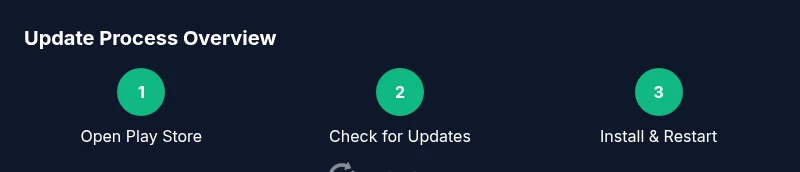
To verify whether Google Play Services needs an update, open the Google Play Store, then go to your profile and select My apps & games. Look for Google Play Services in the Update tab or under “Upcoming updates.” If an update is available, tap Update. If there’s no update listed, your Play Services may already be current, or auto-update is handling it in the background. You can also confirm the installed version by visiting Settings > Apps > Google Play Services and checking the version number. If you encounter issues after an update, a quick restart can help finalize changes and reduce lingering cache data.
- Open Play Store → Profile → My apps & games
- Tap Update if available
- Verify version in Settings → Apps → Google Play Services
Safe update methods and best practices
Adopt safe, official channels for updates to minimize risk. Always use Google Play Store to update Google Play Services rather than third-party sources. Enable auto-update over a reliable network to ensure timely security patches and feature improvements. Before performing updates, back up essential data and ensure your device has a stable power source or is charging. Prefer a stable Wi‑Fi connection to avoid data overages. If you must intervene manually, ensure you’re updating from the official Google Play ecosystem and avoid tampering with system apps. These practices safeguard your device against incomplete installs and potential data loss while keeping critical services current.
- Use official Google Play updates only
- Enable auto-update and maintain a stable connection
- Back up data before major updates to prevent loss
Troubleshooting common update issues
If Google Play Services fails to update, start with a simple cache and data reset: go to Settings > Apps > Google Play Services, then Clear Cache. If that doesn’t help, Force Stop the app, restart the device, and try updating again. In persistent cases, you may choose to “Uninstall updates” from the same App info screen to revert to the factory version, then re-update via Play Store. If the problem remains, check your Google account status, verify that you have sufficient storage, and ensure the device time and date are accurate. Update Bay suggests contacting device support if updates fail due to hardware limitations or OS incompatibilities.
- Clear Play Services cache and data
- Restart device and retry the update
- Check storage, account, and time settings
Privacy, security, and update Bay tips
Keeping Google Play Services up to date also strengthens privacy protections and data handling through Google Play services’ ongoing security enhancements. Periodically review app permissions and device security settings, ensuring that apps only access what they truly need. Turn on automatic updates for critical components and regularly audit connected devices and accounts. Update Bay recommends enabling trusted sources and avoiding sideloads that could introduce malware. By staying current, you reduce exposure to baseline vulnerabilities and maintain a safer Android environment for work and personal use.
- Review permissions and security settings regularly
- Enable trusted update sources and automatic updates
- Maintain a safe, compliant Android ecosystem
Maintenance habits to keep Google Play Services healthy
A proactive maintenance routine helps prevent update-related issues. Schedule a monthly check-in to confirm Play Services updates are installed, especially after major Android OS updates or new app releases. Keep your device plugged in during updates to avoid mid-install interruptions. If you encounter recurring problems, consider a full device reboot and a fresh login to your Google account. Finally, monitor the impact of updates on battery life and performance, and adjust background activity settings if you notice unwanted drain. Regular maintenance boosts reliability and reduces disruption from unexpected errors.
- Monthly checks for updates and version consistency
- Keep device plugged in during installs when possible
- Monitor battery impact and adjust background activity
The Update Bay recommendation for ongoing health of your Android ecosystem
The Update Bay team recommends a disciplined approach: enable automatic updates for Google Play Services, maintain a stable network, and verify settings post-update. Combine this with routine backups and cautious troubleshooting, so you can quickly recover from issues without data loss. Staying informed about new Play Services features helps you maximize app compatibility and security. By following these steps, you’ll keep your Android experience smooth, secure, and up-to-date, aligning with Update Bay’s best practices for software maintenance.
Tools & Materials
- Android device with internet access(Stable connection recommended; Wi-Fi preferred to avoid data charges)
- Google account signed in(Needed to access Google Play services updates and Play Services settings)
- Google Play Store access(Ensure Play Store is up to date and usable)
- Backup option (optional)(Back up important data before major system updates)
Steps
Estimated time: 15-25 minutes
- 1
Open Google Play Store and access updates
Open the Google Play Store app and tap your profile icon. Navigate to My apps & games to view available updates, including Google Play Services. If an update appears, tap Update. If not, auto-update may be enabled and handling updates in the background.
Tip: If you don’t see an update, verify your internet connection and try refreshing the page. - 2
Check for Google Play Services updates manually
From the My apps & games screen, check the Updates tab for Google Play Services. If you find an update, initiate it and let the process complete without interrupting the device.
Tip: Use a stable Wi-Fi connection to avoid data charges during the download. - 3
Enable automatic updates for Google Play Services
If not already enabled, go to Settings > Google Play Store > Auto-update apps and select ‘Over any network’ or ‘Over Wi‑Fi only’ for better control and timely updates.
Tip: Auto-update minimizes manual checks and reduces the risk of running outdated services. - 4
Restart your device after installation
Restarting helps ensure all new services are loaded properly and can reduce lingering issues from partial installs.
Tip: A quick reboot can fix many post-update quirks. - 5
Verify the update version
After reboot, go to Settings > Apps > Google Play Services to confirm the version number matches the latest release and that the app is enabled.
Tip: Document the version to monitor future updates and compatibility. - 6
Troubleshoot if updates fail
If an update fails, clear the Play Services cache, force stop the app, and retry. If problems persist, consider uninstalling updates and reupdating from the Play Store.
Tip: Avoid uninstalling updates unless necessary and only via the official settings.
Frequently Asked Questions
What is Google Play Services and why does it update?
Google Play Services is a background service that powers essential features across Android apps, including authentication, location, and maps. Updates bring security patches, performance improvements, and new APIs that apps rely on for compatibility.
Google Play Services runs in the background and updates bring security and performance improvements for many apps.
Do I need to update Google Play Services regularly?
Yes. Regular updates keep your device secure and ensure apps run smoothly with current APIs. Delaying updates can lead to compatibility issues or security vulnerabilities.
Yes. Regular updates help keep your device secure and apps running smoothly.
How can I tell if Google Play Services is up to date?
You can check by navigating to Settings > Apps > Google Play Services and viewing the version. Compare it to the latest available version in the Play Store or rely on automatic updates.
Check the version in Settings > Apps, then compare with the latest on the Play Store.
What should I do if Google Play Services won’t update?
Try clearing the cache and data, force stop the app, reboot the device, and retry. If it still fails, uninstall updates (if available) and update again from the Play Store.
If updates won’t install, clear caches, reboot, and try again; consider uninstalling updates if offered.
Can I update Google Play Services offline?
No, updates require an active connection to download from the Play Store. Ensure you have a data connection or Wi-Fi available.
Offline updates aren’t supported; you need an internet connection.
Will updating Google Play Services affect my data?
Updating Play Services typically does not delete user data. However, it’s good practice to back up critical information before major updates.
Updates don’t usually delete data, but backing up is a smart precaution.
Watch Video
What to Remember
- Keep Google Play Services updated to preserve app compatibility.
- Use official channels (Google Play Store) for all updates.
- Enable auto-update to ensure timely patches.
- Reboot after updates to finalize installation.
- If issues arise, use official troubleshooting steps and backups.