Can't Update Google Play Services? Troubleshooting Guide
Urgent troubleshooting guide to fix can't update Google Play Services on Android, with step-by-step checks, safe fixes, and prevention tips from Update Bay.


Can't update Google Play Services? The most likely causes are outdated or corrupted Play Services, insufficient storage, or a misconfigured account. Start by clearing the cache, freeing space, and updating Play Services from the Google Play Store. If necessary, try a soft reset or safe mode before seeking professional help.
What you're experiencing when updates fail
If you’re dealing with Android devices, update problems are common, and Google Play Services is often the culprit. When an update fails, you may see prompts like “Could not update Google Play Services” or simply notice apps behaving oddly. If you’re wondering can t update google play services, you’re not alone. This issue can occur for several reasons, from network hiccups to corrupted cache. In this guide from Update Bay, we walk you through a rigorous, step-by-step troubleshooting flow to identify the root cause, fix the problem, and prevent recurrence. We will start with quick checks you can perform right away, then move into diagnostic flow and detailed fixes. The goal is to restore reliable background processes, improve app compatibility, and ensure your device receives essential security updates. Throughout, we emphasize safety and best practices to avoid data loss or misconfiguration if you attempt manual updates. By following these steps, you’ll reduce the risk of bricking a device or exposing your data to unsafe APK sources.
Quick checks you should run first
Before diving into deeper diagnostics, verify the basics. Ensure you have a solid internet connection and enough storage space, then check that Google Play Services isn’t disabled or restricted by battery optimization settings. Make sure the device clock is correct and that your Google account is signed in and syncing. If you’re seeing persistent prompts to update, take these initial steps to rule out simple causes. These checks are fast and often resolve the most common failures.
Diagnostic mindset: problem overview and initial questions
Approach the issue with a simple hypothesis: is the failure due to the app layer, the OS, or a device setting? Start by confirming your Play Services version and whether other apps are updating normally. Look for recent OS updates, app clashes, or storage reductions. This section helps you map symptoms to likely causes and plan concrete fixes in the next steps.
Step-by-step fixes you can perform (safe and effective)
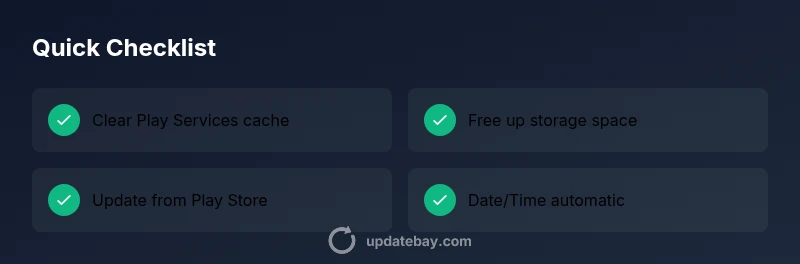
Follow these fixes in order. Each fix targets a common failure mode and includes a quick safety note. 1) Clear Google Play Services cache. 2) Clear data for Google Play Services. 3) Free up storage space by deleting unused apps or moving files to the cloud. 4) Ensure date and time are set to automatic. 5) Update Google Play Services from the Play Store. 6) Check for conflicting apps or battery optimization exclusions. 7) If needed, perform a soft reset or reboot in Safe Mode. 8) As a last resort, consider a factory reset, after backing up data.
Safety, privacy, and common mistakes to avoid
Never install APKs from untrusted sources. Side-loading Google Play Services can expose you to malware. Always download apps and updates from the official Google Play Store or trusted enterprise channels. Before making major changes, back up important data and ensure you can recover photos, messages, and contacts if something goes wrong.
What to do next if updates still fail and how to prevent future issues
If updates continue to fail after following this flow, consider contacting your device manufacturer or Google Support for assistance. Document the device model, OS version, and error messages to speed up troubleshooting. For ongoing reliability, enable automatic updates, maintain adequate storage, and periodically review app permissions and battery optimization settings.
Steps
Estimated time: 30-60 minutes
- 1
Restart device
Power off completely, wait 30 seconds, and power back on. A fresh boot can resolve minor glitches that block updates.
Tip: A cold boot clears temporary caches that may hinder updates. - 2
Check internet and storage
Verify you have a stable Wi‑Fi or mobile data connection and that the device has ample free storage. Low bandwidth or full storage commonly blocks updates.
Tip: Move large files off the device temporarily to free space. - 3
Clear Play Services cache
Go to Settings > Apps > Google Play Services > Storage > Clear Cache. Don’t clear data unless you’re prepared to reconfigure some settings.
Tip: Avoid clearing cache too frequently; this is a targeted fix for corrupted cache. - 4
Clear Play Services data (optional)
If issues persist, clear data for Google Play Services. Note this may reset some preferences.
Tip: Back up important app data before clearing data. - 5
Set date/time to automatic
Ensure date and time are automatic and time zone is correct. Misaligned time can prevent secure connections required for updates.
Tip: Enable network-provided time to stay accurate. - 6
Update via Play Store
Open Google Play Store > Menu > My apps & games > Update all. If Play Services isn’t listed, check for system updates first.
Tip: Use the official store to avoid tampered APKs. - 7
Check for conflicting apps
Disable or uninstall apps that may block background processes or cause permission conflicts with Play Services.
Tip: Focus on battery optimization exclusions and recent app installs. - 8
Safe Mode and test
Reboot into Safe Mode to test if updates occur without third-party apps. If it works, a conflict is likely among installed apps.
Tip: Note which apps are disabled in Safe Mode. - 9
Factory reset (last resort)
If nothing fixes the issue, back up data and perform a factory reset. This resolves deep-seated software problems but requires data restoration afterwards.
Tip: Only use as a last resort; ensure you have backups.
Diagnosis: Cannot update Google Play Services on Android device
Possible Causes
- highOutdated or corrupted Google Play Services app
- highInsufficient device storage
- mediumIncorrect date/time settings
- mediumDisabled Google Play Services or background data restrictions
- lowOS update conflicts or recent bug
- lowGoogle account syncing issues
Fixes
- easyClear Google Play Services cache
- easyClear data for Google Play Services (note: may reset preferences)
- easyFree up storage space
- easySet date/time to automatic and correct time zone
- easyUpdate Google Play Services from the Play Store
- easyReview battery optimization and background data restrictions
- easyReboot device or boot into Safe Mode and test updates
- hardIf all else fails, back up and perform a factory reset as a last resort
Frequently Asked Questions
Why can't I update Google Play Services on my Android device?
Common causes include full storage, cached data, or account issues. Work through the checklist in this guide to identify and fix the problem. If updates still fail, consider professional help.
Common causes are storage, cache, or account problems. Follow the guide steps, and seek help if updates still fail.
Do I need to update Google Play Services for apps to work?
Yes. Google Play Services provides essential background updates for apps. Keeping it current improves security and compatibility with new app features.
Yes, updating helps apps run smoothly and stays secure.
What should I do first when an update fails?
Start with a reboot, check your internet connection, and ensure there’s available storage. Then clear the Play Services cache and attempt the update again from the Play Store.
Restart, check internet, clear cache, and retry the update.
Can I update Google Play Services manually via APK?
Manually installing via APK is not recommended unless you’re an advanced user and you trust the source. It can bypass protections and introduce malware.
Manually updating via APK is risky; stick to the official Play Store unless you’re sure about the source.
Is there a risk in clearing cache and data?
Clearing cache is low risk and often helpful. Clearing data resets preferences for Google Play Services, which can affect settings you’ll need to reconfigure.
Clearing cache is usually safe; clearing data resets some settings.
When should I contact support?
If you’ve systematically tried the troubleshooting steps and updates still fail, contact your device manufacturer or Google Support with details like device model, OS version, and error messages.
If the issue persists after all steps, seek support with details handy.
Watch Video
What to Remember
- Keep storage free for updates
- Clear cache before data if needed
- Update via Play Store first
- Test in Safe Mode to isolate conflicts
- Back up before major changes