Why You Can’t Update Apps in Google Play Store: An Urgent Troubleshooting Guide
Facing Play Store update failures? This urgent troubleshooting guide explains common causes, quick fixes, and prevention tips to restore app updates on Android.


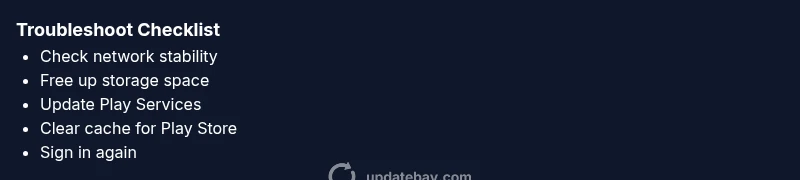
Most update failures happen because of a weak network, insufficient device storage, or outdated Google Play Services. Start with quick fixes: ensure a strong internet connection, free up space, and update Google Play Services. If that doesn’t help, sign out of your Google account in the Play Store, clear the cache, and reboot the device.
Why the Play Store Update Fails to Install
If you’re wondering why can't update app in play store, you’re not alone. Most failures happen when the device can’t reach Google’s servers, there isn’t enough storage for the new version, or the essential Google Play Services are out of date. In some cases, account or regional restrictions block the update altogether. Understanding the root cause is the quickest path to a fix. This guide walks you through a practical, urgent troubleshooting flow that starts with simple checks and moves toward targeted actions. By following the steps, you’ll reignite automatic updates or install updates manually when necessary.
According to Update Bay, many users see updates stall because of basic connectivity or storage issues rather than a corrupted APK. The key is to rule out the easiest problems first and escalate only when needed.
Quick Network and Storage Checks
Start with the simplest suspects: network stability and available storage. Switch to a stable Wi‑Fi network or ensure your mobile data is active and not throttled. Check that the device has sufficient free space for the update package—delete cache files or move large media to the cloud if needed. Battery level can matter too; if the battery is critically low, Play Store updates may pause until charging resumes. In most cases, resolving network or storage limits lets updates proceed, restoring normal behavior without more invasive steps.
Verify Google Play Services and Play Store Versions
Outdated Play Services or the Play Store app can block updates. Open Google Play Services and Play Store in Settings > Apps and ensure both are up to date. If automatic updates are disabled, enable them temporarily to pull the latest versions. After updating, reboot the device to apply changes. If updates still fail, try clearing the cache for both apps and then sign back in to your Google account to refresh tokens and permissions.
Account and Region Considerations
Sometimes, account-related issues or regional restrictions prevent updates from appearing or installing. Make sure you’re signed into the correct Google account that owns the apps you’re updating. If you’re traveling or have changed regions recently, some apps might not be available for update yet in your new region. Checking Play Console notes or app listings for region locks can reveal if this is the cause. If needed, switch accounts or contact the app developer for guidance.
Device Compatibility and App Requirements
Device incompatibility can stop an update from installing, especially if the updated version requires a newer Android OS or hardware feature your device lacks. Review the app’s Play Store listing to confirm minimum OS version, RAM, and features. If your device is older, you may not be eligible for that update. In some cases, manufacturers release a compatibility update; otherwise, you’ll need to evaluate alternatives or continue using the current app version.
Clearing Cache, Data, and Permissions
Clearing cache for the Play Store and Google Play Services helps resolve many update glitches. Go to Settings > Apps > Google Play Store / Google Play Services > Storage > Clear Cache (and Clear Data if needed). After clearing, reopen the Play Store and try the update again. If a permission prompt appears, grant the required permissions. Refrain from clearing data repeatedly, as this can remove login details; a fresh sign-in often fixes lingering authorization issues.
Diagnostic Flow: Symptom to Solution (High-Level)
- Symptom: Update fails to install or shows a persistent error code.
- Diagnosis path: Is the network stable? Is there free storage? Are Play Services and Play Store up to date? Is the account region-locked or misconfigured? Is the app compatible with the device?
- Solution path: Fix connectivity or storage first, then update services, verify account, check compatibility, and finally escalate if none of these resolve the issue.
Common Error Messages and What They Mean
Many users encounter error codes such as 941, 907, or 495. These often relate to storage, cache, or account problems rather than a broken APK. Look up the exact code in Google's support docs to identify the primary cause. In most cases, clearing cache or re-authenticating the account resolves the error. If a code persists after routine steps, it may indicate a more nuanced issue requiring professional guidance.
Prevention: Best Practices to Avoid Future Update Failures
Keep Play Services and Play Store updated, maintain adequate device storage, and monitor network reliability. Enable automatic updates when on reliable Wi‑Fi and avoid diving into beta updates unless you’re prepared for occasional instability. Regularly clear app cache for the Play Store apps, keep a clean app data backup routine, and periodically review account security settings to prevent lockouts. Practicing these steps reduces the likelihood of recurring update failures.
Steps
Estimated time: 20-45 minutes
- 1
Check network connection
Ensure you have a stable internet connection. Switch between Wi‑Fi and mobile data to compare behavior, and restart your router if needed. A flaky network is the most common culprit for stalled updates.
Tip: If on cellular, disable data-saving modes that throttle background activity. - 2
Free up device storage
Review storage usage and delete or offload unused apps or media. Clearing space often resolves update errors caused by insufficient room for the new version.
Tip: Move large photos and videos to cloud storage first. - 3
Update Google Play Services and Play Store
Open Settings, go to Apps, and check for updates for Google Play Services and Play Store. Install any available updates, then reboot.
Tip: Avoid downloading beta versions unless you’re comfortable with potential instability. - 4
Clear cache and sign in again
Clear cache for both the Play Store and Google Play Services, then sign out of your Google account and back in. Reopen the Play Store and attempt the update again.
Tip: If you clear data, you’ll need to re-enter account credentials. - 5
Check account, region, and compatibility
Verify you’re using the correct Google account and that the app is available in your region and compatible with your device’s OS version.
Tip: If region constraints exist, contact the developer for alternatives. - 6
Advanced steps or professional support
If updates still fail, consider resetting app preferences or contacting device support as a last resort. A factory reset is only recommended if the issue is widespread and persists across apps.
Tip: Back up data before any heavy resets.
Diagnosis: Play Store won't update apps on Android
Possible Causes
- highWeak or unstable internet connection
- highInsufficient device storage
- highOutdated Google Play Services or Play Store app
- mediumAccount issues or region restrictions
- lowDevice incompatibility or app requires newer Android version
Fixes
- easyTest with a stable Wi‑Fi connection or reliable mobile data; toggle airplane mode to refresh network
- easyFree space by deleting or moving large files and clearing app cache
- easyUpdate Google Play Services and Google Play Store from official sources and reboot
- easySign out of your Google account in the Play Store and sign back in; clear cache if needed
- mediumCheck for region restrictions or device compatibility; contact developer if the update is restricted
Frequently Asked Questions
Why can't I update apps in Play Store?
Update failures typically stem from network issues, insufficient storage, or outdated Play Services. Confirm connectivity, free space, and service updates before exploring deeper causes.
Commonly, update failures come from network or storage problems. Start by checking connectivity and space, then update Play Services.
What should I do if Play Services is out of date?
Update Google Play Services from the Google Play Store and restart the device. If updates still fail, clear the cache and re-sign into your Google account.
Update Google Play Services and clear its cache, then sign back in if needed.
Can region restrictions block updates?
Yes, some apps may not update in certain regions or languages. Check the app listing for regional availability and consider contacting the developer for alternatives.
Region settings can block updates; verify availability in your area.
Is device compatibility a factor?
New versions may require a newer Android OS or hardware. Check the app listing for minimum OS version and device requirements.
If your device is older, updates might require a newer OS or hardware.
Should I reset my device for update problems?
Factory resets are a last resort and typically unnecessary for update issues. Try simpler steps like cache clear and sign-in refresh first.
Only consider a factory reset if every other option fails and you’ve backed up data.
When should I contact support?
If updates still fail after all steps, contact Google Play support or your device manufacturer for targeted troubleshooting.
If nothing works, reach out to support for guided help.
Watch Video
What to Remember
- Diagnose in order: network, storage, services, account, compatibility.
- Update Play Services and Play Store to resolve many errors.
- Clear cache/data and re-sign into Google account as needed.
- Check region restrictions before assuming device issues.
- Seek official support if problems persist after steps.