Can You Undo an iPhone Update? A Practical Downgrade Guide
Can you undo an iPhone update? Learn when downgrades are possible, how signing status affects them, and safer backup-based alternatives with practical steps. This guide covers iOS downgrades, data safety, and official guidance from Update Bay.


Can you undo an iPhone update? This is a common question, and the answer hinges on signing status and IPSW availability. If Apple isn’t signing the older iOS, downgrading isn’t possible through official means. Your practical options are to restore the device to factory settings or recover data from a pre-update backup, if you have one.
Can you undo an iPhone update? What this question means
Can you undo an iphone update? This is a common question, and the answer hinges on signing status and IPSW availability. In practice, undoing an update depends on Apple’s signing window for older iOS versions and whether a compatible IPSW can be installed. If Apple isn’t signing the older build, downgrading isn’t possible through official means. Update Bay explains the constraints and safe paths to consider in 2026.
How iOS updates and downgrades actually work
When Apple releases an iOS update, it signs the new version and, for a period, may continue to sign some older builds. The ability to downgrade depends on whether Apple is still signing the older version and whether you can obtain a matching IPSW file. Once signing stops, the installer will block the downgrade on iPhone models, making the question can you undo an iphone update essentially impossible through normal channels. This is why planning backups before any update is critical.
Assessing your current device status before attempting a downgrade
Before you even consider downgrading, verify two things: (1) whether your iPhone model is part of a family that Apple has historically allowed to downgrade within the signing window, and (2) whether you can legally obtain a signed IPSW for the target version. If either condition fails, the downgrade path becomes risky or unavailable. The right approach is to assess your device’s security posture, storage availability, and whether an official restore to the latest signed iOS would better serve your needs.
Scenarios: Apple still signing an older version vs not signing
If Apple is still signing the older iOS version, you may be able to downgrade by downloading a matching IPSW and using Finder (on macOS Catalina and later) or iTunes (on Windows or older macOS). If signing has ended, the downgrade path is blocked by Apple’s servers, and you’ll need to rely on alternative recovery options such as restoring from a pre-update backup or performing a factory reset. This distinction is critical for anyone asking can you undo an iphone update.
Step-by-step overview: what you’ll need before downgrading
A downgrade requires several prerequisites: a compatible IPSW for the target iOS version, a backup created before the update, a computer with Finder or iTunes, and a stable power source. You’ll also need to confirm that Apple is still signing the chosen version. If any of these are missing, you should stop and reconsider your path, as attempting an unsupported downgrade can lead to data loss or device bricking.
Data backup and recovery options during an update
Backing up before and after updates is essential. If you cannot downgrade, recovering data from a pre-update backup is your safest route to minimize loss. Regular backups to iCloud or a computer provide a safety net for photos, messages, and app data. Remember that some app data may not transfer back perfectly after a downgrade, so plan for potential reconfiguration after restoring a backup.
Safety, risks, and best practices for iOS downgrades
Downgrading carries potential risks, including data loss, corrupted backups, and voided warranties in extreme edge cases. Always verify the integrity of IPSW files from trusted sources, ensure your device remains charged, and operate from a controlled environment. If you’re unsure, pause and consult official Apple guidance or a trusted technician. The most reliable method remains following signing status and official restoration options.
Safer alternatives to downgrading and minimizing update regrets
If downgrading isn’t feasible, focus on safe alternatives: reset only certain settings, restore from a pre-update backup, or perform a factory reset if necessary. You can also use new iOS features gradually and monitor battery health, storage, and performance to avoid repeated regrets from future updates. These approaches help maintain device stability without risking data loss.
How to stay prepared for future iOS updates
Proactively manage updates by enabling automatic backups, setting a maintenance window for updates, and cataloging essential data. Before any major iOS change, create a trusted backup and ensure you know how to restore to a signed version if Apple’s signing window permits. Staying prepared reduces the friction if you decide can you undo an iphone update in the future and want to revert a change.
Tools & Materials
- iPhone(Fully charged; have a recent backup available)
- USB-C/Lightning cable(Use the official cable that ships with the device)
- Computer (Mac or Windows)(With Finder (macOS Catalina+) or iTunes (Windows or older macOS))
- Backup storage(iCloud or a local computer backup)
- Compatible IPSW file (optional)(Only if you are certain Apple is signing the older version)
- Stable internet connection(To download IPSWs and verify Apple signing status)
Steps
Estimated time: 60-120 minutes
- 1
Check downgrade feasibility
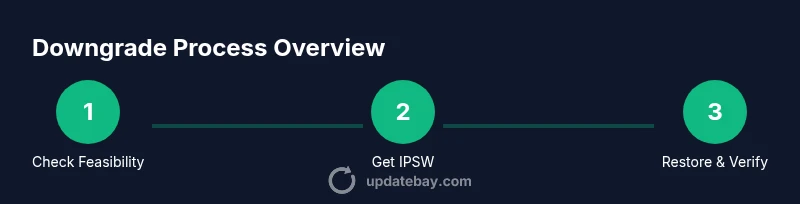
Verify if Apple is still signing the target iOS version and whether you can legally obtain a matching IPSW. If not, skip to alternative recovery options.
Tip: Cross-check signing status on Apple’s official support pages or trusted update-tracking resources. - 2
Download a signed IPSW (if available)
Acquire a compatible IPSW file that Apple is still signing for your device model and region. Only use official or widely trusted sources to reduce risk of tampered firmware.
Tip: Avoid third-party mirrors that lack digital signatures; verify the file against checksums if provided. - 3
Back up your iPhone
Create a full backup to iCloud and to your computer to safeguard data before attempting any downgrade procedure.
Tip: Ensure backups include photos, messages, and app data that are critical to you. - 4
Prepare the computer and device
Close other apps, disable Find My iPhone if required for certain restore steps, and connect the iPhone via a reliable cable to the computer.
Tip: Keep the device connected and avoid interrupting the process once it starts. - 5
Enter DFU mode (if needed)
If downgrading requires, put the device into DFU mode following device-specific steps. DFU mode allows a deeper restore.
Tip: Follow exact device-specific instructions; incorrect DFU steps can require a full device reset. - 6
Restore using Finder/iTunes with IPSW
Select the IPSW file in Finder (Mac) or iTunes (Windows) and initiate the restore process. This replaces the current OS with the target version.
Tip: Use the OPTION key (Mac) or SHIFT key (Windows) to select the IPSW during restore. - 7
Verify installation and settings
After the restore completes, verify the OS version, device performance, and essential settings. Ensure you can access data from your backup if you intend to revert to pre-update state.
Tip: Check battery health, storage usage, and critical apps first. - 8
Restore data from backup (if applicable)
If you restored the OS version, you can selectively restore data from your pre-update backup. Some data may not transfer perfectly; reconfigure apps as needed.
Tip: Test essential apps and messages to confirm data integrity.
Frequently Asked Questions
Can you downgrade to an older iOS version after updating?
Downgrading is only possible if Apple is still signing the older version and you have a compatible IPSW. If signing has ended, the downgrade path is blocked by Apple’s servers.
Downgrading depends on signing status; if Apple isn’t signing the older version, you cannot downgrade through official methods.
Will downgrading erase all data on my iPhone?
Yes, downgrading often requires a full restore which can erase data. Always back up before attempting any downgrade.
Downgrading can erase data, so back up first.
What are safer alternatives if downgrading isn’t possible?
Use a factory reset or restore from a pre-update backup, and adjust device settings gradually to regain desired performance without changing the OS.
If downgrading isn’t possible, reset or restore from backup and reconfigure settings.
What should I do before attempting a downgrade?
Back up your data, verify the target iOS version is still signed, and download the IPSW from a trusted source before starting.
Back up and verify signing status before you start.
How long does a downgrade typically take?
Downgrade time varies by device and method but expect 60-120 minutes including verification and data restoration.
Downgrades usually take about one to two hours.
Where can I find official guidance on iOS downgrades?
Apple’s support resources and device-specific guidance are the safest sources to determine whether a downgrade is possible for your model.
Check Apple’s official support for up-to-date downgrade guidance.
Watch Video
What to Remember
- Downgrades rely on signing status
- Back up before attempting any downgrade
- Downgrading isn’t always possible
- Follow official guidance and use safe backups