What Causes Updates to Fail? A Practical Troubleshooting Guide
Urgent troubleshooting guide to diagnose and fix update failures across software and devices. Learn common causes, a diagnostic flow, and step-by-step fixes with practical tips from Update Bay.


According to Update Bay, the most common reason updates fail is a mix of connectivity, storage, and permission issues across devices. Start with quick checks: verify a stable internet connection, free up space, and ensure you have admin rights. This triage approach works across software, firmware, and app updates. If this doesn't resolve it, consult the diagnostic flow below.
What causes updates to fail
According to Update Bay, updates fail for many reasons, and there isn’t a single culprit that explains every case. The underlying problem is often a combination of network conditions, device storage, software permissions, and the specific requirements of the update itself. The question 'what causes updates to fail' comes up frequently among tech enthusiasts and everyday users, and the best way to answer it is to start with reliable checks rather than guessing. The Update Bay team found that the most reproducible failures begin with simple, verifiable steps: confirm a stable internet connection, ensure there is enough free space, and verify the device clock is correct. You may see error messages about “insufficient storage,” “download failed,” or “signature verification failed.” By establishing a baseline—network health, storage availability, and correct time—you can quickly rule out a dozen potential culprits and move toward a targeted fix. This approach applies across operating systems and ecosystems, from Windows and macOS to iOS and Android, and even firmware updates for routers and printers.
Common categories of update failures
There are several broad categories that cover most failures. Understanding these groups helps you triage quickly and avoid chasing false leads.
- Connectivity and network issues: Weak Wi‑Fi, metered connections, VPN interference, or captive portals can interrupt downloads or verification.
- Insufficient storage: Devices run out of free space during the download or installation stage.
- Corrupted download or cache: Partial downloads, interrupted installations, or corrupted cache entries can cause verification errors or stalls.
- Permissions and user roles: Updates require admin rights; if a user lacks permission or UAC prompts are blocked, install can fail.
- Security software interference: Antivirus or firewall settings may block update executables or services.
- Compatibility and prerequisites: Outdated OS versions or incompatible hardware can prevent updates from installing.
- Server-side outages or throttling: On rare occasions, update servers are unavailable or restricting traffic, causing failures beyond the user’s control.
Symptoms and signals to watch
Recognizing the exact symptom helps narrow down causes. Common signals include error codes during download or installation, installation progress that stalls at a certain percentage, repeated restart prompts without completion, unexpected shutdowns during updates, and post-update boot loops. Logs and error messages are your best friends here: note the exact code, module, or timestamp, and compare it with official docs or support forums. Different ecosystems use different messaging—Windows, macOS, iOS, Android, or firmware environments each have specific codes that map to root problems like cache corruption, permission failures, or network timeouts. By correlating symptoms with the categories above, you can rapidly route your next steps toward a precise fix.
Diagnostic flow: triage path
A structured diagnostic flow prevents guesswork and accelerates resolution. Start with the most common, easiest checks, then progressively target less likely causes. If an error message appears, record it exactly as shown; search official documentation for that code before making changes. Use a process of elimination: rule out connectivity, then storage, then permissions, and finally software compatibility. When in doubt, test changes on a secondary device or network to determine if the issue is local or systemic. Keep a short log of each step and outcome to guide future updates and avoid repeating ineffective fixes. This flow is designed to apply across platforms, whether you’re updating an operating system, an app, or a firmware component.
Quick fixes you can try now
If you’re facing an update failure, start with these simple, high-impact steps. They usually resolve the majority of cases and are safe for most users.
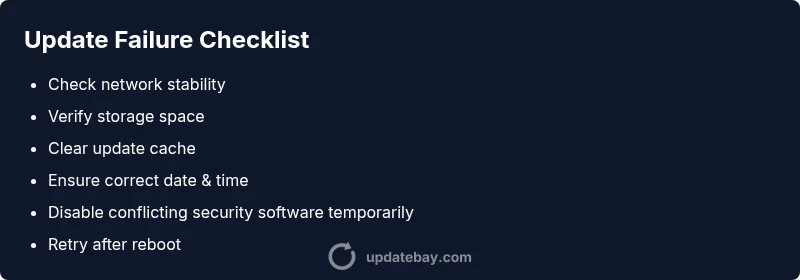
- Check the network: ensure a stable connection. If on Wi‑Fi, try a wired or Ethernet connection where possible. 2) Free up storage: delete or offload nonessential files and clear temporary data. 3) Restart the device: a clean reboot can clear stuck processes and reset update services. 4) Pause security software: briefly disable antivirus/firewall protections that might block the update, then re-enable after testing. 5) Confirm time and date: incorrect system time can cause certificate validation to fail. 6) Retry the update: after these steps, trigger the update again and monitor for any new messages. Each action is reversible, and you should re-check logs if the problem persists.
Deeper remedies for stubborn failures
When quick fixes don’t work, you’ll need deeper approaches that address less obvious causes. Begin by resetting the update components on your platform: clear cached update data, reset the update services, and attempt a clean install. If the problem persists, verify compatibility: confirm that your device firmware and software are within the supported ranges for the update and that you aren’t hitting an end-of-life timeline. For many systems, performing a repair install or in-place upgrade preserves data while replacing core update files. In enterprise contexts, review deployment policies, group policies, and certificate trust chains that could interfere with verification. Document each change and test after every step to isolate the factor that resolves the issue.
Safety, best practices, and prevention tips
Troubleshooting updates is safer when you follow best practices. Always back up important data before major updates, and maintain a routine of keeping both software and firmware current. Use a wired connection for critical updates whenever possible to minimize interruption risks. Keep a log of error codes and actions taken so you can refer back later or escalate efficiently if needed. Finally, avoid making multiple large changes at once; incremental steps help you identify the real cause and prevent cascading issues across related components.
When to seek professional help and how to communicate clearly
If updates continue to fail after completing the diagnostic flow, it’s time to involve support. Gather the exact error codes, affected device models, firmware/software versions, timestamps, and steps you’ve already tried. A clear, concise report saves time for support teams and increases the odds of a fast resolution. In corporate environments, consult your IT department for asset inventory, patch management policies, and centralized logging. If data integrity is at risk or you’re dealing with automated deployments, professional help is the prudent path to prevent data loss and minimize downtime.
Steps
Estimated time: 60-90 minutes
- 1
Verify basic readiness
Check that the device is powered, connected, and not in a suspended state. Save work and close apps before any reboot to avoid data loss. A simple restart often clears stuck processes that block updates.
Tip: Reboot after any change to ensure settings take effect. - 2
Check network and storage
Test your network with a speed test or a different network. Free up disk space by removing large or unused files and clearing cache. Ensure there is enough room for the update package and temporary files.
Tip: If you’re on a capped connection, connect to a more stable network. - 3
Clear update cache and retry
Clear cached data associated with updates and relaunch the update process. This removes potential corruption or partial downloads that impede progress.
Tip: Do not delete unrelated system caches. - 4
Check date/time and prerequisites
Ensure the device clock is correct and that the update prerequisites are satisfied (e.g., dependent updates installed, restart completed).
Tip: Incorrect time can cause certificate validation to fail. - 5
Pause antivirus and try again
Temporarily disable conflicting security software or add an exception for the updater. Re-enable protection after testing.
Tip: Only do this briefly; never leave protection disabled. - 6
Retry or explore advanced options
If the update still fails, attempt a repair install or in-place upgrade where possible, or revert to a known-good restore point.
Tip: If data integrity is at risk, back up before advanced fixes.
Diagnosis: Update fails to download or install on a device
Possible Causes
- highPoor or intermittent network connectivity
- highInsufficient storage space on the device
- mediumCorrupted update package or cache
- mediumOutdated software or firmware
- lowPermission issues or antivirus blocking updates
- lowServer-side outage or blocked update servers
Fixes
- easyCheck internet connection and switch to a stable network
- easyFree up storage space and retry the update
- easyClear update cache and restart the update service
- easyUpdate to the latest OS/firmware and verify system time
- mediumTemporarily disable antivirus or adjust exclusions for updates
- easyIf server outages are suspected, wait and retry or contact support
- mediumTest on a different network or device to identify localization issues
Frequently Asked Questions
What is the most common cause of updates failing?
The most common causes are connectivity issues and insufficient storage. Checking these areas first often resolves the problem.
The most common causes are connectivity and storage. Start there for the quickest fix.
How can I tell if an update failure is local or server-side?
If multiple devices show the same error or a known outage is reported, server-side issues are likely. Otherwise, focus on local factors like connectivity and permissions.
If several devices fail with the same error, it may be server-side; otherwise, investigate locally.
Should I disable antivirus to fix updates?
Disabling security software can help in some cases, but only temporarily and with caution. Re-enable protections after testing.
Only disable security software briefly, then re-enable after testing.
What should I do if the update servers are down?
Wait and retry later. Check official status pages and enable alerts if available. Avoid forcing workarounds that bypass safeguards.
If servers are down, wait and check status pages. Don’t override safeguards.
When is professional help needed?
If updates persist failing after basic troubleshooting or if data risk is present, contact support for advanced diagnostics.
If it keeps failing after basics, seek professional help.
Can I perform a repair install safely?
A repair install can preserve data while replacing core update files, but back up first and follow official guidance for your OS.
A repair install can help, but back up first and follow official steps.
Watch Video
What to Remember
- Diagnose with a clear flow, not guesswork.
- Check connectivity and storage before deeper fixes.
- Clear update caches to fix corrupted downloads.
- Verify admin rights and security allowances.
- Escalate with logs if problems persist.