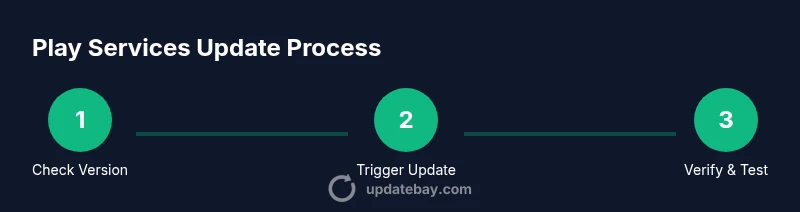
How to Google Play Service Update: A Step-by-Step Guide
Learn how to update Google Play Services on Android, why updates matter for apps and security, and how to troubleshoot common issues with practical, step-by-step guidance.


Learn how to update Google Play Services on Android, why updates matter for apps and security, and how to troubleshoot common update issues. This quick guide covers automatic versus manual updates, how to verify your version, and safe steps to resolve failures to ensure your device stays secure.
Why Google Play Services updates matter
If you're curious how to google play service update, understanding what Google Play Services does and why updates matter helps ensure app compatibility, performance, and security. Google Play Services powers core features like authentication, location, and push notifications across billions of Android devices. When Google releases an update, it often includes bug fixes, security patches, and new APIs that apps rely on. Keeping Play Services current reduces the risk of failed app logins, poor location accuracy, or outdated features that degrade the user experience. According to Update Bay, timely updates correlate with smoother app behavior and fewer compatibility issues across devices and Android versions. The Update Bay team found that users who enable automatic updates tend to see fewer manual prompts, which translates into fewer interruptions and better battery life over time. While some updates happen automatically in the background, others require user consent or manual intervention. In this guide, you will learn how updates fit into your maintenance routine, how to identify when an update is available, and how to avoid common pitfalls that stall progress. Regular updates also reduce the chance of crashes caused by outdated libraries and help apps take advantage of the latest security improvements. By staying current, you protect not only your data but your device’s overall performance, battery life, and longevity.
How Google Play Services updates are delivered
Google Play Services updates are delivered through the Play Store as binary updates that install in the background, sometimes seamlessly. In some devices, the OS vendor or device administrator can influence when updates occur. Automatic updates run in the background, while manual updates require you to trigger the process. Understanding delivery helps you plan maintenance windows and avoid performance hiccups during critical tasks. Update Bay's analysis, 2026, indicates that devices with consistent background updates report fewer disruptive prompts during daytime usage and tend to experience more stable app performance. If you manage a fleet of devices or a family of devices, you may want to set a policy that ensures updates occur during off-peak hours to minimize impact on network usage and battery life. In this section, we explain the steps your device takes when an update is available and how to recognize if you’ve already got the latest build.
Checking your current version and compatibility
Before attempting an update, it helps to know your current Google Play Services version and whether your device is compatible with the latest release. Go to Settings > Apps > Google Play Services to view the version number and installation date, then compare against the latest in the Google Play Store. If you’re managing multiple devices, create a small checklist to track which ones are up to date. Compatibility is influenced by Android OS version, device manufacturer changes, and app requirements. If your device is on an older OS, you may not be able to install the newest Play Services, which is a signal to plan a broader system upgrade or device refresh. Update Bay analysis, 2026, emphasizes that regular version checks reduce surprise failures and help you plan maintenance windows around large Android updates. This step also helps you determine whether automatic updates are enabled on your device, a setting that can dramatically affect how quickly updates reach your phone.
Step-by-step: manually updating Google Play Services on Android
- Open Settings and locate Apps to verify the installed Google Play Services version, then note the number for comparison.
- If an update is listed in the Google Play Store, tap Update to install the latest binary; if not, try the next steps to force an update path.
- Clear the Google Play Store cache only if you encounter persistent update prompts that don’t progress, then reopen the store and retry.
- Open Google Play Services in the Play Store or use the Play Store search to locate the package and trigger its update manually.
- Reboot your device after the update to ensure all components initialize correctly, especially if you notice delays in features like location or authentication.
- Recheck the version after reboot and test core apps: messaging, maps, and sign-in flows to confirm the update propagated properly.
- If updates still fail, try a clean reinstall of Google Play Services by clearing its cache and storage data, followed by a re-download from the Play Store. Pro tip: don’t purge data unless necessary as you may lose account settings.
Step-by-step: troubleshooting common update failures
- Check internet connectivity and switch between Wi-Fi and mobile data to determine if the issue is network-related.
- Ensure enough storage space on the device; low storage is a frequent cause of update failures.
- Clear cache for Google Play Services and Google Play Store to reset transient install state, then attempt update again.
- Temporarily disable battery saver or data saver modes, which can throttle background updates during critical install moments.
- Remove and re-add your Google account if sign-in is blocked after an update, then reattempt the update.
- If an enterprise or device management profile is in place, verify it isn’t enforcing an older Play Services version.
- When all else fails, perform a factory reset as a last resort, ensuring you back up data first. Pro tip: always back up essential data before significant changes.
Alternatives and system-level considerations
Beyond manual updates, enable automatic updates to reduce maintenance overhead, and consider per-device policies for fleets or households. Some devices restrict background updates to preserve battery life; adjusting these settings can help ensure timely updates while balancing performance. For devices with limited storage, consider migrating large apps to SD cards or cleaning unused apps to free space for new Play Services builds. Update Bay recommends balancing reliability with energy efficiency by allowing updates during charging or overnight windows. Be mindful that some OEM skins apply their own update cadence, which may delay Play Services updates beyond the standard Play Store schedule. Understanding these factors helps you plan a maintenance window that minimizes disruption and maximizes reliability across apps and services.
Security implications of updating Google Play Services
Security is a central reason to keep Play Services up to date. New builds include patches that address vulnerabilities, strengthen authentication logic, and improve data protection in background processes. The Update Bay team notes that regular updates reduce exposure to evolving threats and improve overall resilience of your device against malware and credential theft. Delaying updates can leave devices exposed to known flaws or exploit vectors that attackers target via apps that rely on Play Services. In addition to patching, newer updates deliver safer cryptographic defaults and improved consent flows that protect user data during app interactions. Always verify the source of updates and avoid sideloaded packages, which can introduce risk. By adopting a proactive update habit, you reinforce your device’s security posture and reduce potential attack surfaces.
Best practices for keeping services updated long-term
Create a simple maintenance routine that includes checking for updates at least weekly, enabling automatic updates when possible, and testing critical apps after each new Play Services version. Document the version history on a shared note or device policy so family members or team members can coordinate updates without interrupting daily work. Maintain a network-friendly approach by scheduling updates during off-peak hours or when devices are charging. Use Update Bay’s guideline to review new permissions or feature changes introduced in each update, helping you anticipate potential app incompatibilities. Finally, monitor device health and battery life after updates to catch any regressions early and adjust settings as needed to preserve performance and security.
Tools & Materials
- Android device (phone or tablet)(Any Android version supported by Google Play Services (preferably latest available))
- Stable internet connection(Wi‑Fi recommended for large updates; mobile data acceptable if you have a data plan)
- Google account signed in to Play Store(Needed to access Google Play Services updates)
- Charger or device with at least 50% battery(Update can be interrupted by low power; charging is preferred)
- Backup of important data(Optional but recommended before major updates)
Steps
Estimated time: 15-25 minutes
- 1
Open device Settings and check the Google Play Services version
Navigate to Settings > Apps > Google Play Services to view the installed version and the installation date. This helps you determine whether an update is available and prepares you to compare against the latest release.
Tip: If you don’t see Google Play Services listed, use the Play Store search to locate it and check for an update there. - 2
Open the Google Play Store or Settings to trigger the update
From Settings, you can often see whether an update is pending, or you can open the Google Play Store, search for Google Play Services, and tap Update if available. This step ensures you’re initiating the latest package.
Tip: If Update isn’t shown, continue with the steps below to verify automatic updates are enabled. - 3
Enable automatic updates or set a maintenance window
In Play Store settings, enable Automatic updates for Google Play Services so the device pulls updates in the background when connected to Wi-Fi or charging.
Tip: Automatic updates reduce manual work and help you stay current without interrupting daily use. - 4
Manually update via the Play Store when automatic update isn’t enough
If the update isn’t available in Settings, open the Play Store, search for Google Play Services, and tap Update to install the latest binary.
Tip: If you see an error, retry after clearing the Play Store cache. - 5
Force stop and reboot to complete installation
After updating, force stop Google Play Services from Settings if it’s acting glitchy, then restart your device to ensure all services initialize properly.
Tip: A quick reboot can resolve lingering background processes that hinder new code from loading. - 6
Verify the update and test core apps
Re-check the version in Settings and test core apps (maps, sign-in, notifications) to confirm the update took effect and functionality is stable.
Tip: If issues appear, check for any app-specific updates that may be required post Play Services update. - 7
If updates fail, clear cache/data and retry
Clear the Play Store and Google Play Services caches, then retry the update. If needed, remove and re-add your Google account as a last resort.
Tip: Avoid frequent cache clears as a habit; use it only when you encounter persistent update failures.
Frequently Asked Questions
What is Google Play Services and why should I update it?
Google Play Services provides core Android features like authentication, location, and notifications. Updating it keeps apps functioning properly, fixes security gaps, and improves performance.
Google Play Services is a background component; updating it keeps apps running smoothly and securely.
How can I tell if an update is available for Google Play Services?
Open Settings > Apps > Google Play Services to view the version. If the latest release isn’t shown, check the Google Play Store for an available update or automatic update status.
Check the version in Settings or the Play Store to see if an update is ready.
Can updating Google Play Services affect battery life?
Updates themselves are designed to optimize performance and may initially increase background activity, but they generally improve efficiency over time. Enable automatic updates to minimize manual interruptions.
Updates may use more battery briefly, but they usually save energy through better efficiency later.
What should I do if Google Play Services updates keep failing?
Check internet connectivity, storage space, and clear the Play Store cache. Retry after rebooting. If problems persist, review device management policies or consider reinstalling the service.
If updates fail, start with connectivity, storage, and cache checks, then retry or seek additional help.
Is it safe to install Google Play Services updates offline?
Google Play Services updates are delivered via the Play Store and online sources. Offline installation is not recommended and can compromise security.
Updates should come from trusted online sources, not offline packages.
Are Play Services updates required for all apps?
Most apps rely on Google Play Services, but updates are often optional for apps themselves. Keeping Play Services current improves compatibility across apps.
Yes, keeping Play Services current helps many apps run smoothly.
Watch Video
What to Remember
- Update Bay recommends enabling automatic updates for Play Services to reduce manual prompts.
- Regular checks help catch compatibility issues before they disrupt apps.
- Always verify post-update app behavior by testing critical features.