How to Update an App: A Step-by-Step Guide for 2026
Learn how to update apps across iOS, Android, and desktop with clear steps, troubleshooting tips, and best practices for reliable, secure updates in 2026.


Wondering how do update a app? This guide shows you how to update apps on iOS, Android, and desktop with clear, actionable steps. You’ll learn when to update, how to enable automatic updates, and how to verify the new version is working. By the end, you’ll update any app confidently and avoid common pitfalls.
Why Updating Apps Matters
Updating apps is a crucial habit for any device user. Regular updates patch security flaws, fix bugs, and improve performance, which translates to fewer crashes and smoother everyday use. If you’re wondering how do update a app, grasping the update process helps you stay safe and productive with the tools you rely on. According to Update Bay, keeping apps current reduces exposure to known vulnerabilities and extends the lifespan of devices. Updates also bring new features, compatibility improvements with the latest OS versions, and sometimes minor interface refinements that boost usability. Although updates can feel routine, neglecting them creates a creeping risk: outdated software can slow you down, create compatibility issues with other apps, and leave you open to exploit attempts. Prioritizing updates is not about chasing every patch; it’s about choosing reliable, timely releases and applying them in a controlled way to minimize disruption.
What Happens in an App Update
Updates are delivered by developers through app stores or software updaters. They typically replace older files with newer ones or apply incremental changes. You’ll often see a version number, a brief changelog, and sometimes a request to grant new permissions. Automatic updates can run in the background, while manual updates require your explicit action. During the process, the app may restart or close and reopen to apply changes. Understanding what an update does helps you plan around it—if a feature requires a permission change, you’ll want to review those details before proceeding. Update Bay emphasizes that updates prioritize security fixes and performance improvements.
Platform-Dependent Update Flows: iOS vs Android
iOS and Android handle updates with similar goals but different paths. iOS updates usually come through the Apple App Store, while Android updates flow through Google Play or OEM stores. Both ecosystems support auto-updates, but manual checks let you review release notes and permissions first. Updates may be staged, meaning availability can vary by region or device. Ensure you’re signed in to the correct account and have adequate storage. If you encounter issues, clearing the store cache or updating the OS can help resolve common update hiccups.
Preparing to Update: What to Check Before You Update
Before you start, verify a few basics. Make sure your device has a reliable internet connection and adequate battery life, as updates can require power to complete. Free up storage space since some updates need extra room for new files. Consider backing up important app data if the app stores local information. Check for any pending device updates, as OS updates can influence compatibility. Finally, review the release notes to understand what changes are coming and whether any permissions or settings will be altered.
Quick Troubleshooting Before You Update
If updates aren’t appearing or fail to install, first confirm you have internet access and enough storage. Check the app store’s status page or platform health reports for any ongoing outages. Restart the device if necessary and try again. If a specific app refuses to update, consider uninstalling and reinstalling it, or contacting the developer for guidance. Avoid force-stopping updates mid-progress, as this can corrupt files and require reinstallation.
Managing Automatic Updates and Notifications
Automatic updates simplify maintenance by applying patches in the background. It’s worth enabling auto-update for critical apps and turning on notifications so you know when updates are available. Be mindful of data usage; on limited plans, you may want to restrict auto-updates to Wi-Fi. Periodically review your auto-update settings to maintain control over when and how updates install, especially for apps that request sensitive permissions.
Step-by-Step Overview: Across Platforms
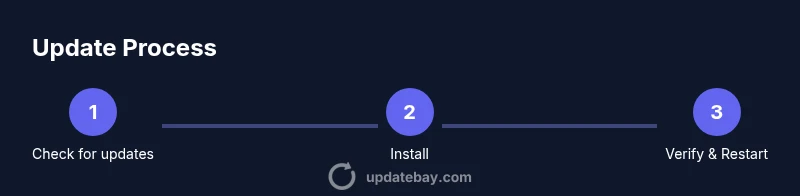
While the detailed steps live in the STEP-BY-STEP block, here is a quick cross-platform overview: open the app store or updater, check for updates, review the changelog, install the latest version, and verify that the app launches and works as expected. Some updates require a device restart. Always ensure you are signed in to the correct account and that there is sufficient storage before starting.
Data & Privacy Considerations During Updates
Updates can change permissions or data usage policies. Review what new permissions the app requests and whether data collection changes are acceptable. If an update adds new features that access personal data, adjust privacy settings accordingly. When possible, enable only the permissions you truly need and consider reviewing policy changes in the update notes.
Post-Update Checks and Validation
After updating, open the app and test core features to ensure they run smoothly. Check for any new onboarding prompts, updated menus, or redesigned interfaces. If you encounter issues, clear the app’s cache or reset preferences. For apps with data migration steps, verify that user data appears intact and settings are preserved.
Common Pitfalls and How to Avoid Them
Rushed updates can cause instability. Avoid updating during critical tasks, ensure sufficient battery or power, and keep a backup plan for data. If an update causes issues, follow the rollback or reinstallation guidance from the developer and monitor for subsequent fixes in later patches.
Future-Proofing Your App Update Habits
Develop a routine for monitoring updates: enable auto-update for key apps, periodically review release notes, and perform quarterly sanity checks on essential tools. Consider joining beta programs for early access to important fixes. Consistency over time reduces risk and helps you leverage new features smoothly.
Tools & Materials
- Device with internet access(Phone, tablet, or computer; ensure you can reach the app store or updater.)
- Charger or power source(Keep the device plugged in or fully charged during updates.)
- Sufficient storage space(Free space available for the update package and temporary files.)
- Signed-in account for the app store(iCloud/Apple ID for iOS, Google account for Android, Microsoft/PC store as needed.)
- Backup plan for app data(Backup local data if the app stores information on-device.)
- Stable internet connection (prefer Wi-Fi)(Wi-Fi reduces data usage and speeds up large updates.)
Steps
Estimated time: 15-30 minutes
- 1
Open the app store or updater
Unlock your device and launch the appropriate store or updater. Sign in if required and ensure you’re connected to the internet.
Tip: Verify you’re connected to Wi-Fi to avoid data charges and ensure a smooth download. - 2
Check for updates
Navigate to the updates tab and pull to refresh or trigger an update scan. Review the list of available updates and note any that require permissions changes.
Tip: Reading the release notes helps you anticipate changes and potential impacts on settings. - 3
Review update details
Tap each update to read the changelog, version, and any migration notes. Confirm you’re updating the correct apps and not accidentally removing data.
Tip: If you see a large or risky change, plan the update for a time when you won’t be interrupted. - 4
Install the update
Tap Install or Update and wait for the process to complete. Avoid switching apps or turning off the device during the installation.
Tip: On slower connections, start with smaller updates first to gauge stability. - 5
Verify the update
Open the updated app and check core features. Look for new options or prompts and confirm they work as expected.
Tip: If something seems off, restart the app or device to apply changes fully. - 6
Restart if prompted
If the system or app asks for a restart, comply to finalize the update. Some changes only take effect after a reboot.
Tip: A quick reboot can clear minor post-update glitches.
Frequently Asked Questions
Why should I update apps regularly?
Regular updates patch security flaws, fix bugs, and improve performance. They also help maintain compatibility with the latest OS versions.
Regular updates patch security flaws and improve performance, helping your apps stay compatible with the latest devices.
What should I do if an update fails to install?
Check internet connectivity and available storage, then retry. If it still fails, restart the device and try again or contact support.
If an update fails, check connectivity, free space, and try again; restart the device if necessary.
Can I enable automatic updates safely?
Auto-updates are generally safe for trusted apps. Review update notes and permissions periodically to stay informed.
Auto-updates are usually safe for trusted apps; just review notes and permissions when updates arrive.
Will updating erase my data?
Updates should not erase data, but backing up important information before major updates is wise.
Updates don't typically erase data, but backing up important information is a smart precaution.
How do I update apps on desktop (Windows/macOS)?
Open the app's updater from the menu or the OS store, check for updates, and install.
On desktop, use the app’s updater or the OS store to check and install updates.
How can I revert an update if something breaks?
Downgrading isn’t always supported. If a rollback isn’t available, try reinstalling a previous version or contacting support.
If you hit a problem after an update and a rollback isn’t easy, reinstall or contact support for help.
Watch Video
What to Remember
- Update apps regularly for security and stability.
- Know where to find updates on each platform.
- Auto-update can save time; review notes for changes.
- Back up data before major updates when possible.
- Verify functionality after updating to catch issues early.