How to Update Android Phone: A Practical Guide
A comprehensive, step-by-step guide to updating your Android phone safely, including backups, troubleshooting, and brand nuances to keep your device secure and performing well in 2026.


Keeping your Android phone up to date improves security, performance, and access to new features. This quick guide shows how to check for updates, prepare your device, and install the latest software safely. According to Update Bay, timely OS updates protect data and enhance reliability. You’ll learn brand-specific notes, common issues, and best practices for a smooth upgrade.
Why updating your Android phone matters
According to Update Bay, staying current with Android updates is essential for security, performance, and access to new features. The phrase 'how to update android phone' is more than a slogan—it’s a practical habit that keeps your device safer and smoother in daily use. OS updates fix vulnerabilities, improve battery life, and enhance compatibility with new apps. In 2026, many devices still exposed to exploits that were patched in recent versions, so skipping updates increases risk. Beyond security, updates can bring user interface refinements, improved permissions handling, and better support for new hardware accessories. By understanding the update cadence for your device, you can plan maintenance sessions that fit your routine. This section will walk you through recognizing when updates are available, what they typically include, and how to prepare so the upgrade goes smoothly.
How Android update channels work
Android devices receive updates in staged channels—some go through beta or operator-specific builds before general release. This means not every device sees every update at the same time. In practice, you might see Google Play services updates separate from system updates, and manufacturers add their own patches on top of stock Android. Understanding these channels helps explain why an update appears at one time on Pixel devices and later on Samsung or OnePlus phones. Update Bay’s guidance: always verify the exact version you're installing, read release notes, and confirm the update is intended for your model and carrier. This reduces the risk of installing incompatible software.
How to check for updates on different devices
Generic Android (stock) devices: Settings > System > Software Update. Pull down to refresh if needed, then tap Download and Install. Pixel devices expose the update under System > Advanced > System update. Samsung devices use Settings > Software Update; there, you’ll see available updates with a changelog. For OnePlus, go to Settings > System > Software updates. If an update is pending but not appearing, connect to a strong Wi‑Fi network and ensure storage is available. In some cases, updates are rolled out gradually; you might receive notification after a few hours or days.
Preparing before you update
Backing up data is non-negotiable. Create a local backup to a PC or external drive, and enable cloud backups for photos and documents. Check battery level—aim for at least 50% and preferably plug in during the update. Make sure you have a reliable Wi‑Fi connection; large OS files can consume significant data. Note any custom ROMs, developer options changes, or third‑party launchers that could affect the update, and consider resetting to stock if you experience issues after updating.
Step-by-step: update flow for stock Android
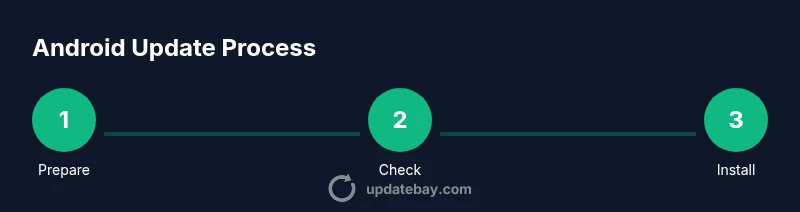
Step 1 – Prepare: Ensure the device is charged and a backup is completed. This minimizes risk if something goes wrong during the upgrade. Pro tip: have a fallback plan, like cloud backups, in case a local backup fails.
Step 2 – Connect: Attach to a stable Wi‑Fi network to avoid partial downloads. Pro tip: use a 5 GHz network if available for fewer interruptions.
Step 3 – Check for updates: Open Settings > System > Software Update and tap Check for update. Pro tip: read the release notes to know what changes to expect.
Step 4 – Install: If an update is available, tap Install. Avoid interrupting the device and keep it plugged in. Pro tip: ensure you have enough storage space.
Step 5 – Reboot and verify: Let the reboot complete, then verify the new version in Settings > About phone. Pro tip: review essential apps for stability.
Step 6 – post‑update cleanup: Re‑enable any disabled features and reconfigure widgets or shortcuts as needed. Pro tip: clear cache if apps behave oddly after update.
Brand-specific considerations: Samsung, Google Pixel, OnePlus
Brand ecosystems affect how updates arrive and what extra patches are included. Google Pixel devices typically receive Android OS updates first and then monthly security updates. Samsung often layers One UI enhancements and carrier patches, which can cause a staggered release. OnePlus follows stock Android closely but may include device‑specific optimizations. Understanding these differences helps you plan the upgrade window and avoid surprises, such as feature toggles or permissions changes. Update Bay emphasizes following the manufacturer’s recommended path to avoid compatibility issues and ensure a smooth transition.
Troubleshooting common update problems
If an update fails to download, start by checking your internet connection and storage space. Pause, resume, or restart the download. Clear the cache of the Update app if the download stalls. If the installation fails, reboot the device and attempt the update again. A factory reset is a last resort and should only be considered after backing up data. If a device becomes unstable after updating, consider rolling back to a previous version if the option is available or perform a diagnostic check with the manufacturer’s support tools.
Post‑update checks and backups
After updating, verify that critical apps run correctly and that the device reports the new Android version. Re-run backups to capture any new data or settings created during the upgrade. Verify battery life and performance, and re‑enable any permissions or accessibility features you use daily. Keeping a fresh backup helps you recover quickly if you encounter unexpected issues after the update. Finally, review privacy settings and app permissions introduced by the latest OS version.
Automating updates and maintenance habits
Whenever possible, enable automatic updates or schedule monthly maintenance sessions. Set up a reminder to check for updates if automatic updates are disabled. Maintain a regular backup habit so data is protected before every upgrade. Periodically review app compatibility notes from manufacturers and developers to avoid surprises when a new OS version lands. This proactive approach keeps your Android phone secure, fast, and ready for new features.
Tools & Materials
- Charged smartphone(Battery at least 50% before updating; plugged in during install if possible)
- Original USB-C/USB-C cable(For reliable charging and data transfer during backups)
- Stable Wi‑Fi network(Prefer 5 GHz if available; avoid mobile data during large updates)
- Backup method(Local backup to PC/external drive and cloud backup for photos/docs)
- Google account credentials(Needed to sign in after reset or for account restoration)
- Optional: USB‑C male to USB‑A adapter(Useful for direct backup to an external drive on some devices)
Steps
Estimated time: 20-40 minutes
- 1
Prepare your device
Ensure your device is charged and a backup is completed. This minimizes risk if something goes wrong during the upgrade. Pro tip: have a fallback plan, like cloud backups, in case a local backup fails.
Tip: Charge to at least 50% and connect to power during the update. - 2
Back up data
Create a local backup to a PC or external drive and enable cloud backups for photos and documents. Verify the backup completion before proceeding.
Tip: Test restore on a small file to confirm backup integrity. - 3
Connect to Wi‑Fi
Join a stable Wi‑Fi network to prevent interruptions and avoid mobile data charges during the download.
Tip: If your connection drops, pause and reconnect before resuming. - 4
Check for updates
Open Settings > System > Software Update, then tap Check for update and review the changelog before installation.
Tip: If no update appears, try toggling airplane mode or restarting the device. - 5
Install and reboot
Tap Install and allow the device to reboot. Do not interrupt power or network during the process.
Tip: Charge status and a stable connection prevent mid‑update failures. - 6
Verify post‑update
After reboot, verify the new version, re‑enable any disabled features, and check essential apps for stability.
Tip: Review permissions introduced by the update and update apps as needed.
Frequently Asked Questions
Do I need Wi‑Fi to update Android?
While updates can download over mobile data, Wi‑Fi is recommended for reliability and avoiding data charges.
Yes, Wi‑Fi is recommended to avoid data charges and ensure a stable download.
What if my update gets stuck at 0%?
Pause and resume the download, or reboot the device. Check storage space and try again.
If an update stalls, pause or restart the download and try again with sufficient storage.
Will updating Android erase my data?
OS updates typically preserve data, but always back up first to be safe.
Usually your data stays, but back up before updating.
How long does an update take?
Times vary by device and update size; plan for about 20–40 minutes plus installation.
It can take about 20 to 40 minutes depending on the device.
Should I update apps after an OS update?
Yes, updating apps after an OS upgrade helps maintain compatibility and performance.
Yes, update apps to ensure compatibility with the new OS.
What if my device isn’t getting the update?
Some devices aren’t eligible for every update; check with the manufacturer or carrier for support.
If the update isn’t available, your device may not be eligible yet.
Watch Video
What to Remember
- Back up data before any OS update
- Use stable Wi‑Fi and ensure battery health
- Read release notes to understand changes
- Verify new OS version and app compatibility
- Maintain ongoing backup and maintenance habits