Update Phone: A Practical How-To Guide for 2026
Learn how to update your phone safely, back up data, avoid common pitfalls, and verify post-update performance with practical tips from Update Bay.


Goal: Learn how to update your phone safely and effectively. This quick guide walks you through backing up data, ensuring sufficient power, connecting to a reliable network, checking for updates, performing the installation, and verifying that everything runs smoothly afterward. You’ll also get troubleshooting tips for common update hiccups and best practices to protect your privacy during the process.
Why Update Your Phone Matters
Keeping your phone up to date is about more than new icons and color schemes; it’s a frontline defense against security threats and a driver of performance improvements. In practice, regular updates patch known vulnerabilities, close gaps in encryption, and optimize how apps run on your device. The Update Bay team has observed that devices that are not updated tend to encounter more malware encounters and slower app responsiveness over time. By staying current, you reduce risk and extend device longevity. Updates also bring important privacy enhancements, new features for accessibility, and better energy management that can improve battery life for some users. While updating can feel disruptive, the long-term payoff is more secure, smoother device operation and a better user experience across apps and services. If you’re preparing for a major OS upgrade, expect a longer downtime than a routine security patch, but plan accordingly with a backup and a charged device. The key is consistency: schedule updates when you can monitor and verify success. As always, approach updates with a plan and a backup plan in case something goes sideways.
When to Update Your Phone
Updates fall into a few broad categories: security patches, feature improvements, and major OS releases. Security patches are usually rolled out regularly to fix vulnerabilities and bolster defenses against new threats. Feature updates deliver user interface refinements and new capabilities, while major OS upgrades can bring substantial changes to settings, privacy controls, and app compatibility. For most users, enabling automatic updates for both the OS and essential apps is the simplest path to staying current. However, it’s wise to review update notes before installation to understand what changes are coming and whether any apps you rely on may need adjustments. If you rely on critical work apps, consider timing updates when you have a window to address potential compatibility tweaks. The Update Bay analysis shows that timely updates correlate with fewer reported security incidents and smoother app performance over time. Always ensure your phone is on a power source and connected to a stable network during these updates to minimize risk.
How Updates Work: OS vs App Updates
Operating system (OS) updates are released by the device maker or platform owner and typically include core security patches, system enhancements, and new privacy controls. App updates, distributed through official stores, keep individual applications compatible with the evolving OS. Both types may require restarting the device, and some devices perform staged rollouts to minimize disruption and quickly rollback if issues occur. Understanding the difference helps you set expectations: OS updates are broader and may alter settings, while app updates are more frequent and targeted. The goal is coherence across software and hardware: OS stability enables apps to run efficiently, and app updates ensure you can take advantage of new OS features safely. In practice, expect updates to arrive in waves, with some devices receiving updates earlier than others due to carrier or manufacturer scheduling.
How to Prepare Before Updating
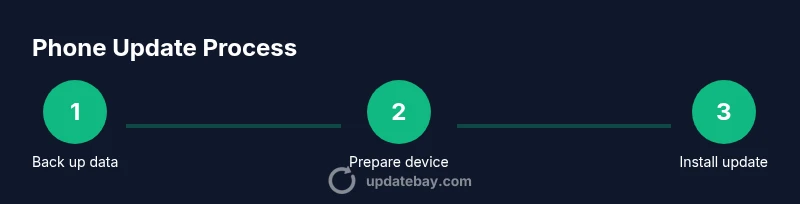
Preparation reduces the risk of update failures and data loss. Start with a full backup of photos, contacts, messages, and documents. Ensure the device has sufficient power or is plugged in, and connect to a reliable Wi‑Fi network to download large update files without consuming mobile data. Clear some storage if needed by moving media to cloud storage or a computer, because updates require space for temporary files and installation progress. Review installed apps for compatibility issues, and note any accounts or services you’ll need to re‑authenticate after the update. If your device supports a battery optimization feature during updates, consider temporarily disabling it to prevent the system from throttling performance mid‑install. Finally, check that you’re running the latest version of any critical security apps and that your device is set to auto‑update for future protections.
What to Expect During the Update Process
During an update, the device will typically download the update package, verify integrity, and apply changes during installation. You may see a progress bar, announcement screens, and several automatic reboots. The install phase is the critical moment where power stability matters most; a sudden power loss can corrupt the update. Plan for downtime and avoid using the device for heavy tasks while the update is in progress. After installation completes, the device will boot into the new system, and you’ll be prompted to review settings, enable new privacy options, and re‑sign into accounts as necessary. Expect a short period of adjustment as apps update in the background. If you encounter long stalls, check your network connection, confirm sufficient storage, and consider restarting the process or seeking official support.
Troubleshooting Update Failures
If an update fails to install, first verify power and connection are stable, then retry. Check for enough free storage space and clear temporary cache if needed. Some devices offer an option to install updates offline via a downloaded file; this can be helpful in poor connectivity areas. If the update still fails, consult the device manufacturer’s support page for known issues and recommended solutions. In many cases, removing a problematic app or temporarily disabling security software can help, but be sure to re‑enable protections after the update succeeds. When all else fails, rolling back to the previous OS version is not typically recommended and should only be attempted with official guidance.
Privacy, Security, and Aftercare
After updating, review privacy and security settings to take advantage of new protections. Re‑authenticate accounts, review app permissions, and enable any new biometric or passcode options provided by the update. Turn on automatic updates where appropriate to ensure ongoing protection against emerging threats. Keep an eye on battery performance and memory usage, as some updates can temporarily alter system behavior before stabilization. Update Bay emphasizes practicing good digital hygiene: maintain backups, monitor app permissions, and stay informed about post‑update notes from the device maker. Regular updates are a core component of long‑term device health and data security.
Final Checks After Update
Conclude the process by verifying system version, checking critical apps, and ensuring settings reflect your preferences. Confirm that Wi‑Fi and Bluetooth work as expected, and test features like camera, messaging, and security apps. If you use cloud storage or syncing services, verify that new data is properly backed up post‑update. Finally, bookmark the update notes and check back periodically for any follow‑up patches or minor improvements. A well‑managed update routine reduces friction and preserves performance over time.
Tools & Materials
- Phone charged to a healthy level(Keep above 50% if possible; use the original charger when available)
- Stable Wi‑Fi connection(Prefer private, non-metered network; avoid public hotspots during downloads)
- Backup storage (cloud or computer)(Back up contacts, photos, messages, and documents)
- Sufficient device storage(Free space for the update and temporary files)
- USB cable and computer (optional)(Useful for manual update methods on some devices)
- List of important apps and accounts(Have login credentials handy for post‑update sign‑ins)
Steps
Estimated time: varies by device
- 1
Back up your data
Back up photos, contacts, messages, and documents using cloud storage or a computer. Verify that the backup completed successfully and note the time it finished. Having a current backup minimizes data loss if something goes wrong during the update.
Tip: Ensure the backup includes your most important items first (photos and contacts). - 2
Charge and prepare
Plug the device into power and close unused apps to reduce interference during the update. If you’re on battery power, consider delaying the update if the battery is low to avoid a mid‑install shutdown.
Tip: Avoid starting updates when you’re low on battery; a steady power source reduces risk. - 3
Connect to a reliable network
Connect to a stable Wi‑Fi network to download the update and prevent data overages. If your network is unstable, pause other heavy downloads and retry once the connection stabilizes.
Tip: Prefer 5 GHz networks for better stability during large downloads. - 4
Check for updates
Open Settings and navigate to Software Update or System Update. Tap Check for updates and review the update notes before proceeding so you know what features or fixes you’re getting.
Tip: If you see a critical update, prioritize installation and read the security notes. - 5
Install and monitor
Start the installation and let the device reboot as needed. Do not interrupt the process. After reboot, confirm that the OS version shows the new build and sign back into necessary accounts.
Tip: If asked, temporarily disable battery saver or performance mode during install. - 6
Verify and re‑enable protections
Open a few essential apps, recheck permissions, and ensure security features are enabled. Reinstall updates for any apps that didn’t auto‑update, and re‑enable automatic updates if you turned them off for the install.
Tip: Check for post‑update app updates in the store to ensure compatibility.
Frequently Asked Questions
How do I know if an update is available for my phone?
Check Settings > System > Software Update. If an update is available, you’ll see a prompt with details and an install button.
Open Settings and look for Software Update to see if a new version is available.
Will updating erase my data?
Updates usually preserve data, but backups are essential in case something goes wrong during installation.
Usually updates don’t wipe your data, but back up first just in case.
What should I do if the update fails to install?
Cancel the install, restart the device, ensure power and a stable network, and retry. If it still fails, consult official support resources.
If it fails, reboot and try again with a stable connection.
Is it okay to delay updates?
Delaying updates can leave your device vulnerable to known threats. Weigh feature benefits against risk and install critical updates promptly.
Delaying can be risky; consider security and stability when deciding.
How can I protect privacy after updates?
Review app permissions, enable automatic updates where appropriate, and use biometric locks or passcodes for added protection.
Check permissions and security settings after updating.
Do updates always improve battery life or performance?
Updates can fix bugs that affect battery and performance, but results vary by device and usage patterns.
Updates may help performance, but it isn’t guaranteed for every device.
Watch Video
What to Remember
- Back up before updating
- Keep device charged during the process
- Use Wi‑Fi to download updates
- Verify post‑update OS version and apps
- Enable automatic updates for ongoing protection