Update Apps Without Play Store: A Step-by-Step Guide
Learn practical steps to update Android apps without the Google Play Store, including ADB sideloading, trusted alternative stores, and safety best practices to protect your device.


According to Update Bay, you can update apps without Play Store by sideloading APKs, using trusted alternative stores, or via enterprise distribution. Each method has security risks and setup steps, so choose the approach that matches your device and risk tolerance. This guide walks you through steps, tools, and safety tips to keep your updates reliable and secure.
Why updating without Play Store matters
In a world where devices evolve quickly and regional restrictions differ, updating apps without the Google Play Store can be a practical option. You might be offline, have a device that doesn't currently support Play, or need to deploy a custom app within a company. Update without Play Store still requires trust, verification, and caution to avoid malware or incompatible updates. This section explains why this approach is sometimes necessary, and how to choose the safest path for your situation. By understanding the risks and benefits, you can maintain an up-to-date app set without compromising device security or user experience.
Methods to update without Play Store
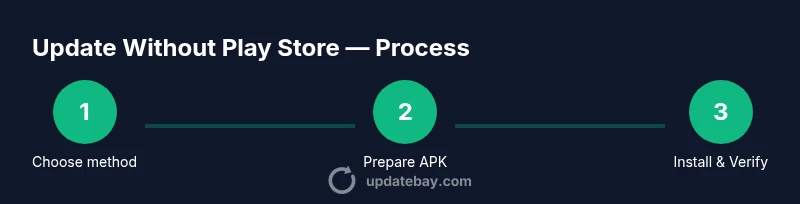
There are several viable strategies to keep apps current without using Google Play. The most common are (1) sideloading APK updates from trusted sources, (2) using alternative app stores that provide verified updates, and (3) enterprise or private distribution for organizations. Each method has its own prerequisites, benefits, and potential drawbacks. Sideloading offers direct control but requires vigilance about APK integrity. Alternative stores expand options but demand scrutiny of the source. Enterprise distribution provides controlled deployment but requires management tooling. This section outlines how these approaches differ and how to pick the right one for your device and risk tolerance.
Step-by-step: ADB sideload (sideload via USB or network)
Aero steps here focus on ADB-based installation, a common path to update apps without Play Store when you control the device. You’ll need to enable developer options and USB debugging, install ADB on your computer, and authorize the device. Then you’ll install the APK file with a command such as adb install -r app-update.apk. After installation, verify the app version and functionality. This method keeps updates under your control and avoids the Play ecosystem, but it requires careful handling of APK sources and device security settings.
Using alternative app stores securely
Alternative stores can provide legitimate update channels outside Play Store, including F-Droid and other curated stores. When using these stores, verify the store’s reputation, review permissions, and check for malware indicators. Always download from official pages, compare versions with the developer’s site, and enable security features like Play Protect or equivalent. This section covers how to choose a reputable store, set up an account if required, and manage updates safely without relying on Play.
Safety, permissions, and risk management
Sideloading and third-party stores raise security considerations. Always verify APK signatures when possible and avoid apps that request excessive permissions. Enable-install restrictions to limit unexpected software changes, and re-enable any security settings after updates. Keep backups of important data, and consider using a dedicated test device for new APKs before rolling updates to your primary device. This section also discusses how to detect tampered files and how to respond if a device flags a warning.
Troubleshooting common issues when updating without Play Store
Update failures can stem from signature mismatches, incompatibilities with OS version, or blocked installations from unknown sources. If an APK won’t install, check the APK signature, version compatibility, and whether the device allows installations from the chosen source. Ensure USB debugging is authorized, the device has enough storage, and you’re using the correct architecture (ARM vs x86). If the update causes instability, roll back by uninstalling the problematic app or restoring from a backup.
Compliance and best practices for updates outside Google Play
If you’re updating outside Play Store, stay aligned with local laws and vendor policies. For businesses, establish an approval workflow, device enrollment, and a tested update catalog. Document the APK sources, signatures, and version numbers to maintain traceability. Regularly audit devices for outdated apps and security patches. This approach emphasizes governance, risk management, and consumer trust while avoiding ad-hoc updates.
Practical tips for staying current without Play Store
Maintain a habit of verifying sources, bookmarking official APK pages, and testing updates on a controlled device first. Keep a clean backup strategy and a recovery plan in case a sideloaded app behaves unexpectedly. Consider creating a lightweight automation to check for new versions on trusted sources. This wrap-up provides handier tips to keep your device secure while updating apps without Play Store.
Tools & Materials
- Android device(To update apps without Play Store you’ll need a device running a compatible Android version)
- USB cable(For direct connections during ADB sideload or file transfer)
- Computer with ADB installed(Android Debug Bridge (ADB) should be set up and recognized by your device)
- APK files from trusted sources(Only download from reputable sites; verify signatures when possible)
- Backup solution (optional but recommended)(Backup data before sideloading or installing unknown apps)
- Alternative app store account (optional)(If using stores like Amazon Appstore or F-Droid, have accounts ready)
Steps
Estimated time: 60-90 minutes
- 1
Enable developer options and USB debugging
On your Android device, go to Settings > About phone and tap Build number seven times to unlock Developer options. Then return to Settings > System > Developer options and enable USB debugging. This prepares the device for a direct update workflow.
Tip: Keep USB debugging off when not actively updating to reduce risk. - 2
Install and authorize ADB on your computer
Install the Android Debug Bridge (ADB) tooling on your computer and connect the device via USB. When prompted on the device, authorize the computer to communicate with ADB.
Tip: Use the official platform-tools package from Android Developers to avoid tampered binaries. - 3
Download a trusted APK update
Obtain the APK update from a reputable source; compare the version against the developer's site if possible and check the file size and hash where available.
Tip: Avoid APKs from unverified forums or random file hosts. - 4
Install the APK using ADB
Place the APK on your computer or directly on the device, then run adb install -r path/to/app-update.apk to update the app in place.
Tip: Use -r to replace existing apps while preserving data where supported. - 5
Verify the update
Launch the app and check the version number in Settings or About to confirm the update succeeded. Monitor for any unusual permissions requests.
Tip: If the app crashes, revert to backup and try a different APK version. - 6
Troubleshoot installation failures
If you see a signature mismatch or incompatibility, verify you downloaded the correct variant (ABI/architecture) and that the signature matches the source. Reattempt with a fresh APK if needed.
Tip: Double-check device storage and USB connection stability before retrying. - 7
Re-secure the device after updating
Disable USB debugging if you do not need it actively and consider re-enabling Play Protect or built-in malware protection.
Tip: Maintaining a secure baseline reduces risk from future sideloads. - 8
Optional: update via alternative store
If you use an alternative app store, install its app, then search for the target update and apply it as you would on Play Store.
Tip: Rely on stores with transparent update histories and clear malware policies.
Frequently Asked Questions
What does update without Play Store mean?
It means updating Android apps through methods other than the Google Play Store, such as sideloading APKs or using alternative stores. Each method requires trust in the source and attention to security.
Update without Play Store means updating apps via APKs or other stores, with careful source verification.
Is sideloading safe for my device?
Sideloading can be safe when you download from reputable sources and verify signatures. It carries more risk than using Play Store, so backup data and use trusted APKs only.
Sideloading is safe if you verify sources and back up data, but it carries more risk than official channels.
Will updates from outside Play Store auto-install like Play updates?
Updates from outside Play Store usually require manual installation or a trusted auto-update setting within an alternative store. Automatic updates depend on the store’s capabilities and device policies.
Auto-updates outside Play Store depend on the source store and device settings.
Can I update iOS apps without the App Store?
This guide focuses on Android devices. iOS has a tightly controlled update channel through the App Store, making replacements outside the official store uncommon and riskier.
This guide covers Android; iOS uses the App Store for updates.
What should I do if an APK is flagged as unsafe?
Do not install. Stop, delete the APK, and verify your source or switch to a trusted store. Reassess the need for the update and consider an official channel if possible.
If flagged unsafe, do not install and verify your source.
Are there policy or legal concerns with sideloading updates?
Policy considerations vary by organization and region. For personal devices, comply with local laws and device warranties. Enterprise deployments should align with internal security policies.
Check local laws and your organization's policies about sideloading.
Watch Video
What to Remember
- Choose a trusted update path and source.
- Back up data before sideloading.
- Verify APK signatures and device compatibility.
- Test updates on a safe device first.
- Re-secure settings after completing updates.