Windows Update Won't Install: Urgent Troubleshooting Guide
Facing the dreaded 'windows update won't install'? This urgent guide from Update Bay walks you through quick checks, a diagnostic flow, and step-by-step fixes to get updates back on track—fast and safely.


windows update won't install: common causes
The symptom windows update won't install is a signal that something in the update pipeline is misconfigured or damaged. Common culprits include corrupted update components, a misconfigured system clock, insufficient disk space, or interference from security software. According to Update Bay, these root causes explain the majority of blocked updates, and addressing them in order saves time. Understanding the failure context helps you choose the right fix without unnecessary tinkering.
Another frequent factor is software conflicts, particularly aggressive antivirus or firewall rules that block Windows Update traffic. In rare cases, outdated drivers or a faulty BIOS can create instability when the system tries to apply patches. By prioritizing the simplest checks first, you reduce risk and prevent unnecessary changes to your PC.
From an overall perspective, treating Windows Update as a service that relies on multiple moving parts—network, storage, and security tools—helps you see why seemingly small issues can stall installation. The Update Bay approach emphasizes methodical testing rather than random tinkering to minimize data loss and downtime.
Quick Checks You Can Do Before Diving In
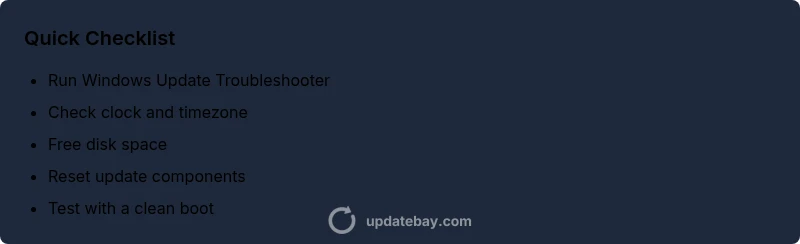
- Verify the system clock is correct (date, time, and time zone). Mismatches can cause update failures.
- Ensure you have enough free disk space for downloads, unpacking, and installation. Clear temporary files if space is tight.
- Temporarily disable non-Microsoft antivirus or firewall rules that could block update traffic, then retry.
- Confirm the device is connected to the internet and Microsoft servers are reachable (no proxy or VPN misconfigurations).
- Check for pending restarts; a stuck reboot can block subsequent updates.
- Run the built-in Windows Update Troubleshooter from Settings > Update & Security > Troubleshoot (or Additional troubleshooters).
If any of these basic checks resolve the issue, you’ve saved time and avoided deeper repairs. If not, proceed to the diagnostic flow below for deeper insights.
Diagnostic Toolkit: Logs, Codes, and Settings
To pinpoint the fault, gather a few context points: the exact update name, any error message shown, and the time of the failed attempt. Update Bay analysis shows that most failures relate to corrupted components or misconfigured services rather than a single rogue cause. Examine the Update History page for failed attempts and note the error text. Review Event Viewer under Windows Logs > System and Applications for relevant warnings or errors around the update time. If you see repeated patterns (e.g., service not running, access denied, or network errors), you’ll know where to focus next.
Also check essential services: Windows Update, Background Intelligent Transfer Service (BITS), Cryptographic Services. Ensure they’re running and set to automatic. If a service is disabled, restarting it can re-enable the update flow. Collecting these data points will help you communicate with support or when applying advanced fixes.
Flow: Symptom → Diagnose → Solutions
The diagnosing flow starts from the symptom (update failed) and moves toward concrete solutions: first test quick fixes, then configure services, repair the Windows image if needed, and finally consider a repair installation if the issue persists. Following a structured path reduces guesswork and protects your files. Keep in mind that some steps can affect system stability; proceed in order and stop if you notice unexpected results.
Step-By-Step Fixes That Solve Most Cases
- Run the Windows Update Troubleshooter to automatically detect and fix common problems. This is the safest first step and can resolve many issues without manual edits.
- Tip: Run as Administrator when prompted to ensure full permissions.
- Reset Windows Update components by stopping update services, renaming SoftwareDistribution and Catroot2, then restarting services. This clears stuck downloads and resets the update pipeline.
- Tip: Back up any pending downloads before starting the reset.
- Repair the Windows image with DISM and SFC. DISM cleans up the component store, and SFC fixes corrupted system files that can stall updates.
- Tip: Run DISM first, then SFC, and reboot after each step.
- Check disk space and storage settings. Free space should be ample for download, unpacking, and installation; use Disk Cleanup or Storage Sense to reclaim space.
- Tip: Move large files to another drive if possible during a busy update cycle.
- Consider a clean boot or temporary antivirus disable. A clean boot can reveal software conflicts, and temporarily disabling antivirus can determine if it’s blocking updates.
- Tip: If you disable antivirus, re-enable it after testing and keep real-time protection enabled when possible.
Safety, Backups, and When to Seek Help
Before making system-level changes, back up important data. These fixes are generally safe, but taking a backup protects you from accidental data loss. If you’re unsure about running command-line steps or editing services, seek help from a trusted technician or contact Update Bay support for guidance. In cases of repeated failure across multiple updates or devices, professional help is the fastest path to resolution.
Prevent Future Update Failures
- Keep Windows Update settings set to automatic so critical fixes install promptly.
- Regularly clean up disk space and monitor storage health to avoid space-related failures.
- Maintain a stable environment: avoid introducing new software during major updates and schedule updates during low-use periods.
- Review and test drivers after major updates, especially GPU and network adapters, to prevent post-update instability.